# Welcome to Trojan

Welcome to Trojan Terminal, the ultimate onchain exchange.

**Trojan's Terminal is the Ultimate Onchain Exchange. Your Edge in the Arena.**

<div align="center"><figure><img src="https://929272793-files.gitbook.io/~/files/v0/b/gitbook-x-prod.appspot.com/o/spaces%2F7NS5fH98vYksfOLmRuJn%2Fuploads%2FWpHruiVe1Xpd9ssq9Zhp%2Ftutsnippet%204mb.gif?alt=media&amp;token=0133d29e-a988-46e0-ad54-553cb2ee1cb2" alt="an animated gif showing a montage of close up details from the terminal"><figcaption></figcaption></figure></div>

Trojan's Terminal is a high-performance, intuitive crypto trading platform designed from the ground up for speed and precision. A tool that empowers every trader, from beginners to seasoned pros. Developed by the creators of the leading Telegram-based Solana trading bot, Trojan's Terminal brings battle-tested infrastructure to a **fully-integrated web platform**, delivering **unrivaled velocity** in a **powerful new terminal** built for the next era of trading.

Whether you’re sniping memecoin launches, managing a diverse portfolio, or just grinding quests to climb the Arena ranks, Trojan's Terminal gives you the **tools**, **data**, and **speed** to win.

## Your Edge Starts Here

<table data-view="cards"><thead><tr><th></th><th data-hidden data-card-cover data-type="image">Cover image</th></tr></thead><tbody><tr><td><a href="/trojan-basics"><strong>The Basics:</strong></a> Learn to use Trojan Terminal and dial in your settings.</td><td><a href="https://929272793-files.gitbook.io/~/files/v0/b/gitbook-x-prod.appspot.com/o/spaces%2F7NS5fH98vYksfOLmRuJn%2Fuploads%2FQ0qtCv9II4Zp8NDEYBp3%2FTrade%20screen%20panel%20highlighted%204k.png?alt=media&amp;token=be24c3b4-369d-4197-8044-d74d31b63f35">Trade screen panel highlighted 4k.png</a></td></tr><tr><td><a href="/trojan-arena"><strong>The Arena:</strong></a> Step into the Arena and start earning rewards.</td><td data-object-fit="cover" data-alt="Panel depicting Gold and Solana claims that come with participating in the Arena"><a href="https://929272793-files.gitbook.io/~/files/v0/b/gitbook-x-prod.appspot.com/o/spaces%2F7NS5fH98vYksfOLmRuJn%2Fuploads%2FZvckhGqcXvm74jRsvnFd%2Ftg_image_886913347.png?alt=media&amp;token=73c3c846-b465-4d63-8464-bdca343aa4b8">tg_image_886913347.png</a></td></tr><tr><td><a href="/faqs"><strong>FAQ:</strong></a> Get answers to common questions and learn more about Trojan.</td><td><a href="https://929272793-files.gitbook.io/~/files/v0/b/gitbook-x-prod.appspot.com/o/spaces%2F7NS5fH98vYksfOLmRuJn%2Fuploads%2FlMZNJG1JBcsr8CEPlg9j%2FSol%20trojan.png?alt=media&amp;token=265ad5ba-5e22-441d-b400-0a5b894ce77a">Sol trojan.png</a></td></tr></tbody></table>


# The Basics

If you are new to Trojan Terminal, start here!

Whether you're new to trading onchain or just new to Trojan, check out a few basics to get you started.&#x20;

{% columns %}
{% column width="33.33333333333333%" valign="bottom" %}

<figure><img src="https://929272793-files.gitbook.io/~/files/v0/b/gitbook-x-prod.appspot.com/o/spaces%2F7NS5fH98vYksfOLmRuJn%2Fuploads%2FPPmNeysXMLbTWcH6DXfR%2FLogin%20inc%20google.png?alt=media&amp;token=46443d92-273c-439f-a7d9-eb133755eb02" alt="The Sign in screen with a focus on wallet selection"><figcaption></figcaption></figure>
{% endcolumn %}

{% column width="33.33333333333333%" valign="bottom" %}

<figure><img src="https://929272793-files.gitbook.io/~/files/v0/b/gitbook-x-prod.appspot.com/o/spaces%2F7NS5fH98vYksfOLmRuJn%2Fuploads%2FH47Yzw04FaNMxENGMWg9%2Fdeposit%20screen%20new.png?alt=media&amp;token=fb8736ca-8df9-4d11-bf1b-d25538393f82" alt="The deposit fund panel"><figcaption></figcaption></figure>
{% endcolumn %}

{% column width="33.33333333333334%" valign="bottom" %}

<figure><img src="https://929272793-files.gitbook.io/~/files/v0/b/gitbook-x-prod.appspot.com/o/spaces%2F7NS5fH98vYksfOLmRuJn%2Fuploads%2FfQ7rokXi7xSN4pqawKz2%2FUI%20settings%20cropped%20.png?alt=media&amp;token=c202ba74-47f7-4b12-b880-45eb462cd4c6" alt="U.I. Settings panel"><figcaption></figcaption></figure>
{% endcolumn %}
{% endcolumns %}

{% columns %}
{% column width="33.33333333333333%" %}

<p align="center"><a data-mention href="/trojan-basics/trojan-signup-login">Signup / Login</a></p>

<p align="center">First things first, where do you begin? Find out how to get started here!</p>
{% endcolumn %}

{% column width="33.33333333333333%" %}

<p align="center"><a data-mention href="/trojan-basics/buy-crypto-deposit-funds-on-trojan">Buy / Deposit Funds</a></p>

<p align="center">Learn how to buy and deposit funds to start trading.</p>
{% endcolumn %}

{% column width="33.33333333333334%" %}

<p align="center"><a data-mention href="/trojan-basics/settings">Settings</a></p>

<p align="center">Learn how to create a personalized experience. Make Trojan yours. </p>
{% endcolumn %}
{% endcolumns %}

***

{% hint style="success" %}
Already logged in and ready to learn more? Check out our [Trading](/trading-on-trojan/trojan-swaps) and [Overview](/terminal-overview/meme-coin-trenches) sections for deeper insight into every feature Trojan offers to help you develop your edge!
{% endhint %}


# Signup / Login

Learn how to sign up for a new account and log in to Trojan.com

**First time using Trojan or a returning user looking to log back in?**\
Choose a method, follow the path, and jump right in:

{% tabs %}
{% tab title="Signup / Login with a Wallet" %}
To sign up or log in with a Wallet:

* Go to the [Terminal.](https://trojan.com/terminal)&#x20;
* Trojan automatically detects installed wallets.
* Select your preferred wallet (e.g., **Phantom**).

<div align="left"><figure><img src="https://929272793-files.gitbook.io/~/files/v0/b/gitbook-x-prod.appspot.com/o/spaces%2F7NS5fH98vYksfOLmRuJn%2Fuploads%2FPPmNeysXMLbTWcH6DXfR%2FLogin%20inc%20google.png?alt=media&amp;token=46443d92-273c-439f-a7d9-eb133755eb02" alt="Trojan login screen depicting the users installed Solana wallets." width="188"><figcaption></figcaption></figure></div>

* **Approve** the authentication request in your wallet.
* You’re now logged into your (new) Trojan account.
* If it's your first time logging in, claim a Username. This will be your referral link, so choose wisely.
* You can **fund your wallet**, or skip for now and check out [Buy / Deposit Funds](/trojan-basics/buy-crypto-deposit-funds-on-trojan) later.
* Alternatively, you can **import** a trading wallet at any time with the steps from [Wallet Management](/trading-on-trojan/wallet-management).

<div align="left"><figure><img src="https://929272793-files.gitbook.io/~/files/v0/b/gitbook-x-prod.appspot.com/o/spaces%2F7NS5fH98vYksfOLmRuJn%2Fuploads%2FWT1LX5VFn4OpGRyhTTRi%2Fsetup%20account%204k.png?alt=media&amp;token=a49cf37e-cb01-4cde-916b-80491d9d4dc8" alt="Early login screen offering the users the option to deposit funds or import an existing wallet" width="188"><figcaption></figcaption></figure></div>

* Welcome to Trojan's Terminal. The Ultimate Onchain Exchange for trading crypto.
  {% endtab %}

{% tab title="Signup / Login with a Passkey" %}
{% hint style="info" %}
A Passkey is a secure, passwordless login method linked to your device. Passkeys use biometric or PIN-based authentication and are resistant to phishing. They’re fast, easy, and safer than traditional passwords.
{% endhint %}

To sign up or log in with a Passkey:

<div align="left"><figure><img src="https://929272793-files.gitbook.io/~/files/v0/b/gitbook-x-prod.appspot.com/o/spaces%2F7NS5fH98vYksfOLmRuJn%2Fuploads%2FMJwLPDvyH5hA4w83Fzn3%2Fsign%20up%20or%20login%20passkey.jpg?alt=media&amp;token=315b6e54-268c-4db1-bea2-4ebd3786c532" alt="Panel for signing in with a passkey" width="188"><figcaption></figcaption></figure></div>

* Go to the [Terminal](https://trojan.com/terminal)
* Select **Passkey.**
* Click **Sign up (or Login) with Passkey.**
* Follow your device’s instructions to complete setup or log in.
* You’re now logged into your (new) Trojan Terminal account.
  {% endtab %}

{% tab title="Signup / Login with Google" %}
To Login to Trojan Terminal with your Google account:

* Select **Continue with Google** under the login options

<div align="left"><figure><img src="https://929272793-files.gitbook.io/~/files/v0/b/gitbook-x-prod.appspot.com/o/spaces%2F7NS5fH98vYksfOLmRuJn%2Fuploads%2F5qcGTk5E9Vv3aakitRwb%2Fcontinue%20with%20google.png?alt=media&amp;token=43f73994-92db-4506-b37f-5dc52a272de4" alt="" width="375"><figcaption></figcaption></figure></div>

* Choose your Google account, and proceed to login by clicking **Continue**.

<div align="left"><figure><img src="https://929272793-files.gitbook.io/~/files/v0/b/gitbook-x-prod.appspot.com/o/spaces%2F7NS5fH98vYksfOLmRuJn%2Fuploads%2FQfiDlJVY5Uvf6ra0TcqJ%2FSign%20in%20with%20google.png?alt=media&amp;token=e1314f93-0884-403b-b9c2-468f654dc21a" alt="" width="375"><figcaption></figcaption></figure></div>
{% endtab %}
{% endtabs %}

***


# Buy / Deposit Funds

Balance low? Here’s a quick guide on how to deposit or purchase trading funds directly in Trojan Terminal.

{% hint style="info" %}
Trojan Trading has integrated **MoonPay,** making it easy to buy crypto directly on Trojan's Terminal.

**MoonPay** is a trusted crypto payment provider that lets you buy digital assets instantly using a credit card, debit card, or other local payment methods. It's fast, secure, and beginner-friendly.
{% endhint %}

### **How to Buy SOL or Solana-based USDC**

1. Click the **+** button next to the wallet icon in the navigation bar, or go to the **Wallets** page \
   and click **+ Deposit**.
2. Choose which wallet to fund.
3. Click **MoonPay** at the bottom.
4. Follow the on-screen steps to complete your crypto purchase.

<figure><img src="https://929272793-files.gitbook.io/~/files/v0/b/gitbook-x-prod.appspot.com/o/spaces%2F7NS5fH98vYksfOLmRuJn%2Fuploads%2FMCeoSPqanXIg0xt5GpVN%2Fmoonpay%20button%204k.png?alt=media&amp;token=441a9fda-32d6-4e2d-b5e4-a57dee8b24ce" alt="close up of the &#x22;buy SOL with moonpay&#x22; button"><figcaption></figcaption></figure>

***

### How to Deposit

{% columns %}
{% column %}
&#x20;

1. Hover over the wallet icon in the navigation bar and click **Deposit**, or go to the **Wallets** page and click **+ Deposit**.
2. Choose which wallet to fund.
3. Click **Add funds using** **Connected Wallet** at the bottom.
4. Enter the amount of SOL to transfer from your login wallet.
5. Sign the transaction to complete the deposit.&#x20;
   {% endcolumn %}

{% column %}

<figure><img src="https://929272793-files.gitbook.io/~/files/v0/b/gitbook-x-prod.appspot.com/o/spaces%2F7NS5fH98vYksfOLmRuJn%2Fuploads%2Fwb3WGd0BzPIKO0rlJAyV%2F%20Deposit%20animated.gif?alt=media&amp;token=c521b9f7-5fb2-466d-a9b0-10de69e35cde" alt="Animated close up of the &#x22;deposit&#x22; section that focuses on adding funds via your connected wallet."><figcaption></figcaption></figure>
{% endcolumn %}
{% endcolumns %}

{% hint style="info" %}
You can also simply transfer from any Solana Wallet to the Trojan wallet address you want to fund.
{% endhint %}

{% hint style="danger" %}
Only deposit SOL or tokens on the Solana network to your wallet address.&#x20;
{% endhint %}

### How to Bridge

<figure><img src="https://929272793-files.gitbook.io/~/files/v0/b/gitbook-x-prod.appspot.com/o/spaces%2F7NS5fH98vYksfOLmRuJn%2Fuploads%2F1Z6vUXEr5ABkeePmXWn1%2Fdebridge%20banner%20button.png?alt=media&amp;token=911b1687-7493-4354-8abd-a954874d3c32" alt="close up banner of debridge logo and bridge funds from an chain text"><figcaption></figcaption></figure>

{% columns %}
{% column valign="middle" %}
Have funds in another chain? Use deBridge to move them over to Trojan.

1. Hover over the wallet icon in the navigation bar and click **Deposit**, or go to the **Wallets** page and click **+ Deposit**.
2. Choose which wallet to fund.
3. Click **deBridge** at the bottom.
4. Connect an external wallet, and Follow the on-screen steps to complete the bridging process.

{% endcolumn %}

{% column valign="middle" %}

<figure><img src="https://929272793-files.gitbook.io/~/files/v0/b/gitbook-x-prod.appspot.com/o/spaces%2F7NS5fH98vYksfOLmRuJn%2Fuploads%2Fhnt0OhgkcEKjtcaoJWEj%2FdeBridge%20screen.png?alt=media&amp;token=92fa7f9f-c308-432e-81b8-572eebcb0c15" alt="trojan terminal debridge interface " width="375"><figcaption></figcaption></figure>
{% endcolumn %}
{% endcolumns %}

### Swap SOL to USD1  or USDC

{% columns %}
{% column valign="middle" %}
Trojan's Terminal uses **SOL** and Solana-based **USD1, and USDC** as trading pairs.

The easiest way to move funds between them is with [**Simple Swap**](/terminal-overview/tools-and-widgets/simple-swap) (**Tools → Simple Swap**). Simple Swap lets you exchange SOL for USD1 or USDC, or swap either back to SOL whenever needed.
{% endcolumn %}

{% column valign="middle" %}

<figure><img src="https://929272793-files.gitbook.io/~/files/v0/b/gitbook-x-prod.appspot.com/o/spaces%2F7NS5fH98vYksfOLmRuJn%2Fuploads%2FGixYXCAFjgnNfv9jS7nC%2Fsimpleswap%20for%20USD1.png?alt=media&amp;token=06ad9304-00dd-4bab-a03e-e3a4f08c9322" alt="trojan terminal simple swap interface"><figcaption></figcaption></figure>
{% endcolumn %}
{% endcolumns %}

{% hint style="info" %}
Gas on Solana is paid with SOL regardless of your preferred trading currency. When using USD1 or USDC ensure you keep at least a minimal amount of SOL to send your transactions.
{% endhint %}


# Settings

Customize your UI to suit your crypto trading needs:

UI/UX Settings are found on the bottom right of all pages. Customize the display and sound settings, notifications, widgets, and hotkeys to personalize your experience.&#x20;

<div data-full-width="false"><figure><img src="https://929272793-files.gitbook.io/~/files/v0/b/gitbook-x-prod.appspot.com/o/spaces%2F7NS5fH98vYksfOLmRuJn%2Fuploads%2FKYtkBzHDrMUBf0Z1Gleo%2Fsettings%204k%20rounded.png?alt=media&amp;token=e7c34dad-5ed6-4edf-b926-b0a2e739343a" alt="A highlighted portion of the bottom of Terminal pages showing the &#x22;settings&#x22; button." width="386"><figcaption><p>Terminal &#x26; UI Settings are found on the bottom right of all pages.</p></figcaption></figure></div>

{% hint style="info" %}
Looking for Trading Settings instead of Page Settings? Try [Profiles / Settings](/trading-on-trojan/profiles-settings)
{% endhint %}

### General Tab

{% columns %}
{% column width="50%" valign="middle" %}
**Data Display**

* Toggle **Top Bar** visibility on or off.
* Choose whether PNL cards **include fees.**
* Toggle the Clipboard Buy function on or off
* Select **Display Currency** as USD or SOL.
* PNL Mode: **Default** (resets after fully selling) or **Lifetime** (tracks across re-buys).

**Trade Settings Sync** - align the following settings across all open browser tabs:

* **Wallet Selection(s)**
* **Quick Buy Amount**
* **Trenches Filters**

**Multi Wallet Trading** - use this section to configure **Delay Between Multi Wallet Buys.**

**Trojan Labs**

* When **Older Device Mode** is enabled, Trojan's Terminal will process actions in batches to optimize CPU usage. Typically not needed unless you are using an older computer.
* Use the "copy" icon in **Debug Mode** to submit to help staff to assist them in identifying your account
  {% endcolumn %}

{% column width="50%" valign="middle" %}

<figure><img src="https://929272793-files.gitbook.io/~/files/v0/b/gitbook-x-prod.appspot.com/o/spaces%2F7NS5fH98vYksfOLmRuJn%2Fuploads%2FT2oy8CWmIDIK9KoUf6Wl%2FSettings%20general%20tab.png?alt=media&amp;token=a611286b-ac39-4a2b-bbcc-8d981590884d" alt="A tab of UI settings titled &#x22;General&#x22; matching the text descriptions to the left."><figcaption></figcaption></figure>

<figure><img src="https://929272793-files.gitbook.io/~/files/v0/b/gitbook-x-prod.appspot.com/o/spaces%2F7NS5fH98vYksfOLmRuJn%2Fuploads%2FxTRjma6labO89db7VxZn%2FMulti%20wallet%20delay.png?alt=media&amp;token=9c703ffe-fc6b-434c-93a5-5942815ddadf" alt="trojan multiwallet trading delay configuration interface"><figcaption></figcaption></figure>
{% endcolumn %}
{% endcolumns %}

***

### Trade Page Tab

{% columns %}
{% column %}

<figure><img src="https://929272793-files.gitbook.io/~/files/v0/b/gitbook-x-prod.appspot.com/o/spaces%2F7NS5fH98vYksfOLmRuJn%2Fuploads%2FJkIVNhMtb9hUNlNILJgd%2FSettings%20Trade%20Page%20tab.png?alt=media&amp;token=8bde9d45-e182-46b5-8aaf-b88c92fe872f" alt="" width="375"><figcaption></figcaption></figure>
{% endcolumn %}

{% column valign="middle" %}
This tab allows you to customize the layout of your Trade Page so everything you need is exactly where you want it. Make it yours.

**Token Card Position** Choose whether the token card appears above the chart or inside the [Trade Panel](/trading-on-trojan/trade-page/trade-panel) on the right side of the screen.

**Sidebar Layout** Arrange the components inside the [Trade Panel](/trading-on-trojan/trade-page/trade-panel). If you ever want to start fresh, the layout can be reset back to default.
{% endcolumn %}
{% endcolumns %}

***

### Notifications Tab

{% columns %}
{% column valign="middle" %}
**Notification Settings**

* Set notification position.
* Adjust **Toast Stacking** with the toggle.
* Turn **Tracked Wallets** on or off.
* Enable / Disable **Migration Alerts**.
* Enable / Disable **PNL Alerts.**
* Enable / Disable **DEX Paid Alerts.**
* Toggle **Alpha Calls** for your groups connected with TokenScan

**Sound Settings**

* Enable / Disable **Sound Alerts**.
* Set **Volume** using the slider.
* Choose your:
  * **Buy Sound**
  * **Sell Sound**
  * **Migration Alert**
  * **DEX Paid Alert**
  * **Price Alerts**
    {% endcolumn %}

{% column valign="middle" %}

<figure><img src="https://929272793-files.gitbook.io/~/files/v0/b/gitbook-x-prod.appspot.com/o/spaces%2F7NS5fH98vYksfOLmRuJn%2Fuploads%2FZXigTMtLkVQwMVWK5Qid%2FSettings%20notifications%20tab.png?alt=media&amp;token=0eeac684-47f1-4992-aa58-789a3ba78e5d" alt="A tab of UI settings titled &#x22;Notifications&#x22; matching the text descriptions to the left."><figcaption></figcaption></figure>
{% endcolumn %}
{% endcolumns %}

{% hint style="info" %}
A "Toast" is a brief pop-up that confirms actions or shows updates.
{% endhint %}

***

### Widgets Tab

{% columns %}
{% column valign="middle" %}

<figure><img src="https://929272793-files.gitbook.io/~/files/v0/b/gitbook-x-prod.appspot.com/o/spaces%2F7NS5fH98vYksfOLmRuJn%2Fuploads%2FrMkckP5vDf7RPzwDmrcv%2Fsettings%20widgets%20tab.png?alt=media&amp;token=18b42e1a-ef32-4982-aa1d-80c1e9d37f7f" alt="A tab of UI settings titled &#x22;widgets&#x22; matching the text descriptions to the left."><figcaption></figcaption></figure>
{% endcolumn %}

{% column valign="middle" %}
**Widget Settings**

Adjust the opacity of various widgets:

* **Positions**
* **Alerts**
* **Explorer**
* **Tracker**
* **Trenches**
* **Wallets PNL**
* **Watchlist**
* **Instant Trade**
* **Signals**
  {% endcolumn %}
  {% endcolumns %}

***

### Hotkeys Tab

{% columns %}
{% column valign="middle" %}
**Hotkey Settings**

* **Clipboard Token** - Detects a contract address on your clipboard and instantly navigates you to its token trade page.
* **Open X Popover** - Quick access to X while hovering on a Trenches token.
* Toggle **Trading Hotkeys** On or Off.
* To change the key:
  * Select the key you want to change.
  * Type your preferred selection.
* To disable a single function:
  * Select the function to disable.
  * Press the Delete key.

Set Hotkeys for the following:

* **Buys** of preset amounts.
* **Sells** of preset amounts.
* **Quick Buy**.
* **Quick Sell** - **this sells 100% of your position instantly.**
  {% endcolumn %}

{% column valign="middle" %}

<figure><img src="https://929272793-files.gitbook.io/~/files/v0/b/gitbook-x-prod.appspot.com/o/spaces%2F7NS5fH98vYksfOLmRuJn%2Fuploads%2FyeBIkdkCauJ8tNmw9Efi%2Fsettings%20hotkeys%20tab.png?alt=media&amp;token=14e40c86-df46-45bc-94de-f2a4cbd159bf" alt="A tab of UI settings titled &#x22;Hotkeys&#x22; matching the text descriptions to the right."><figcaption></figcaption></figure>
{% endcolumn %}
{% endcolumns %}

{% hint style="success" %}
When choosing a Hotkey, try combining keys. You can use modifier keys such as **Shift**, **Option**, **Command**, or **Control** for more flexibility, and to help avoid accidental activations.
{% endhint %}


# The Arena

Where the real trenchers thrive, fortunes are won, and rewards flow.

The Arena is Trojan's multifaceted loyalty and rewards program.&#x20;

The Arena is built on progression. Trade and engage to earn Gold. The more Gold you earn, the higher your rank. Each new rank brings you greater trading rewards, higher multipliers and increases your SOL rewards.

Everything you need to rank up and earn more is available directly in the Arena:

* View your **daily** and **seasonal quests.**
* See your **current rank**, **cashback rate**, and **Gold Boost.**
* Track how much **Gold** you need to reach the next rank.
* Preview upcoming ranks and their rewards.
* **Claim your SOL and Gold rewards.**

{% hint style="success" %}

#### Loyalty Built This Platform.

Claim your instant Gold Multiplier by importing your Trojan on Solana bot wallet.&#x20;

The Gold Multiplier stands as our first acknowledgment to those who stood with Trojan from the start; the first reminder that early conviction earns lasting rewards.&#x20;
{% endhint %}

## ENTER THE ARENA

<table data-view="cards" data-full-width="true"><thead><tr><th></th><th data-type="content-ref"></th><th data-hidden data-card-cover data-type="image">Cover image</th></tr></thead><tbody><tr><td>Dive deeper into Ranks and Rewards and learn how to maximize your cashback. </td><td><a href="/trojan-arena/ranks-and-rewards">Ranks &amp; Rewards</a></td><td data-object-fit="cover" data-alt="Panel depicting Gold and Solana claims that come with participating in the Arena"><a href="https://929272793-files.gitbook.io/~/files/v0/b/gitbook-x-prod.appspot.com/o/spaces%2F7NS5fH98vYksfOLmRuJn%2Fuploads%2FZvckhGqcXvm74jRsvnFd%2Ftg_image_886913347.png?alt=media&amp;token=73c3c846-b465-4d63-8464-bdca343aa4b8">tg_image_886913347.png</a></td></tr><tr><td>Trojan pioneered crypto's most generous Referral System and it just got even better.</td><td><a href="/trojan-arena/referral-system">Referral System</a></td><td><a href="https://929272793-files.gitbook.io/~/files/v0/b/gitbook-x-prod.appspot.com/o/spaces%2F7NS5fH98vYksfOLmRuJn%2Fuploads%2FZyyXcUTTvs47Ebhr3FDE%2Frefs.png?alt=media&amp;token=670075ef-d01d-4b78-b307-22a5f41a71bc">refs.png</a></td></tr><tr><td>1 massive prize every two days. Will it be you? Learn how to enter the drawing!</td><td><a href="/trojan-arena/jackpot">Jackpot</a></td><td><a href="https://929272793-files.gitbook.io/~/files/v0/b/gitbook-x-prod.appspot.com/o/spaces%2F7NS5fH98vYksfOLmRuJn%2Fuploads%2F43EALEpLAkUdYJPW2dMI%2Fjackpot2%20(1).gif?alt=media&amp;token=1c960844-8389-411f-bce7-bd856916a286">jackpot2 (1).gif</a></td></tr></tbody></table>

## GOLD

<figure><img src="https://929272793-files.gitbook.io/~/files/v0/b/gitbook-x-prod.appspot.com/o/spaces%2F7NS5fH98vYksfOLmRuJn%2Fuploads%2Fz3rFKmzASzLa7tNxHMps%2Fchest-drop.gif?alt=media&amp;token=c1551dd5-ddd2-4608-882d-788dd1f49847" alt="Trojan Gold filled chest animation"><figcaption></figcaption></figure>

Gold is your key to what comes next. You earn Gold every step of the way. Every trade and every quest completed brings more Gold.&#x20;

* Earn Gold for every dollar traded.
* Maintain daily trading streaks for daily Gold rewards. Longer streaks mean bigger Gold rewards.
* Progress through ranks for Gold rewards, plus the higher your rank, the higher your Gold multiplier!
* Complete daily and seasonal quests for Gold rewards.
* Keep an eye out and complete special quests for Gold rewards and bonus multipliers.

## LEADERBOARDS

<figure><img src="https://929272793-files.gitbook.io/~/files/v0/b/gitbook-x-prod.appspot.com/o/spaces%2F7NS5fH98vYksfOLmRuJn%2Fuploads%2FU7wpQhxrEUMVGRzIvbaq%2Flb2.png?alt=media&amp;token=4c25e4fc-0de3-4940-a7b9-b960b9b1ac4d" alt="Trojan Arena&#x27;s Gold and Quest leaderboard"><figcaption></figcaption></figure>

Compete across daily, monthly and seasonal leaderboards, each with its own countdown timer ticking away.&#x20;

Every moment counts and every single Gold you earn or quest you complete could shift your position. At the end of each period, rewards are distributed to the Top users based on their placement.

Learn more on our [Ranks and Rewards](/trojan-arena/ranks-and-rewards) page.

Let the games begin.

## FAQs

<details>

<summary>How does the Arena work?</summary>

The Arena is a dynamic loyalty and rewards program. Earn Gold by trading and engaging across the platform. The more Gold you earn, the higher your rank. With each new rank comes better benefits:

* Earn up to 45% in trading rewards.
* Receive a nearly 50% revenue share from your referrals.
* Multiply your Gold earnings with bigger and better boosts.
* Access exclusive perks reserved for the top-tier ranks of the Arena.

</details>

<details>

<summary>What is the Jackpot?</summary>

The Jackpot is a daily lottery built specifically to reward Trojan users. 10% of Trojan’s daily fees will be won by one lucky trencher.

For more info on the daily Jackpot check out [Jackpot](/trojan-arena/jackpot).

</details>

<details>

<summary>What is the Referral System?</summary>

The Referral System or Trojan Honors Program is your opportunity to earn rewards by bringing new users into the Arena.

When someone signs up and starts trading using your referral link, you earn a percentage of their trading fees, passively and automatically. The more active traders you recruit, the more you earn.

Your Referral Tier is directly tied to your Arena Rank and your progress through specific tasks. As you climb higher in the Arena, your rewards grow with you:

* Increased referral share percentages
* Higher trading rewards
* Better Gold multipliers

Learn more by visiting our [Referral System](/trojan-arena/referral-system)page.

</details>

<details>

<summary>How can I earn Gold?</summary>

You can earn Gold for everything you do on Trojan:

* Earn Gold for every dollar traded.
* Maintain daily trading streaks for daily Gold rewards. The higher the streaks the bigger the Gold rewards.
* Progress through ranks for Gold rewards, plus the higher your rank, the higher your Gold multiplier!
* Complete daily and seasonal quests for Gold rewards.
* Keep an eye out and complete special quests for Gold rewards and multipliers.

</details>

<details>

<summary>Do I have to claim my Gold?</summary>

Yes, but only your earned Gold from completing your daily and seasonal quests needs to be claimed manually. Gold from trading and trading streak bonuses is automatically added to your balance.

While your trading activity rewards are seamless, be sure to check in regularly and claim your quest rewards to maximize your Gold earnings.

</details>

<details>

<summary>What can I do with my Gold?</summary>

Gold fuels your rewards in the Arena. There are opportunities no matter how big or small your stacks are, and Gold is key to escaping the trenches. Trade, Engage, and Earn to stay ahead of other players.\
\
The Jackpot is your first opportunity to put your Gold to use. Enter a high stakes daily drawing where one winner takes all. The more Gold you commit, the better your odds to win from the ever-growing prize pool.\
\
Gold is your ticket to what's next; you will want as much Gold as you can get.\
\
Make sure to follow our official channels - [Links](/additional-info/links)

</details>

<details>

<summary>What is the difference between Gold Earned and Gold Available?</summary>

Gold Earned: reflects the total amount of Gold you have accumulated over time.&#x20;

It includes:

* All the Gold awarded from your trades.
* Any Gold you have claimed by completing quests.

Gold Available: the amount you currently have at your disposal, ready to use in things like the Jackpot, and future opportunities.

</details>

<details>

<summary>What is Cashback?</summary>

Cashback is SOL paid to you for every trade completed. As you rank up, your Cashback percentage increases. The more you trade, the more you earn!

</details>

<details>

<summary>What are Arena Ranks and Honors?</summary>

Arena Ranks tracks your overall activity across trading and questing. Accumulate as much Gold as possible in order to climb the ranks and unlock higher Cashbacks, bigger multipliers and exclusive perks. Only the truly degenerate achieve Titan.

Honors represent your Referral Rank, your progression in Trojan’s referral system. Complete rank-up quests, level up in the Arena, and recruit every trencher to progress. Every time you do, you'll receive a larger percentage of your referrals’ trading fees.

</details>


# Ranks & Rewards

Trojan Arena's Ranks and Rewards

<figure><img src="https://929272793-files.gitbook.io/~/files/v0/b/gitbook-x-prod.appspot.com/o/spaces%2F7NS5fH98vYksfOLmRuJn%2Fuploads%2FZvckhGqcXvm74jRsvnFd%2Ftg_image_886913347.png?alt=media&amp;token=73c3c846-b465-4d63-8464-bdca343aa4b8" alt="Panel depicting Gold and Solana claims that come with participating in the Arena"><figcaption></figcaption></figure>

{% hint style="success" %}

## Claim 45% cashback rewards now!

Access the Arena at Trojan.com and complete the required steps to maximize your cashback immediately!
{% endhint %}

## Rewards

### Gold

Gold is your key to what comes next. You earn Gold every step of the way. Every trade, every quest completed brings more Gold.&#x20;

* Earn Gold for every dollar traded.
* Maintain daily trading streaks for daily Gold rewards. Longer the streak the bigger the Gold reward.
* Progress through ranks for Gold rewards, plus the higher your rank, the higher your **Gold multiplier!**
* Complete daily and seasonal quests for Gold rewards.
* Keep an eye out and complete special quests for Gold rewards and bonus multipliers.

<details>

<summary>What is a Gold Multiplier?</summary>

Just like it sounds, the multiplier helps you build your Gold stash quicker. For example a warrior with a 2x Gold multiplier earns 2x more Gold than a basic degen.

</details>

<details>

<summary>Do I have to claim my Gold?</summary>

Yes, but only your earned Gold from completing your daily and seasonal quests needs to be claimed manually. Gold from trading and trading streak bonuses is automatically added to your balance.

While your trading activity rewards are seamless, be sure to check in regularly and claim your quest rewards to maximize your Gold earnings.

</details>

<details>

<summary>What can I do with my Gold?</summary>

Gold is the key to the Arena. There are opportunities no matter how big or small your stacks are, and Gold is key to escaping the trenches. Trade, Engage, and Earn to stay ahead of other players.\
\
Treasure is your first opportunity to put your Gold to use. Enter a high stakes daily jackpot draw where one winner takes all. The more Gold you commit, the better your odds to win from the ever growing prize pool.\
\
Gold is your ticket to what's next, you will want as much Gold as you can get.\
\
Make sure to follow our official channels - [Links](/additional-info/links)

</details>

<details>

<summary>What is the difference between Gold Earned and Gold Available?</summary>

Gold Earned: reflects the total amount of Gold you have accumulated over time. It includes:

* All the Gold awarded from your trades.
* Any Gold you have claimed by completing quests

Gold Available: is the amount you currently have at your disposal, ready to use in things like the [Jackpot](/trojan-arena/jackpot).&#x20;

</details>

### Solana

Solana rewards are earned from Cashback and the Referral System. By leveling up in the Arena and engaging with Quests you can earn up to 45% Cashback and even increase your referral fee percentage up to 50%.

<details>

<summary>What is Cashback?</summary>

Cashback is SOL paid to you for every trade completed. As you rank up, your Cashback percentage increases. The more you trade, the more you earn!

</details>

<details>

<summary>What is the Referral System?</summary>

The Referral System or Trojan Honors Program is your opportunity to earn rewards by bringing new users into the Arena.

When someone signs up and starts trading using your referral link, you earn a percentage of their trading fees, passively and automatically. The more active traders you recruit, the more you earn.

Your Referral Tier is directly tied to your Arena Rank and your progress through specific tasks. As you climb higher in the Arena, your rewards grow with you:

* Increased referral share percentages
* Higher trading rewards
* Better Gold multipliers

Learn more by visiting our [Referral System](/trojan-arena/referral-system)page.

</details>

## Arena Ranks

**The Arena is built on progression.** Every rank unlocks bigger multipliers, better rewards, and exclusive rank-based perks.

{% columns %}
{% column width="25%" valign="middle" %}

<figure><img src="https://929272793-files.gitbook.io/~/files/v0/b/gitbook-x-prod.appspot.com/o/spaces%2F7NS5fH98vYksfOLmRuJn%2Fuploads%2FnUpUa8Bdpxbc0c4NnWC9%2Fdegen-level-1-honors1.webp?alt=media&amp;token=6f83a05c-c2cd-4ca5-853c-36b012f27872" alt="Degen rank badge"><figcaption></figcaption></figure>
{% endcolumn %}

{% column width="75%" %}
\
Rank: Degen

Cashback: 10%

Gold Multiplier: 1x
{% endcolumn %}
{% endcolumns %}

{% columns %}
{% column width="25%" valign="middle" %}

<figure><img src="https://929272793-files.gitbook.io/~/files/v0/b/gitbook-x-prod.appspot.com/o/spaces%2F7NS5fH98vYksfOLmRuJn%2Fuploads%2Fdy6dylKy7k2jPp4UqN1q%2Fwarrior-level-4-honors1.webp?alt=media&amp;token=b6ab94e5-f2ee-432b-a053-29107dbd7c72" alt="Warrior rank badge"><figcaption></figcaption></figure>
{% endcolumn %}

{% column width="75%" %}
\
Rank: Warrior

Cashback: 15%

Gold Multiplier: 2x
{% endcolumn %}
{% endcolumns %}

{% columns %}
{% column width="25%" valign="middle" %}

<figure><img src="https://929272793-files.gitbook.io/~/files/v0/b/gitbook-x-prod.appspot.com/o/spaces%2F7NS5fH98vYksfOLmRuJn%2Fuploads%2F2mSkfVZznd2dPES3aQ4X%2Fgladiator-level-4-honors1.webp?alt=media&amp;token=891969ea-63b1-41c5-9319-f89eb9ac4adc" alt="Gladiator rank badge"><figcaption></figcaption></figure>
{% endcolumn %}

{% column width="75%" %}
\
Rank: Gladiator

Cashback: 20%

Gold Multiplier: 2.5x
{% endcolumn %}
{% endcolumns %}

{% columns %}
{% column width="25%" valign="middle" %}

<figure><img src="https://929272793-files.gitbook.io/~/files/v0/b/gitbook-x-prod.appspot.com/o/spaces%2F7NS5fH98vYksfOLmRuJn%2Fuploads%2FAR9c880Q8gKZhIJajwuH%2Fcommander-level-4-honors2.webp?alt=media&amp;token=c5ad4a2a-cdf4-4eca-b39d-e5e19347b226" alt="Commander rank badge"><figcaption></figcaption></figure>
{% endcolumn %}

{% column width="75%" %}
\
Rank: Commander

Cashback: 25%

Gold Multiplier: 3x
{% endcolumn %}
{% endcolumns %}

{% columns %}
{% column width="25%" valign="middle" %}

<figure><img src="https://929272793-files.gitbook.io/~/files/v0/b/gitbook-x-prod.appspot.com/o/spaces%2F7NS5fH98vYksfOLmRuJn%2Fuploads%2FvY5rwQQaYa6ryHrW7BTz%2Ftitan-level-4-honors3.webp?alt=media&amp;token=ac217356-4be2-490a-af7a-04100d507a18" alt="Titan rank badge"><figcaption></figcaption></figure>
{% endcolumn %}

{% column width="75%" %}
\
Rank: Titan

Cashback: 35%

Gold Multiplier: 4x
{% endcolumn %}
{% endcolumns %}


# Referral System

Put the trenches to work for you!

The Referral System or Trojan Honors Program is your opportunity to earn rewards by bringing new users into the Arena.

When someone signs up and starts trading using your referral link, you earn a percentage of their trading fees, passively and automatically. The more active traders you recruit, the more you earn.

Your Referral Honor is directly tied to your Arena Rank and your progress through specific tasks. As you climb higher in the Arena, your rewards grow with you:

* Increased referral share percentages
* Higher trading rewards
* Better Gold multipliers

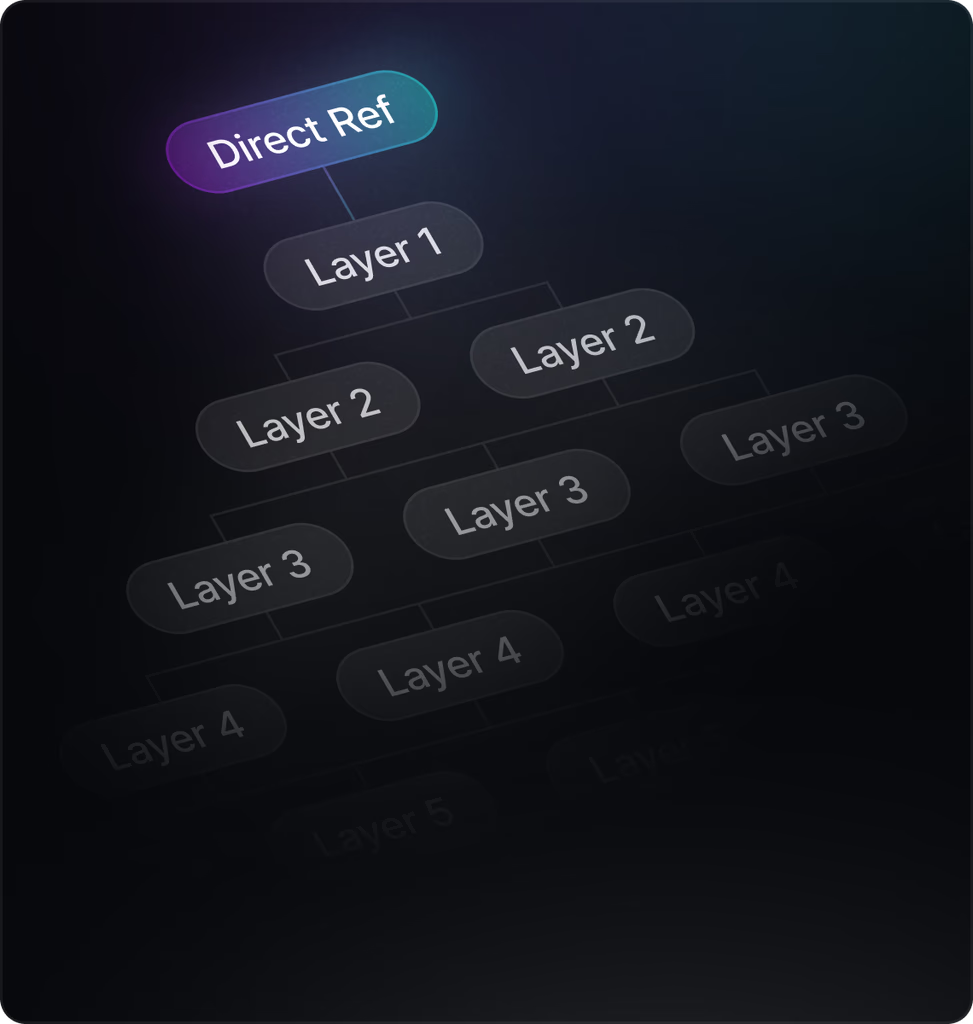
## 5-Layers Deep

{% columns %}
{% column width="41.66666666666667%" %}

<figure><img src="https://929272793-files.gitbook.io/~/files/v0/b/gitbook-x-prod.appspot.com/o/spaces%2F7NS5fH98vYksfOLmRuJn%2Fuploads%2F1BSynxCc4Tp6Z8yCvlBJ%2FRef%20layers.avif?alt=media&amp;token=8860649b-775f-49a5-bc6c-3efcb6b42036" alt="Five layers of referrals."><figcaption></figcaption></figure>
{% endcolumn %}

{% column width="58.33333333333333%" %}
\
\
\
Trojan pioneered the 5-layer referral system onchain. You will earn a percentage of trading fees from both direct and indirect referrals.

The more active your referrals are, the higher your rewards. Referral Honors takes it a step further.
{% endcolumn %}
{% endcolumns %}

## Referral Honors

Honors are your Referral Ranks in the Arena. They represent your status in Trojan’s referral system and determine how much you earn from traders you bring in.

As you advance through Arena Ranks and complete specific referral quests, you unlock higher Honors levels, each granting larger referral rewards

{% columns %}
{% column width="16.666666666666664%" %}

<figure><img src="https://929272793-files.gitbook.io/~/files/v0/b/gitbook-x-prod.appspot.com/o/spaces%2F7NS5fH98vYksfOLmRuJn%2Fuploads%2F4TOpVOSwVl6ImL8eofol%2FARENA%20Titan%20IV.png?alt=media&amp;token=f18f6988-28cf-495e-877a-bbd804b603f3" alt="Referral Honors 1 badge"><figcaption></figcaption></figure>
{% endcolumn %}

{% column width="83.33333333333334%" %}

### Honors I

Total Rev Share: 27.5%
{% endcolumn %}
{% endcolumns %}

{% columns %}
{% column width="16.666666666666664%" %}

<figure><img src="https://929272793-files.gitbook.io/~/files/v0/b/gitbook-x-prod.appspot.com/o/spaces%2F7NS5fH98vYksfOLmRuJn%2Fuploads%2FLbfTGWVyoyBnPwzKyx7K%2FARENA%20Titan%20IV%20Honor%20II.png?alt=media&amp;token=741bd279-d6f6-4f6f-87f2-ab193824f6d3" alt="Referral Honors 2 badge"><figcaption></figcaption></figure>
{% endcolumn %}

{% column width="83.33333333333334%" %}

### Honors II

Total Rev Share 32.5%
{% endcolumn %}
{% endcolumns %}

{% columns %}
{% column width="16.666666666666664%" %}

<figure><img src="https://929272793-files.gitbook.io/~/files/v0/b/gitbook-x-prod.appspot.com/o/spaces%2F7NS5fH98vYksfOLmRuJn%2Fuploads%2FnZ0P0rk8GPAtSv9dtXvJ%2FARENA%20Titan%20IV%20Honor%20III.png?alt=media&amp;token=4c75b4a2-c7eb-4504-bf5d-580f5466cc62" alt="Referral Honors 3 badge"><figcaption></figcaption></figure>
{% endcolumn %}

{% column width="83.33333333333334%" %}

### Honors III

Total Rev Share: 42.5%
{% endcolumn %}
{% endcolumns %}

{% columns %}
{% column width="16.666666666666664%" %}

<figure><img src="https://929272793-files.gitbook.io/~/files/v0/b/gitbook-x-prod.appspot.com/o/spaces%2F7NS5fH98vYksfOLmRuJn%2Fuploads%2FVJnfFt0yqJJ7kcxz9nda%2FARENA%20Titan%20IV%20Honor%20IV.png?alt=media&amp;token=24dc39d8-53a8-4767-b0b3-2a3b4d06a3fa" alt="Referral Honors 4 badge"><figcaption></figcaption></figure>
{% endcolumn %}

{% column width="83.33333333333334%" %}

### Honors IV

Total Rev Share 47.5%
{% endcolumn %}
{% endcolumns %}

<details>

<summary>How do I use my referral link?</summary>

Head over to the Referral System page from the Arena drop down, copy your reflink and get to work. Any user that signs up using your reflink will instantly be added to your referral tree.

Don't forget you're going to get rewarded 5-tiers deep! Encourage your referrals' to use their referral link and build your network.&#x20;

</details>

<details>

<summary>How can I share a token with my referral link?</summary>

Sharing a token directly from the terminal with your reflink couldn't be easier, simply copy the URL from the token page. That URL should look like the following example:

* <https://trojan.com/terminal?token=9BB6NFEcjBCtnNLFko2FqVQBq8HHM13kCyYcdQbgpump&pool=Bzc9NZfMqkXR6fz1DBph7BDf9BroyEf6pnzESP7v5iiw&ref=gambloor>

</details>

<details>

<summary>How can I set up a deep link from the Terminal?</summary>

A deeplink is a way to share a token AND your referral link at the same time. You can use the following format to set up the deeplinks:

* <https://trojan.com/terminal?token=\\><INSERT CA>\&ref=\<INSERT REF CODE>
* example: <https://trojan.com/terminal?token=9BB6NFEcjBCtnNLFko2FqVQBq8HHM13kCyYcdQbgpump&pool=Bzc9NZfMqkXR6fz1DBph7BDf9BroyEf6pnzESP7v5iiw&ref=gambloor>

</details>


# Jackpot

One MASSIVE prize every two days! Feeling lucky?

Every 48 hours, **10% of Trojan's revenue** will be up for grabs! One lucky winner will walk way with the treasure. Will it be **you**?&#x20;

<figure><img src="https://929272793-files.gitbook.io/~/files/v0/b/gitbook-x-prod.appspot.com/o/spaces%2F7NS5fH98vYksfOLmRuJn%2Fuploads%2F43EALEpLAkUdYJPW2dMI%2Fjackpot2%20(1).gif?alt=media&amp;token=1c960844-8389-411f-bce7-bd856916a286" alt="Jackpot animation"><figcaption></figcaption></figure>

<table data-view="cards" data-full-width="false"><thead><tr><th></th><th></th></tr></thead><tbody><tr><td><i class="fa-chart-line-up">:chart-line-up:</i> <strong>The Prize Pool</strong></td><td>Every trade adds more to the Jackpot. The more trades, the bigger the prize and the higher the stakes.</td></tr><tr><td><i class="fa-down-to-bracket">:down-to-bracket:</i> <strong>How to Enter</strong></td><td>All you need is a little GOLD. Enter a little or a lot of Gold for your chance to win, daily.</td></tr><tr><td><i class="fa-trophy">:trophy:</i> <strong>One Lucky Winner</strong></td><td>The entire jackpot is handed to a single victor. No Second place. One winner takes the full SOL pot.</td></tr></tbody></table>

## FAQs

<details>

<summary>What is the Jackpot?</summary>

The Jackpot is a lottery built specifically to reward Trojan users. 10% of Trojan's fees will be won every two days by one lucky trencher.

</details>

<details>

<summary>How often are draws held?</summary>

Draws are held once every 48 hours..

</details>

<details>

<summary>How do I participate?</summary>

It's simple: choose how much Gold you want to put on the line for a shot at the daily Jackpot. Once you enter, your Gold is locked in. No refunds, no half measures, only GLORY!&#x20;

Take the risk. Chase the score. One big prize, one winner, every day. Fortune favors the bold.

</details>

<details>

<summary>How much can I win?</summary>

Each draw will consist of 10% of the previous day's fees. The higher Trojan volume, the bigger the prize.

</details>

<details>

<summary>How and when do I receive my Jackpot?</summary>

The Jackpot winner will be notified on the platform and the SOL reward will be immediately sent to the winners primary wallet.

</details>

<details>

<summary>Can I win multiple times?</summary>

Yes! Each draw is independent and previous wins do not affect your chances of winning on your next entry.

</details>


# FAQs

Questions asked frequently, with answers!

## Trojan

<details>

<summary>What is a terminal?</summary>

Our terminal is a non-custodial trading and data platform; think CEX + DEX + screener. However, it is much more than just a mashup of previously existing systems. **Trojan's Terminal is a unified base of operations,** a place where users retain custody of their funds, data is live and accurate, execution is nearly instant and accurately priced, charting is simple and powerful, and where every market, no matter how new, is accessible.

</details>

<details>

<summary>Is Trojan's Terminal safe? What is non-custodial and how does it ensure trust?</summary>

Yes, Trojan Trading is committed to security. As a non-custodial platform, Trojan's Terminal does not store or control users' funds, private keys, or personal data. This ensures that **only you have full ownership and access to your assets at all times**.

</details>

<details>

<summary>How do I start?</summary>

All you need is a Solana wallet to log in, and some SOL to make trades. For more details, see [Signup / Login](/trojan-basics/trojan-signup-login)

{% hint style="info" %}
You can also log in with Passkey, and Trojan will create a wallet for you. See the link above for instructions.
{% endhint %}

</details>

<details>

<summary>Is Trojan free?</summary>

Trojan Trading does not charge users to access the platform. However, as with all trading platforms, there are fees associated with making individual trades. Trojan charges 1% per successful trade.

You’ll also earn **cashback in SOL** for every completed trade, effectively decreasing your trading fees. As you move up in rank, your cashback percentage increases. The more you trade, the more you earn!

For more information on referrals, see the [**Referral System**](/trojan-arena/referral-system) page.

</details>

<details>

<summary>What Launchpads are supported by Trojan?</summary>

The current list of Trojan's supported Launchpads is continually updated and best found in the Terminal itself.  For the current list, visit the **Trenches** page in the Terminal. There you can use a filter to view all supported Launchpads.

<figure><img src="https://929272793-files.gitbook.io/~/files/v0/b/gitbook-x-prod.appspot.com/o/spaces%2F7NS5fH98vYksfOLmRuJn%2Fuploads%2Fm8P1PgDTrcQmxx6VLAG1%2Ftrenches%20launchpads%204k.png?alt=media&amp;token=71e8f9ad-f02f-4180-bb38-7651624a7d39" alt="Trenches filters focusing on launchpad selections" width="375"><figcaption></figcaption></figure>

</details>

<details>

<summary>What DEXs are tradable on Trojan?</summary>

Trojan is constantly evolving, and adding support for new DEXs is a key part of staying cutting-edge. For the latest list, visit the **Explorer** page in the Terminal, where you can use the built-in DEX filter to view all available platforms.

<figure><img src="https://929272793-files.gitbook.io/~/files/v0/b/gitbook-x-prod.appspot.com/o/spaces%2F7NS5fH98vYksfOLmRuJn%2Fuploads%2FXbCRD8VZxhEsO8MEWnWp%2Fexplorer%20filters%20dexs%204k.png?alt=media&amp;token=0206e0b3-90ae-4827-9087-75070c45d67b" alt="Explorer filters focusing on supported DEX list" width="375"><figcaption></figcaption></figure>

</details>

<details>

<summary>Where can I see a record of my transactions / examine a transaction?</summary>

Everything you do is on the blockchain, from transfers to buying meme coins. Visit [Solscan.io](https://solscan.io/) and enter your wallet address in the search field. You’ll see all your wallet’s onchain activity. Solscan offers excellent help pages for beginners, and we recommend all users learn to navigate the platform. For a helpful guide on how to start with SolScan, see this [blog](https://trojanonsolana.com/blog/what-is-solscan).&#x20;

<figure><img src="https://929272793-files.gitbook.io/~/files/v0/b/gitbook-x-prod.appspot.com/o/spaces%2F7NS5fH98vYksfOLmRuJn%2Fuploads%2FHYCyq1K25ID9ipl9klYW%2FWallets%20solscan%20highlighted%204k.png?alt=media&amp;token=1f8481b8-313e-48ea-82e1-1a05dbdc5269" alt="Wallet functions focusing on link to SolScan" width="160"><figcaption><p>Trojan provides a Solscan link on the wallets page.</p></figcaption></figure>

</details>

## Wallets

<details>

<summary>Can I trade using Phantom, or another Solana wallet directly?</summary>

Yes, you can make basic swaps using your Login wallet. But for **more advanced features**, like Limit or DCA orders, you will need to create a Trojan wallet or import a wallet.

If you want to use your connected wallet with all features you'll need to import it following these steps:

1. Disable the login wallet if previously enabled.
2. Import the wallet using the private key.
3. Enable the wallet from the wallets menu.

</details>

<details>

<summary>How do I import a wallet?</summary>

You can import an external Solana wallet using its private key, which you can find in your wallet’s settings (check your wallet’s documentation for help). See [Wallet Management](/trading-on-trojan/wallet-management#adding-wallets).

</details>

<details>

<summary>How can I withdraw my funds?</summary>

Go to the Wallets page in Terminal and click **Withdraw**. Choose what you want to withdraw—either SOL or a token—along with the amount and the source wallet. Enter the wallet address to send the funds to, verify the details, then click **Withdraw** to complete the process. Make sure you have enough SOL in your source wallet for the gas fee. &#x20;

See [Wallet Management](/trading-on-trojan/wallet-management)

</details>

<details>

<summary>I didn’t realize I had to send SOL - I sent Solana-based USDT (or USDC) instead. What can I do?</summary>

USDT / USDC are simply tokens and can be swapped like any other. You will, however, need SOL in your wallet for gas to make the swap.

</details>

<details>

<summary>How do I find a wallet to Copy Trade?</summary>

Good wallets for copy trading are highly valued and rarely shared publicly. So, how do you find them? Methods and tools vary, but it boils down to researching top traders or token holders, [analyzing](/terminal-overview/tools-and-widgets/wallet-analyzer) their wallets, and observing their activity. Avoid wallets using custom programs, as they can’t be copied, and steer clear of snipers, which aren’t suitable for copying. There’s no substitute for time and effort.

</details>

## Settings

<details>

<summary>What is Slippage and what should I set it to?</summary>

* Prices change rapidly. There may be some difference between the price you submit for a buy and the actual price of the token by the time it executes, even if it’s only a second or two. Slippage is a setting to tell the trading mechanism how much of a difference you are willing to accept, if needed. Slippage and liquidity pools are what make trading on a DEX possible without an order book.
* No singular slippage setting covers all situations. Trading tokens that are more volatile will require a higher number. Copy Trading will require a higher number, especially if it’s a heavily copied wallet. With MEV off, people generally use lower slippage. Start low (10-15%) and adjust. If you are experiencing failures due to slippage, consider raising it.

</details>

<details>

<summary>What is gas? What is Priority fee / Bribe?  What should I set it to?  Where does it go?</summary>

Gas on Solana is a small fee in SOL paid to process your trades or actions, going to validators (and Jito if using MEV protection). "Gas" is often used as a catch-all term which includes both **Priority Fee** and **Bribe**.\
\
**Priority Fee** is the amount paid to Solana Validators to expedite trade execution. Increasing the **Priority Fee** typically speeds up processing, though returns on this may diminish at higher amounts. Needs vary based on trade size, token volatility, and network congestion.&#x20;

**Bribe** is the amount used for MEV protection, if activated. It helps ensure fast, private transactions, while safeguarding against MEV attacks.

{% hint style="info" %}
When purchasing a token, you’ll also pay a one-time token account fee of about 0.002 SOL to the network to set up space for holding tokens in your wallet. This fee is refundable after you sell.&#x20;
{% endhint %}

</details>

<details>

<summary>What is MEV?</summary>

MEV (Maximal Extractable Value) refers to profit gained from reordering transactions in a block. On Solana, MEV bots often cause sandwich attacks by spotting public trades and submitting faster ones to front- or back-run yours. MEV protection hides your tx, bundles it privately, and routes to trusted validators. It may require a small tip for execution.

</details>

## The Arena

<details>

<summary>How does the Arena work?</summary>

The Arena is a dynamic loyalty and rewards program. Earn Gold by trading and engaging across the platform. The more Gold you earn, the higher your rank. With each new rank comes better benefits:

* Earn up to 45% in trading rewards.
* Receive close to 50% of revenue share from your referrals.
* Multiply your Gold earnings with bigger and better boosts.
* Access exclusive perks reserved for the top tier ranks of the Arena.

</details>

<details>

<summary>What is the Jackpot?</summary>

The Jackpot is a lottery built specifically to reward Trojan users. 10% of Trojan’s daily fees will be won by one lucky trencher.

For more info on the Jackpot check out [Jackpot](/trojan-arena/jackpot)

</details>

<details>

<summary>What is the Referral System?</summary>

The Referral System or Trojan Honors Program is your opportunity to earn rewards by bringing new users into the Arena.

When someone signs up and starts trading using your referral link, you earn a percentage of their trading fees, passively and automatically. The more active traders you recruit, the more you earn.

Your Referral Tier is directly tied to your Arena Rank and your progress through specific tasks. As you climb higher in the Arena, your rewards grow with you:

* Increased referral share percentages
* Higher trading rewards
* Better Gold multipliers

Learn more by visiting our [Referral System](/trojan-arena/referral-system)page.

</details>

<details>

<summary>How do the Leaderboards work?</summary>

Compete across daily, monthly and seasonal leaderboards, each with its own countdown timer ticking away.&#x20;

Every moment counts and every Gold you earn or quest you complete could shift your position.\
\
At the end of each period, rewards are distributed to the Top users based on their placement.

Learn more on our [Ranks and Rewards](/trojan-arena/ranks-and-rewards) page.

Let the games begin.

</details>

<details>

<summary>How can I earn Gold?</summary>

You can earn gold for everything you do on Trojan.

* Earn Gold for every dollar traded.
* Maintain daily trading streaks for daily Gold rewards. The higher the streaks the bigger the Gold rewards.
* Progress through ranks for Gold rewards, plus the higher your rank, the higher your Gold multiplier!
* Complete daily and seasonal quests for Gold rewards.
* Keep an eye out and complete special quests for Gold rewards and multipliers.

</details>

<details>

<summary>Do I have to claim my Gold?</summary>

Yes, but only your earned Gold from completing your daily and seasonal quests needs to be claimed manually. Gold from trading and trading streak bonuses is automatically added to your balance.

While your trading activity rewards are seamless, be sure to check in regularly and claim your quest rewards to maximize your Gold earnings.

</details>

<details>

<summary>What can I do with my Gold?</summary>

Gold is the key to the Arena. There are opportunities no matter how big or small your stacks are, and Gold is key to escaping the trenches. Trade, Engage, and Earn to stay ahead of other players.\
\
Treasure is your first opportunity to put your Gold to use. Enter a high stakes daily jackpot draw where one winner takes all. The more Gold you commit, the better your odds to win from the ever growing prize pool.\
\
Gold is your ticket to what's next, you will want as much Gold as you can get.\
\
Make sure to follow our official channels - [Links](/additional-info/links)

</details>

<details>

<summary>What is the difference between Gold Earned and Gold Available?</summary>

Gold Earned: reflects the total amount of Gold you have accumulated over time. It includes:

* All the Gold awarded from your trades.
* Any Gold you have claimed by completing quests

Gold Available: is the amount you currently have at your disposal, ready to use in things like jackpots, future upgrades and other utilities (TBD).

</details>

<details>

<summary>What is Cashback?</summary>

Cashback is SOL paid to you for every trade completed. As you rank up your cashback percentage increases. The more you trade, the more you earn!

</details>

<details>

<summary>What are Arena Ranks and Honors?</summary>

Arena Ranks tracks your overall activity across trading and questing. Accumulate as much Gold as possible in order to climb the ranks and unlock higher cashbacks, bigger multipliers and exclusive perks. Only the truly degenerate achieve Titan.

Honors represent your Referral Rank, your progression in Trojan’s referral system. Complete rank up quests, level up in the Arena, and recruit every trencher to progress. Every time you do, you'll receive a larger percentage of your referrals’ trading fees.

</details>


# Trade Page

The Main Page of Trojan's Terminal. A hub of information and features at your fingertips.

**Everything you need** to trade any token, any time, all in one place. Every trade, every candle, holder insights and a robust token audit are just the start of what you can find on the [Trojan Terminal](https://trojan.com/terminal)&#x20;

<figure><img src="https://929272793-files.gitbook.io/~/files/v0/b/gitbook-x-prod.appspot.com/o/spaces%2F7NS5fH98vYksfOLmRuJn%2Fuploads%2FdVBLkpv1WlYbKaYpuwAt%2Ffull%20screen%20trade%20page.png?alt=media&amp;token=e3013eb9-075a-4d67-ac59-07dcfa7fd32e" alt="Full screenshot of the trade page with the fart coin token depicted."><figcaption></figcaption></figure>

Trojan's Terminal provides the **most advanced charting capabilities** available. This complete suite—including every drawing tool, Fib levels, indicators like RSI and MAs, and Bubblemaps—is **fully customizable** to suit your needs.&#x20;

Toggle the on-chart visibility of Dev buys and sells, tracked wallets, and your own activity. Show / hide your average purchase price and limit orders. Set Price Alerts. Change the layout. Choose custom color schemes. Your settings carry over to every chart you access. So dial it in once and get back to what matters.

<figure><img src="https://929272793-files.gitbook.io/~/files/v0/b/gitbook-x-prod.appspot.com/o/spaces%2F7NS5fH98vYksfOLmRuJn%2Fuploads%2FwrGXvqta1tQNu6CLYkea%2FPrice%20Alert.png?alt=media&amp;token=bf449c27-1907-4507-bfc9-b954146c53af" alt="" width="375"><figcaption><p>Set alerts by market cap, price, or percentage change. Stack multiple alerts per token.</p></figcaption></figure>

***

### Display Options:

{% columns %}
{% column %}

#### **Candles:**

**Click to Filter** lets you click any candle to filter the trade feed to that time window. **Enable Outliers** to hide anomalous transactions like MEV activity.

#### **Bubbles:**

Bubbles are trade markers that appear directly on the chart. Toggle which are visible:&#x20;

**Your Trades, Dev Trades, Tracked Trades, Snipers & Bundlers, and KOL Trades.** You can also enable **Discord Calls** and **Telegram Calls** to mark moments the token was called in tracked servers and channels. Use the **Show All Bubbles** toggle in the chart toolbar to quickly hide or show all bubble activity for a cleaner view. **Click the dropdown arrow for customization options** such as size, color, and minimum $ value to display.&#x20;

#### **Lines:**

Overlay key price levels on the chart.&#x20;

Options include **All Time High, Average Entry, Average Exit**, and active **Order Lines**. Enable **Migration Line** to track a token's migration progress, and click the dropdown arrow for customization options.

#### **Holders:**&#x20;

Display buy and sell activity on the chart.&#x20;

Use **Num of Holders** to set how many top holders to include. **KOL Holders** and **Tracked Holders** highlight chart activity from a curated KOL list, and your tracked wallets.
{% endcolumn %}

{% column valign="middle" %}

<figure><img src="https://929272793-files.gitbook.io/~/files/v0/b/gitbook-x-prod.appspot.com/o/spaces%2F7NS5fH98vYksfOLmRuJn%2Fuploads%2FB0MqKMSytZ4cXHE0a37L%2FDisplay%20Options.png?alt=media&amp;token=606c6cdf-6c90-4e41-b051-4f966a60b14c" alt=""><figcaption></figcaption></figure>
{% endcolumn %}
{% endcolumns %}

<figure><img src="https://929272793-files.gitbook.io/~/files/v0/b/gitbook-x-prod.appspot.com/o/spaces%2F7NS5fH98vYksfOLmRuJn%2Fuploads%2FSfjahOjBrNics7Oqc7NE%2FAggregate%20bubbles.png?alt=media&amp;token=11deb449-bf07-4aee-9ef3-b355990bf494" alt="" width="375"><figcaption><p>Use <strong>Aggregate Bubbles</strong> to combine multiple trades from a single user <br>into one bubble per candle.</p></figcaption></figure>

***

<table data-card-size="large" data-view="cards"><thead><tr><th></th><th data-type="content-ref"></th></tr></thead><tbody><tr><td>Learn how to DYOR, swap, and deep dive onchain data right from your <strong>Trade Panel</strong>.</td><td><a href="/trading-on-trojan/trade-page/trade-panel">Trade Panel</a></td></tr><tr><td>Access all the data you will ever need in the <strong>Trade Tables</strong>.</td><td><a href="/trading-on-trojan/trade-page/trade-tables">Trade Tables</a></td></tr></tbody></table>

{% hint style="info" %}
Want to learn more about trading? Check out [Swaps](/trading-on-trojan/trojan-swaps) and dig into all the different functions Trojan offers to give you an edge.
{% endhint %}


# Trade Panel

The Heart of the main Trade Page is the Trade Panel: it's where the action is!

<div data-full-width="true"><figure><img src="https://929272793-files.gitbook.io/~/files/v0/b/gitbook-x-prod.appspot.com/o/spaces%2F7NS5fH98vYksfOLmRuJn%2Fuploads%2FQ0qtCv9II4Zp8NDEYBp3%2FTrade%20screen%20panel%20highlighted%204k.png?alt=media&amp;token=be24c3b4-369d-4197-8044-d74d31b63f35" alt="Full Screen shot of the Trade page, with the Trade Panel highlighted" width="563"><figcaption><p>The Trade Panel on the right side of the Trade Page provides trading controls and token insights.</p></figcaption></figure></div>

{% hint style="info" %}
To jump right to the Trading portion of the Trade Panel follow this link - [Swaps](/trading-on-trojan/trojan-swaps), or take a look below at some of the features the Trade Panel has to offer.
{% endhint %}

## Key Functions

### Token Card

{% columns %}
{% column valign="middle" %}

<figure><img src="https://929272793-files.gitbook.io/~/files/v0/b/gitbook-x-prod.appspot.com/o/spaces%2F7NS5fH98vYksfOLmRuJn%2Fuploads%2FBA6OdAhKmMgVpaxDLb4e%2Ffartcoin%20token%20card%20trade%20panel.png?alt=media&amp;token=c95032c4-df2c-4af4-a437-73c465c38d3b" alt="A sample token card taken from the trade panel"><figcaption></figcaption></figure>
{% endcolumn %}

{% column valign="middle" %}
The Token Card is the anchor of the Trade Panel. &#x20;

* Copy the CA.
* Add to watchlist.&#x20;
* Check out the liquidity pools.
  {% endcolumn %}
  {% endcolumns %}

{% hint style="info" %}
The position of the Token Card can be moved to above the chart in the Trade Page tab in [Settings ](/trojan-basics/settings)
{% endhint %}

{% columns %}
{% column valign="middle" %}
Hover over the token name on the **Token Card** to open a quick links menu. Copy the contract address, copy the token name, or search for the token on Google, X, or within Trojan.
{% endcolumn %}

{% column %}

<figure><img src="https://929272793-files.gitbook.io/~/files/v0/b/gitbook-x-prod.appspot.com/o/spaces%2F7NS5fH98vYksfOLmRuJn%2Fuploads%2FdZB3bVGZpN4wv0CnkW5L%2Fhover%20token%20name%20search.png?alt=media&amp;token=11d66eb5-2a93-4e1b-a2fd-f516e0696c51" alt=""><figcaption></figcaption></figure>
{% endcolumn %}
{% endcolumns %}

{% columns %}
{% column valign="middle" %}

<figure><img src="https://929272793-files.gitbook.io/~/files/v0/b/gitbook-x-prod.appspot.com/o/spaces%2F7NS5fH98vYksfOLmRuJn%2Fuploads%2FMNycnb6npAtFgjWuxAZB%2Ftoken%20card%20socials%20links.png?alt=media&amp;token=3a5ced5e-c13f-4446-9124-5fdf0b566ae9" alt="A close-up of the icons underneath the token card that link to social media, etc."><figcaption></figcaption></figure>
{% endcolumn %}

{% column valign="middle" %}
In the bottom half of the Token Card you'll find links to:

* Socials
* Launchpad listings
* **Dexscreener Paid** Confirmation
* **Pump Cashback** status, if enabled for that token.
* Solscan and More!
  {% endcolumn %}
  {% endcolumns %}

***

### Security Audit

{% columns %}
{% column %}
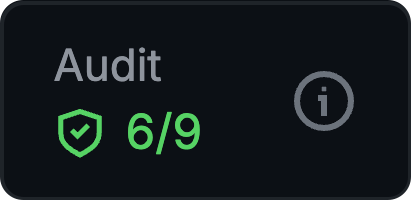
Quickly access Audit Results by hovering over the Audit card OR in the dropdown below the swap module.
{% endcolumn %}

{% column %}

<figure><img src="https://929272793-files.gitbook.io/~/files/v0/b/gitbook-x-prod.appspot.com/o/spaces%2F7NS5fH98vYksfOLmRuJn%2Fuploads%2F95PgcdQ4Xerslgl0e0KO%2Fmouse%20over%20audit%20button.png?alt=media&amp;token=dfe15363-bcf9-4c4e-a48c-6eabc51f49fa" alt="Close-up of the audit results that the user hovers their mouse over to see details" width="206"><figcaption></figcaption></figure>
{% endcolumn %}
{% endcolumns %}

{% columns %}
{% column valign="middle" %}
Trojan provides **in-depth token** **audits** for every token, **highlighting potential risk factors.** The audit evaluates key metrics, including:

* Token ownership statistics;
* Launch distribution;&#x20;
* Token contract functions and mechanics;
* Dev Holdings and so much more.
  {% endcolumn %}

{% column valign="middle" %}

<figure><img src="https://929272793-files.gitbook.io/~/files/v0/b/gitbook-x-prod.appspot.com/o/spaces%2F7NS5fH98vYksfOLmRuJn%2Fuploads%2Fz2MC07DLhXoTpoin76RL%2Fdetailed%20audit%204k.png?alt=media&amp;token=a131db29-e026-4e77-ad11-c1ba63307c3e" alt="A display of audit results.  Information within is just a sample"><figcaption></figcaption></figure>
{% endcolumn %}
{% endcolumns %}

***

### Token Statistics

{% columns %}
{% column valign="middle" %}

* Click across four timeframes (5M, 1H, 6H, 1D) to **view key stats**.
* Current Price, Fees Paid, [Audit Score](#security-audit), 24H Volume, Liquidity. Buys and Sells, Tx, Volume, Makers.

{% hint style="info" %}
**Fees Paid** displays real-time validator fees paid for this token. **Hover to see the breakdown of Gas Fees versus Trading App Fees**, helping detect potential bundled launches by comparing fees to volume and market cap. ![](https://929272793-files.gitbook.io/~/files/v0/b/gitbook-x-prod.appspot.com/o/spaces%2F7NS5fH98vYksfOLmRuJn%2Fuploads%2FnvBGsF3lMnZXaIXxTDxF%2FFees%20paid%20breakdown.png?alt=media\&token=cb383285-a865-456f-918f-1ead62b7dde1)
{% endhint %}
{% endcolumn %}

{% column valign="middle" %}

<figure><img src="https://929272793-files.gitbook.io/~/files/v0/b/gitbook-x-prod.appspot.com/o/spaces%2F7NS5fH98vYksfOLmRuJn%2Fuploads%2FLBGjvt76yf4EpliE6VLT%2Ftoken%20stats%20fartcoin.png?alt=media&amp;token=2f8e0dda-de66-4910-a39b-308e3434b5e8" alt="A portion of the trade panel, which depicts basic token info"><figcaption></figcaption></figure>
{% endcolumn %}
{% endcolumns %}

***

### Swap Module

{% columns %}
{% column valign="middle" %}
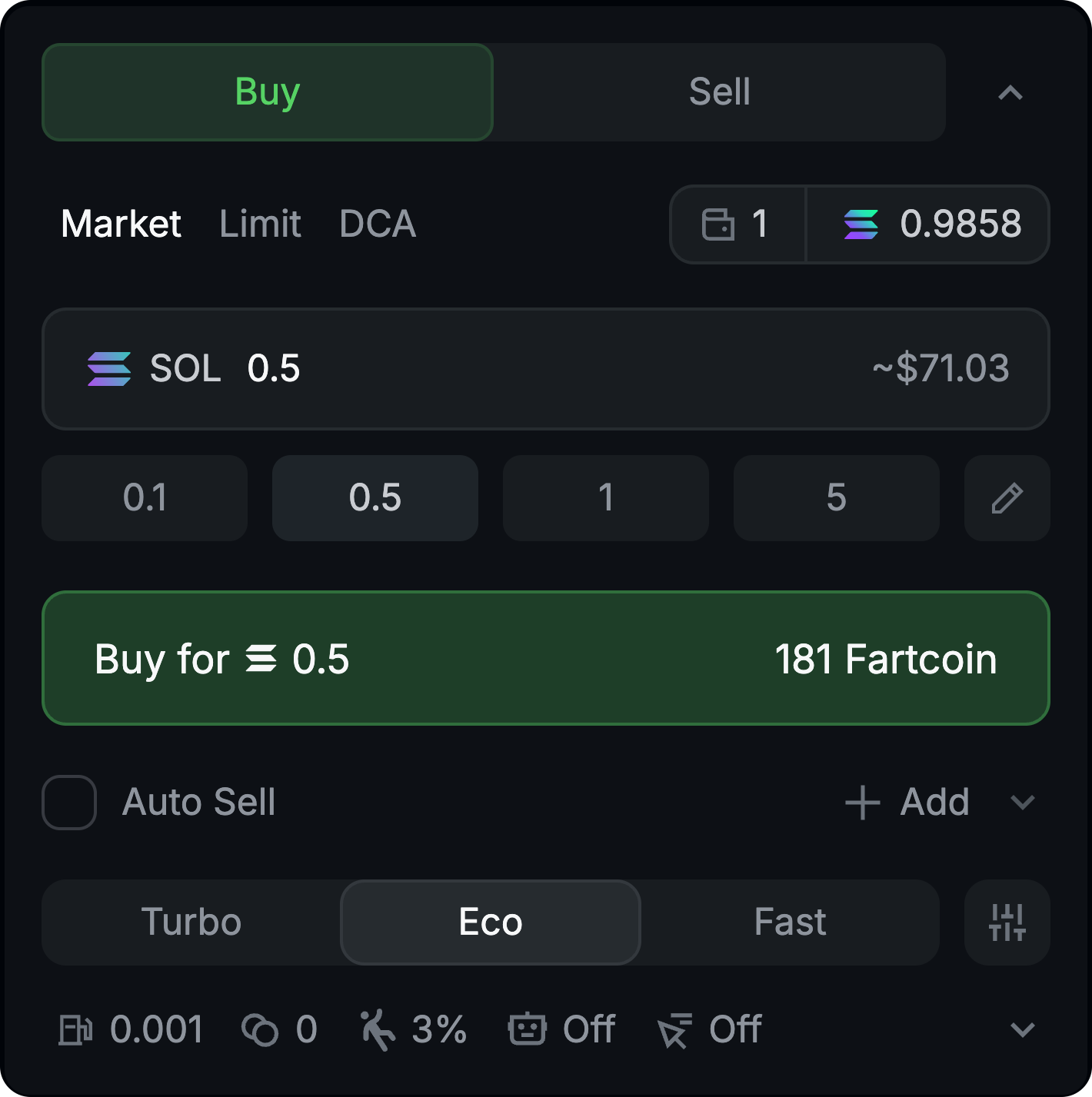
The Swap Module is where you **make your trades.** Dial in your settings and let it fly.&#x20;

{% hint style="success" %}
For an in-depth discussion on swap types and step-by-step guidance head to: [Swaps](/trading-on-trojan/trojan-swaps)&#x20;
{% endhint %}

{% endcolumn %}

{% column valign="middle" %}

<figure><img src="https://929272793-files.gitbook.io/~/files/v0/b/gitbook-x-prod.appspot.com/o/spaces%2F7NS5fH98vYksfOLmRuJn%2Fuploads%2FCu5ivKi7arq2ERoaC9Rr%2FSwap%20Module%204k.png?alt=media&amp;token=b06e63e5-259d-4775-82e5-7ee0e3fe84cf" alt="This is the part of the trade panel, we call the swap module. Depicted is just a sample market buy."><figcaption></figcaption></figure>
{% endcolumn %}
{% endcolumns %}

***

## Additional Insights

Need more information? Check these other drop-downs. You won't always look at everything but, Trojan delivers everything you need.&#x20;

### HolderScan

{% columns %}
{% column width="50%" valign="middle" %}
Are other traders offloading or\
jumping on board?\
\
**HolderScan** has the answer.
{% endcolumn %}

{% column width="50%" valign="middle" %}

<figure><img src="https://929272793-files.gitbook.io/~/files/v0/b/gitbook-x-prod.appspot.com/o/spaces%2F7NS5fH98vYksfOLmRuJn%2Fuploads%2FdQ2uAojQZoqblP9hVe7N%2Fholderscan%204k.png?alt=media&amp;token=2a56804b-6572-4771-9396-c3952ff60af8" alt="A sample image of the holder scan, which is near the bottom of the trade panel." width="188"><figcaption></figcaption></figure>
{% endcolumn %}
{% endcolumns %}

***

### Dev Scanner

{% columns %}
{% column valign="middle" %}
Use **Dev Scanner** to see what else\
the Dev has launched.
{% endcolumn %}

{% column valign="middle" %}

<figure><img src="https://929272793-files.gitbook.io/~/files/v0/b/gitbook-x-prod.appspot.com/o/spaces%2F7NS5fH98vYksfOLmRuJn%2Fuploads%2FIVKKaeolGgSM3j71Z8s0%2Fdev%20scanner.png?alt=media&amp;token=1ccfe323-770b-494d-9d20-8a5129bb0f9b" alt="Sample image of the Dev Scanner" width="178"><figcaption></figcaption></figure>
{% endcolumn %}
{% endcolumns %}

***

### Similar Tokens

{% columns %}
{% column valign="middle" %}
Want to protect yourself from copycats?

Looking for Alpha in a sea of Betas?

**Similar Tokens** is your landing spot.
{% endcolumn %}

{% column valign="middle" %}

<figure><img src="https://929272793-files.gitbook.io/~/files/v0/b/gitbook-x-prod.appspot.com/o/spaces%2F7NS5fH98vYksfOLmRuJn%2Fuploads%2FpRLXMgXvYPn9KgnRniv2%2Fsimilar%20tokens.png?alt=media&amp;token=c97fdea2-50bf-4a22-a5fb-3f98277c85d0" alt="Sample image of the Similar Tokens panel" width="176"><figcaption></figcaption></figure>
{% endcolumn %}
{% endcolumns %}

***

### Holder Analytics

{% columns %}
{% column width="50%" valign="middle" %}
Who are the major players in this token?\
\
What was the bundle like?\
\
Find out with **Holder Analytics**.
{% endcolumn %}

{% column width="50%" valign="middle" %}

<div align="center" data-full-width="false"><figure><img src="https://929272793-files.gitbook.io/~/files/v0/b/gitbook-x-prod.appspot.com/o/spaces%2F7NS5fH98vYksfOLmRuJn%2Fuploads%2FhaigOsB6ifQDQpJJB9B9%2Fholder%20analytics.png?alt=media&amp;token=744f0961-1988-4388-a835-8ade111e256e" alt="A partial view of the holder analytics panel. Sample image whose data depicted is not important." width="177"><figcaption></figcaption></figure></div>
{% endcolumn %}
{% endcolumns %}

***

### Token Performance

{% columns %}
{% column width="50%" valign="middle" %}
How far are we from a token's ATH?\
\
**Performance** has your answer!
{% endcolumn %}

{% column width="50%" valign="middle" %}

<figure><img src="https://929272793-files.gitbook.io/~/files/v0/b/gitbook-x-prod.appspot.com/o/spaces%2F7NS5fH98vYksfOLmRuJn%2Fuploads%2Ft1WxOCJrwkbZIbBXWuPb%2Ftoken%20performance.png?alt=media&amp;token=268d517f-6dfe-47b9-8326-f96321a7b5a5" alt="Close-up shot of the performance panel. Dated depicted is just a sample." width="178"><figcaption></figcaption></figure>
{% endcolumn %}
{% endcolumns %}

***


# Trade Tables

The Trade Tables section below the chart offers a detailed trading activity overview, providing real-time insights into market movements and user transactions.

<figure><img src="https://929272793-files.gitbook.io/~/files/v0/b/gitbook-x-prod.appspot.com/o/spaces%2F7NS5fH98vYksfOLmRuJn%2Fuploads%2FkC6QdQGoeGQAnYKkqJuc%2FTrade%20Tables%20wide.png?alt=media&amp;token=e89b4312-a22e-4675-bb24-a9caa27d2299" alt="Sample image of the trade tables. With the trade function tab depicted. Data depicted is just a sample."><figcaption></figcaption></figure>

<table><thead><tr><th width="140.40264892578125"></th><th></th></tr></thead><tbody><tr><td><strong>Trades:</strong></td><td><strong>Live feed of ongoing trades</strong> for the selected token.</td></tr><tr><td><strong>Positions:</strong></td><td><strong>Your current crypto holdings.</strong> Provides easy access for reviewing, grabbing a PNL card, or making a quick sell. Tokens can be hidden directly from this tab.</td></tr><tr><td><strong>Active Orders:</strong></td><td><strong>View, track, or cancel</strong> your Active Orders. Sort by Type, or Wallet. <br>                <img src="https://929272793-files.gitbook.io/~/files/v0/b/gitbook-x-prod.appspot.com/o/spaces%2F7NS5fH98vYksfOLmRuJn%2Fuploads%2F9sYZrRDDbrlymaZc4aV2%2FActive%20orders%20table%20bar.png?alt=media&amp;token=25ecffb8-c5f6-41ef-b7ea-28aea270d201" alt="A close-up of the active order types. These are buttons in the active orders table."></td></tr><tr><td><strong>Top Traders:</strong></td><td>A list of the <strong>top 100 Wallets</strong> trading the displayed token. Sorted by PNL. Filter by <strong>Only Tracked</strong> if desired to only see wallets you are already tracking. </td></tr><tr><td><strong>Holders:</strong></td><td><strong>Top 100 current Holders</strong> of the token, sorted by percentage of supply owned. </td></tr><tr><td><strong>Dev Launches:</strong></td><td>All tokens launched by the developer of the current token.</td></tr><tr><td><strong>History:</strong></td><td><strong>Your transaction History.</strong> Sort / Filter by Type, Wallet, MC, Status.</td></tr><tr><td><strong>Transactions:</strong></td><td>A deeper look into a token including <strong>Dev actions</strong> such as minting, burns, etc.</td></tr><tr><td><strong>Comments:</strong></td><td>Shows launchpad user comments, when applicable.</td></tr></tbody></table>

<figure><img src="https://929272793-files.gitbook.io/~/files/v0/b/gitbook-x-prod.appspot.com/o/spaces%2F7NS5fH98vYksfOLmRuJn%2Fuploads%2FCSktLtFPSs1TFfcNpuCl%2FTransaction%20type%20in%20tx%20table.png?alt=media&amp;token=0a6bf4f1-2916-4883-9bae-1fdfc0ba387e" alt="Image shows the filters available under the transactions table. Functions include dev actions, such as liquidity pool creation, minting, etc." width="251"><figcaption><p>Use the <strong>Type</strong> filter under Transactions to refine by token action</p></figcaption></figure>

On the right-hand side of the trade feed, filter activity using the **All, You, Dev, Tracked,** and **KOLs** tabs to narrow the feed to specific wallet categories.

The **KOLs** tab filters the trade feed to show activity from known KOL wallets, with their trades also visible as overlays directly on the chart in real time.

On the right-hand side of the Trade Tables are additional features:

<figure><img src="https://929272793-files.gitbook.io/~/files/v0/b/gitbook-x-prod.appspot.com/o/spaces%2F7NS5fH98vYksfOLmRuJn%2Fuploads%2FJtizUxmfOvDUGb51WHeA%2Fright%20side%20trade%20tables.png?alt=media&amp;token=76745cfb-775b-4baf-b8a8-fff4770c7742" alt="Depicts buttons visible on the right hand side of the tables. They include bubble maps, instant trade, and trades table."><figcaption></figcaption></figure>

<table><thead><tr><th width="139.55047607421875"></th><th></th></tr></thead><tbody><tr><td><strong>Bubblemaps:</strong></td><td>Choose from three methods to view token distribution.</td></tr><tr><td><a href="/trading-on-trojan/trojan-swaps/instant-trade"><strong>Instant Trade:</strong></a></td><td><strong>Customizable pop-out window to make quick trades</strong> without requiring any additional confirmation steps.</td></tr><tr><td><strong>Trades Table:</strong></td><td><strong>Repositions the real-time trades feed</strong> to the right of the chart, freeing the bottom tables for simultaneously displaying additional metrics.</td></tr></tbody></table>

<figure><img src="https://929272793-files.gitbook.io/~/files/v0/b/gitbook-x-prod.appspot.com/o/spaces%2F7NS5fH98vYksfOLmRuJn%2Fuploads%2F05Ny8YM6V1AS6VLxEUfg%2FTables%20side%20view%20animated.gif?alt=media&amp;token=e7ed0e21-c487-45e4-8353-27ba95ceafd4" alt="A small slice of the trades table when it is docked on the right hand side of the chart. Dated depicted is just a random sample." width="252"><figcaption><p>Customize your token tracking with the Trades Table.</p></figcaption></figure>


# Profiles / Settings

Create custom Trojan profiles to suit any and all of your trading needs.

Crypto trading isn’t one-size-fits-all. Buying a high market cap token isn’t the same as wading into the waters of newly launched meme coins. Use Trade Settings profiles to **create** and **customize trading profiles** for any strategy and switch between them instantly, **tailoring your experience** to match your goals and risk tolerance.&#x20;

## Trade Settings

* When you first open Trojan's Terminal, you will see three preset Trade Settings. You may keep these as-is, or edit them as you see fit.&#x20;

<figure><img src="https://929272793-files.gitbook.io/~/files/v0/b/gitbook-x-prod.appspot.com/o/spaces%2F7NS5fH98vYksfOLmRuJn%2Fuploads%2FcYnEaNyiPaWnhxGCaxJw%2FTrade%20Settings%20slice%204k.png?alt=media&amp;token=15649ad3-d08b-4162-bfc3-8b93a3dc7bcb" alt="Depicts a portion of the trade panel that displays the buttons to choose your trade settings profile." width="375"><figcaption><p>Different tokens demand different approaches.</p></figcaption></figure>

* Click the Settings icon <img src="https://929272793-files.gitbook.io/~/files/v0/b/gitbook-x-prod.appspot.com/o/spaces%2F7NS5fH98vYksfOLmRuJn%2Fuploads%2F6lpKalxeXBtwS4lQoWBT%2Ftrade%20settings%20icon.png?alt=media&amp;token=08cf8d98-e29d-4c26-b909-5fe6fa0791ac" alt="A very small depiction of the button to press to edit trade settings profiles." data-size="line"> to edit an existing profile.

{% hint style="warning" %}
When editing settings, remember to toggle from Buy to Sell and fill in both!
{% endhint %}

{% columns %}
{% column %}
\*Edit the **Preset Name** for your profile if desired.

* Set **Quick Suggestion** (i.e. preset) amounts. SOL amounts for Buys. % of holdings for Sells.
* In Buys, set **Clipboard Quick Buy** amount. See [Clipboard Buy](/trading-on-trojan/trojan-swaps/clipboard-buy) for details.
* Set the **Priority Fee** - higher priority fees for quicker confirmations.
* Set the **Bribe** amount used for MEV protection. It helps ensure fast, private transactions, while safeguarding against MEV attacks.

{% hint style="info" %}
You'll also pay a one-time \~0.002 SOL fee to the Solana network to create token storage in your wallet, refundable after selling the token.
{% endhint %}

* Set your **Slippage - s**lippage is a percentage you choose that reflects **tolerance for price changes during txn execution**. **Snipe Slippage** typically requires a higher percentage to handle rapid price movements when using the Migration Sniper.
* **Spam Buy -** enables **one-click rapid-fire purchases** of up to 10 separate transactions. For example, setting spam buy to 5 with a 0.1 SOL purchase results in 5 transactions totaling 0.5 SOL. This reduces MEV risk by splitting a larger buy into smaller, less noticeable transactions. **Spam Sell** is similar, but with Sells.
* **MEV Protection -** enabling MEV Protection <img src="https://929272793-files.gitbook.io/~/files/v0/b/gitbook-x-prod.appspot.com/o/spaces%2F7NS5fH98vYksfOLmRuJn%2Fuploads%2FtrRjc5jk7enT681BU41m%2FMEV%20on%204k.png?alt=media&amp;token=8eab0cbf-3df0-462e-a855-9bad6e634187" alt="The MEV protection indicator. When it is green, MEV protection is active." data-size="line"> protects your buys and sells from MEV attacks. Disabling may increase speed but reduces protection.
* **Auto Sell** - creates **limit orders at the moment of purchase.** To use Auto Sell, check the box to the Left to enable, then press **Add order** to add orders. Fill **Price** and **Sell** % fields. Click **Add order** to add additional Auto Sell limit orders.
* When you are satisfied with your profile settings, click **Save Changes** and you're done!
  {% endcolumn %}

{% column valign="middle" %}

<figure><img src="https://929272793-files.gitbook.io/~/files/v0/b/gitbook-x-prod.appspot.com/o/spaces%2F7NS5fH98vYksfOLmRuJn%2Fuploads%2FgC4Dv9j8DuGB9VOrzGGi%2FTrade%20Settings%20Buy%20side%204k.png?alt=media&amp;token=600e7e94-f744-4983-abcc-2a364e46e068" alt="The trade settings panel. Settings depicted match the descriptions to the left of this image."><figcaption><p>Buy side settings</p></figcaption></figure>

<figure><img src="https://929272793-files.gitbook.io/~/files/v0/b/gitbook-x-prod.appspot.com/o/spaces%2F7NS5fH98vYksfOLmRuJn%2Fuploads%2FaOQFv1EWrDc6rw0tkPR3%2FAuto%20Sell%20in%20Trade%20Profile%20settings%204k.png?alt=media&amp;token=79e95a2f-9981-465e-889c-269ea903a056" alt="The portion of the trade panel that shows auto sell orders. Two orders are depicted. A -25% price change stop loss selling 100%, and a 100% price change take profit selling 50%." width="375"><figcaption><p>Stop Loss at -25% and Sell Initials at 2x</p></figcaption></figure>

{% hint style="success" %}
Check out [Auto Sell](/trading-on-trojan/trojan-swaps/auto-sell) for a deeper look.&#x20;
{% endhint %}
{% endcolumn %}
{% endcolumns %}

{% hint style="info" %}
**Slippage in simple language:**  It's an active market - prices change rapidly, so there might be some difference between the price you submit and where the trade executes, even if that only takes a second or so. Slippage is a setting (expressed in a percentage) of how much of a difference you will accept, if needed. In most cases, this difference will change the amount of tokens you receive, but in the case of some launchpads, the price paid in SOL will change instead.
{% endhint %}


# Swaps

Market, Limit, DCA, or Quick options.  Find them all here.

Trojan's proprietary routing engine was **built from the ground up for speed and precision.** Whether you're executing Market Orders, scaling out of a position with DCA or targeting that perfect meme coin entry with a Limit Order, you can be confident **Trojan Terminal will give you the best execution** on Solana.&#x20;

***

<table data-view="cards"><thead><tr><th></th><th data-type="content-ref"></th><th data-hidden data-card-cover data-type="files"></th></tr></thead><tbody><tr><td>Buy / Sell at market price</td><td><a href="/trading-on-trojan/trojan-swaps/market-swap">Market Swap</a></td><td><a href="broken://files/RZYsL3efZeIlno8nESF9">Broken link</a></td></tr><tr><td>Set T/P or S/L - Limit Orders</td><td><a href="/trading-on-trojan/trojan-swaps/limit-orders">Limit Orders</a></td><td><a href="broken://files/C98IIHlvplLjs93YjhE4">Broken link</a></td></tr><tr><td>Ladder in or out with DCA</td><td><a href="/trading-on-trojan/trojan-swaps/dca-crypto">DCA</a></td><td><a href="broken://files/F9GLXWXAlgivV6crmdpU">Broken link</a></td></tr><tr><td>Confirmation-free trades with  </td><td><a href="/trading-on-trojan/trojan-swaps/instant-trade">Instant Trade</a></td><td><a href="broken://files/UvdzY41QwhhjW3hjCoOd">Broken link</a></td></tr><tr><td>Instantly buy a copied CA</td><td><a href="/trading-on-trojan/trojan-swaps/clipboard-buy">Clipboard Buy</a></td><td><a href="broken://files/Aaff5qmTIsuEEKExRPhu">Broken link</a></td></tr><tr><td>One-Click Buying</td><td><a href="/trading-on-trojan/trojan-swaps/quick-buy">Quick Buy</a></td><td><a href="broken://files/fYONLVSWpSmXWoJ02bRi">Broken link</a></td></tr></tbody></table>

## Trade your way with SOL, USD1, or USDC

Trojan's Terminal introduces many options to customize your trading experience. Our exclusive partnership with World Liberty Finance brings USD1 native swapping to Trojan. Set up your trading experience with USD1 and stack stables as you trade eliminating any concerns of volatility while you find the next runner.

<figure><img src="https://929272793-files.gitbook.io/~/files/v0/b/gitbook-x-prod.appspot.com/o/spaces%2F7NS5fH98vYksfOLmRuJn%2Fuploads%2Ft8CONbhcRuNM9fHzzH54%2Fstables%20animated%20final.gif?alt=media&amp;token=a6336c3e-50a8-48ea-935f-225104bb959e" alt=""><figcaption></figcaption></figure>

{% hint style="info" %}
Gas on Solana is paid with SOL regardless of your preferred trading currency. When using USD1 ensure you keep a minimal amount of SOL to send your transactions.
{% endhint %}


# Market Swap

Buy or Sell a token immediately at the Market price.

## Market Buy

{% columns %}
{% column %}

1. Choose the **Buy** option.
2. Set the order type to **Market**.
3. To change the purchase wallet, click the wallet name to open a dropdown menu. Select one or multiple wallets.<br>

   <div data-gb-custom-block data-tag="hint" data-style="warning" class="hint hint-warning"><p>The amount of SOL / USD1 / USDC selected will be the purchase amount for <strong>each</strong> wallet.</p></div>
4. Specify the amount (click a preset or enter manually.  To switch to supply percentage click the two arrows button on the far right).
5. Choose from your [Profiles / Settings](/trading-on-trojan/profiles-settings), or set one up if necessary.
6. Review Transaction settings.
7. Enable or disable [Auto-Sell](/trading-on-trojan/trojan-swaps/auto-sell).  Set up custom T/P or S/L if needed.
8. Click the **Buy** **for (X SOL / USD1 /** **USDC)** button.
   {% endcolumn %}

{% column valign="middle" %}

<figure><img src="https://929272793-files.gitbook.io/~/files/v0/b/gitbook-x-prod.appspot.com/o/spaces%2F7NS5fH98vYksfOLmRuJn%2Fuploads%2FUOiWcar4eDtjucnQHLqR%2FMarket%20buy.png?alt=media&amp;token=23d7814d-e4f6-4c12-87dd-a13648176e96" alt="An example market buy panel."><figcaption></figcaption></figure>

<figure><img src="https://929272793-files.gitbook.io/~/files/v0/b/gitbook-x-prod.appspot.com/o/spaces%2F7NS5fH98vYksfOLmRuJn%2Fuploads%2FUpFmc2TaaIU6TO7bxuzg%2Fswap%20to%20supply%20percentage.png?alt=media&amp;token=c15a36cd-454e-4a1f-9c30-bee3f6743076" alt="" width="220"><figcaption></figcaption></figure>

{% endcolumn %}
{% endcolumns %}

***

## Market Sell

{% columns %}
{% column %}

<figure><img src="https://929272793-files.gitbook.io/~/files/v0/b/gitbook-x-prod.appspot.com/o/spaces%2F7NS5fH98vYksfOLmRuJn%2Fuploads%2FBTyUNiGJh1sFsaJq4mXj%2FMarket%20Sell%20panel%204k.png?alt=media&amp;token=8dcdf184-5eb4-44a9-a715-099198a65b4c" alt="An example market sell panel."><figcaption></figcaption></figure>
{% endcolumn %}

{% column %}

1. Choose the **Sell** option.
2. Set the order type to **Market**.
3. Specify the amount in percentage or press the <img src="https://929272793-files.gitbook.io/~/files/v0/b/gitbook-x-prod.appspot.com/o/spaces%2F7NS5fH98vYksfOLmRuJn%2Fuploads%2FrbBUhDe9lFSCBSFPGdhC%2FSell%20initials%20button%204k.png?alt=media&amp;token=6f9fad73-a255-41c1-af43-0df80590998b" alt="The &#x22;sell init&#x22; button. Which the user presses if they wish to sell the initial amount they put in." data-size="line"> button to sell initials (sell the amount you originally put in if the token went up.)&#x20;
4. Choose from your [Profiles / Settings](/trading-on-trojan/profiles-settings), or set one up if necessary.
5. Review Transaction settings.
6. Click **Sell X%** button.
   {% endcolumn %}
   {% endcolumns %}

{% hint style="info" %}

#### The wallet selector lets you filter by SOL or token balance.

<p align="center"><img src="https://929272793-files.gitbook.io/~/files/v0/b/gitbook-x-prod.appspot.com/o/spaces%2F7NS5fH98vYksfOLmRuJn%2Fuploads%2F6g9wHGZfg5ihhz4mfwF2%2FWallet%20SOL%20sort.png?alt=media&amp;token=1c2fee34-1944-4755-8ddb-de70098e5d3f" alt="" data-size="original"></p>
{% endhint %}

{% hint style="info" %}

#### Switch Sell Amount Display: % or SOL / USD1 / USDC

Tap the % or SOL / USD1 / USDC icon to toggle how sell amounts display:

* **% Mode:** Choose from 25%, 50%, 75%, or 100% of your position.\
  → Customize these presets in the Trade Panel or Trade Profile settings.
* **SOL / USD1 /** **USDC Mode:** Sell fixed amounts like 0.1, 0.5, 1, or 5.\
  → Adjust these values directly in the Trade Panel only.
  {% endhint %}


# Limit Orders

Set Take Profit (T/P), or Stop Loss (S/L) orders.

## Limit Buy

{% columns %}
{% column %}

1. Choose the **Buy** option.
2. Set the order type to **Limit**.
3. To change the purchase wallet, click the wallet name to open a dropdown menu and select one or multiple wallets.<br>

   <div data-gb-custom-block data-tag="hint" data-style="warning" class="hint hint-warning"><p>The amount of SOL / USD1 / USDC selected will be the purchase amount for <strong>each</strong> wallet.</p></div>
4. Set the trigger price, noting the green line moving on the chart.&#x20;
5. Specify the amount to purchase.
6. Choose from your [Profiles / Settings](/trading-on-trojan/profiles-settings), or set one up if necessary.
7. Review Transaction settings.
8. Enable or disable [Auto-Sell](/trading-on-trojan/trojan-swaps/auto-sell).  Set up custom T/P or S/L if needed.
9. Click **Place Limit Order.**
   {% endcolumn %}

{% column valign="middle" %}

<figure><img src="https://929272793-files.gitbook.io/~/files/v0/b/gitbook-x-prod.appspot.com/o/spaces%2F7NS5fH98vYksfOLmRuJn%2Fuploads%2FyGq6bqtERY88R63CDfRd%2Flimit%20buy%20panel%204k.png?alt=media&amp;token=715ca227-b94c-45f9-a522-c06a82c84980" alt="A sample limit buy panel, depicting a trigger point of -10%"><figcaption><p>Use Limit Buy to Buy the dip!</p></figcaption></figure>
{% endcolumn %}
{% endcolumns %}

<figure><img src="https://929272793-files.gitbook.io/~/files/v0/b/gitbook-x-prod.appspot.com/o/spaces%2F7NS5fH98vYksfOLmRuJn%2Fuploads%2FyYPboBWDNPEbB1BpqgGF%2Flimit%20sell%20trigger%20line%20animated.gif?alt=media&amp;token=e7d977e6-5936-47fe-9d50-1b9a90976f4e" alt="A limit buy panel adjacent to a portion of the chart, depicting how the green buy line moves in conjunction with the trigger price." width="492"><figcaption><p>Adjust the trigger price, and the Buy or Sell line on the chart follows.</p></figcaption></figure>

***

## Limit Sell

<figure><img src="https://929272793-files.gitbook.io/~/files/v0/b/gitbook-x-prod.appspot.com/o/spaces%2F7NS5fH98vYksfOLmRuJn%2Fuploads%2FVMo95ZGJkFjOHmy6XMPp%2Flimit%20sell%20panel%204k.png?alt=media&amp;token=940fc964-a7fe-415c-afbf-e75e2b28d3e9" alt="A sample limit sell panel, depicting selling your initials at a 2X by setting the trigger price to 100%, and the sell amount to 50%." width="375"><figcaption><p>Take Profit - Sell initials at a 2x</p></figcaption></figure>

{% hint style="success" %}
Use the tabs below to learn about **Stop Loss** and **Take Profit** orders.
{% endhint %}

{% tabs %}
{% tab title="Limit Sell - Take Profit (T/P)" %}
**To set a Take Profit (T/P) Limit Order:**

1. Choose the **Sell** option.
2. Set the order type to **Limit**.
3. Specify the amount to sell.
   1. If % is showing, enter a % of your holdings to sell (or use a preset), or click on it to change to SOL / USD1 / USDC.
   2. If SOL / USD1 / USDC is showing, enter an amount to sell (or use a preset), or click on it to change to %.&#x20;
   3. Click **Sell Init** to sell initials.&#x20;
4. For the Trigger, specify the **positive** % change in price:
   1. Choose to display Market Cap or Price by clicking on either.
   2. Enter the % directly, or adjust the slider.
5. Choose from your [Profiles / Settings](/trading-on-trojan/profiles-settings), or set one up if necessary.
6. Review Transaction settings.
7. Click **Place Limit Order**.
   {% endtab %}

{% tab title="Limit Sell - Stop Loss (S/L)" %}
**To set a Stop Loss (S/L) Limit Order:**

1. Choose the **Sell** option.
2. Set the order type to **Limit.**
3. Specify the amount to sell.
   1. If % is showing, enter a % of your holdings to sell (or use a preset), or click on it to change to SOL / USD1 / USDC
   2. If SOL / USD1 / USDC is showing, enter an amount to sell (or use a preset), or click on it to change to %.&#x20;
   3. Click **Sell Init** to sell initials.&#x20;
4. For the trigger, specify the **negative** % change in price:
   1. Choose to display Market Cap or Price by clicking on either.
   2. Enter the % directly, or adjust the slider.
   3. Note the <mark style="color:red;">red</mark> line on the chart changes with your trigger setting, providing visual confirmation.
5. Choose from your [Profiles / Settings](/trading-on-trojan/profiles-settings), or set one up if necessary.
6. Review Transaction settings.
7. Click **Place Limit Order.**
   {% endtab %}
   {% endtabs %}

***

{% columns %}
{% column valign="middle" %}
**Placing Orders from the Chart**

Move your cursor anywhere on the chart to bring up a price line. Click the **+** icon on the line to place a Buy or Sell Limit Order, set a Price Alert, or draw a horizontal line at that price.
{% endcolumn %}

{% column %}

<figure><img src="https://929272793-files.gitbook.io/~/files/v0/b/gitbook-x-prod.appspot.com/o/spaces%2F7NS5fH98vYksfOLmRuJn%2Fuploads%2FBjEMAZrH2BUlMp6BsQKQ%2Flimit%20order%20on%20chart.png?alt=media&amp;token=16634b83-d7d7-42a1-b439-2df915c4f560" alt=""><figcaption></figcaption></figure>
{% endcolumn %}
{% endcolumns %}

{% hint style="info" %}

#### The wallet selector lets you filter by SOL or token balance.

<p align="center"><img src="https://929272793-files.gitbook.io/~/files/v0/b/gitbook-x-prod.appspot.com/o/spaces%2F7NS5fH98vYksfOLmRuJn%2Fuploads%2F6g9wHGZfg5ihhz4mfwF2%2FWallet%20SOL%20sort.png?alt=media&amp;token=1c2fee34-1944-4755-8ddb-de70098e5d3f" alt="" data-size="original"></p>
{% endhint %}

{% hint style="info" %}

#### Switch Sell Amount Display: % or SOL / USD1 /USDC

Tap the % or SOL / USD1 icon to toggle how sell amounts display:

* **% Mode:** Choose from 25%, 50%, 75%, or 100% of your position.\
  → Customize these presets in the Trade Panel or Trade Profile settings.
* **SOL / USD1 / USDC Mode:** Sell fixed amounts like 0.1, 0.5, 1, or 5 SOL.\
  → Adjust these values directly in the Trade Panel only.
  {% endhint %}

{% hint style="info" %}
View your active orders at any time on the [Orders](/terminal-overview/tools-and-widgets/orders) Page, or the Trade Page under **Active Orders.**
{% endhint %}


# DCA

Ladder in. Ladder out. Spread out your trades over time with DCA (Dollar Cost Averaging) orders.

## DCA Buy

{% columns %}
{% column %}

1. Choose the **Buy** option.
2. Set the order type to **DCA**.
3. To change the purchase wallet, click the wallet name to open a dropdown menu. Select one or multiple wallets (the amount of SOL / USD1 / USDC selected will be the purchase amount **for each** wallet).
4. Specify the amount. **(For DCA Buy orders, this is the amount spent per interval, so plan accordingly.)**
5. Choose a [Trade Settings](/trading-on-trojan/profiles-settings) profile, or adjust your settings.&#x20;
6. Set the **interval** (how frequently to buy), in minutes or hours, and the **duration** (how long the buying should continue), in minutes, hours, or days.&#x20;
7. Toggle **MCap Range** to filter Buys to only execute within your desired Market Cap range.
8. Review Transaction settings.
9. Click **Place DCA Order**.

{% hint style="info" %}
**The image to the right displays an order that would buy .25 SOL every 5 minutes, for 25 mins, which will be 5 purchases totaling 1.25 SOL.**
{% endhint %}

{% endcolumn %}

{% column valign="middle" %}

<figure><img src="https://929272793-files.gitbook.io/~/files/v0/b/gitbook-x-prod.appspot.com/o/spaces%2F7NS5fH98vYksfOLmRuJn%2Fuploads%2FNCLvpw47FacKlZ8gZkj1%2FDCA%20buy%20panel%204k.png?alt=media&amp;token=530557e0-cc63-4e77-a64e-b90f6369b654" alt="a DCA buy panel matching the details to the left."><figcaption><p>Spread out Buys over time to <br>reduce price impact and/or slippage.</p></figcaption></figure>
{% endcolumn %}
{% endcolumns %}

## DCA Sell

{% columns %}
{% column valign="middle" %}

<figure><img src="https://929272793-files.gitbook.io/~/files/v0/b/gitbook-x-prod.appspot.com/o/spaces%2F7NS5fH98vYksfOLmRuJn%2Fuploads%2F0s58aI8wjn08I6Dpdcdd%2FDCA%20Sell%204k.png?alt=media&amp;token=2352cbb2-17d6-4b2e-8e64-c37fef778b62" alt="DCA Sell panel, matching details to the right."><figcaption><p>Spread out your sells to avoid<br>nuking the chart.</p></figcaption></figure>
{% endcolumn %}

{% column %}

1. Choose the **Sell** option.
2. Set the order type to **DCA**.
3. Specify the amount. **(This is the total amount you will have sold when the order has completed. It is broken into equal pieces.)** For multi-wallet sales, this amount applies to each wallet’s holdings. ‘Sell Init.’ sets the sell quantity to the SOL spent on the token.
4. Choose a [Trade Settings](/trading-on-trojan/profiles-settings) profile, or adjust your settings.&#x20;
5. Set the **interval** and **duration**.
6. Toggle **MCap Range** to filter Sells to only execute within your desired Market Cap range.
7. Review Transaction settings.
8. Click **Place DCA Order**.

{% hint style="info" %}
**For example, in the image to the left: Your Balance = 400,000 Tokens, DCA Selling 100%, or all 400k tokens. Interval: ‘Every 5 Minutes’ Duration: ‘For 20 minutes’ = it sells 4 times, each sell is 100,000 tokens.**
{% endhint %}
{% endcolumn %}
{% endcolumns %}

{% hint style="info" %}

#### The wallet selector lets you filter by SOL or token balance.

<p align="center"><img src="https://929272793-files.gitbook.io/~/files/v0/b/gitbook-x-prod.appspot.com/o/spaces%2F7NS5fH98vYksfOLmRuJn%2Fuploads%2F6g9wHGZfg5ihhz4mfwF2%2FWallet%20SOL%20sort.png?alt=media&amp;token=1c2fee34-1944-4755-8ddb-de70098e5d3f" alt="" data-size="original"></p>
{% endhint %}

{% hint style="info" %}

#### Switch Sell Amount Display: % or SOL / USD1 / USDC

Tap the % or SOL / USD1 / USDC icon to toggle how sell amounts display:

* **% Mode:** Choose from 25%, 50%, 75%, or 100% of your position.\
  → Customize these presets in the Trade Panel or Trade Profile settings.
* **SOL / USD1 /** **USDC Mode:** Sell fixed amounts like 0.1, 0.5, 1, or 5 SOL.\
  → Adjust these values directly in the Trade Panel only.
  {% endhint %}

<figure><img src="https://929272793-files.gitbook.io/~/files/v0/b/gitbook-x-prod.appspot.com/o/spaces%2F7NS5fH98vYksfOLmRuJn%2Fuploads%2FalgGULVWJM2k7hs27rMN%2FDCA%20Range%20animated.gif?alt=media&amp;token=a9833b9b-2323-4184-8784-058486732e67" alt="animated GIF depicting how market cap range matches up with blue lines on the chart." width="563"><figcaption><p>Market Cap Range is adjusted by typing values directly or by dragging the blue range lines on the chart.</p></figcaption></figure>

{% hint style="info" %}
**View your active orders at any time on the Orders Page, or the Trade Page under 'Active Orders.’**
{% endhint %}

***


# Instant Trade

When speed is of the essence, Instant Trade is there for you.

In crypto, opportunities often vanish quickly. With the Instant Trade button you can buy that meme coin with one click. **No hesitation, no delay - just pure speed.**

* Open the floating window by pressing the **Instant Trade** button <img src="https://929272793-files.gitbook.io/~/files/v0/b/gitbook-x-prod.appspot.com/o/spaces%2F7NS5fH98vYksfOLmRuJn%2Fuploads%2FM07O0cGKjH6I7NDyHLww%2Finstant%20trade%20icon%204k.png?alt=media&amp;token=d9e03b0d-d98f-47dc-86a9-9cbcdfd72a5c" alt="A small icon depicting the instant trade button which comes in two forms. This is the smaller one." data-size="line"> in the Trade Tables.

{% columns %}
{% column valign="middle" %}

<figure><img src="https://929272793-files.gitbook.io/~/files/v0/b/gitbook-x-prod.appspot.com/o/spaces%2F7NS5fH98vYksfOLmRuJn%2Fuploads%2F4mXmWD9y4ROg4P2sYiSD%2Finstant%20trade%20button%204k.png?alt=media&amp;token=a031838c-ef9a-4a9c-8e80-171da49446a3" alt="This is the larger version of the instant trade button"><figcaption></figcaption></figure>

* Select a **Trade Settings Profile**, or use the pencil icon <img src="https://929272793-files.gitbook.io/~/files/v0/b/gitbook-x-prod.appspot.com/o/spaces%2F7NS5fH98vYksfOLmRuJn%2Fuploads%2FMz3oOObd0oOo11UUaYHw%2Fedit%20instant%20trade%204k.png?alt=media&amp;token=6cc71aeb-1016-442e-a831-d66a9d64267b" alt="This is a pencil icon which the user clicks to edit items" data-size="line"> to edit the preset amounts for buys and sells.
* **Enable Hotkeys** here <img src="https://929272793-files.gitbook.io/~/files/v0/b/gitbook-x-prod.appspot.com/o/spaces%2F7NS5fH98vYksfOLmRuJn%2Fuploads%2F2X7reGrqdjM8EcNML4hn%2Fenable%20hotkeys%20%20instant%20trade%204k.png?alt=media&amp;token=d38b91e7-69d2-47cc-9f25-94304d328137" alt="This is an icon, the user clicks to enable hot keys when using instant trade" data-size="line"> The Buy and Sell presets will populate to Hotkey settings.
* **One click on the Buy or Sell presets will instantly execute a trade.**
  {% endcolumn %}

{% column valign="middle" %}

<figure><img src="https://929272793-files.gitbook.io/~/files/v0/b/gitbook-x-prod.appspot.com/o/spaces%2F7NS5fH98vYksfOLmRuJn%2Fuploads%2FqQKzXUlZWVUTrC81w51K%2Finstant%20trade%20window%204k.png?alt=media&amp;token=2d5ee359-8acd-4146-adce-d72d005a2b5f" alt="The instant trade panel. Information depicted is merely a sample."><figcaption></figcaption></figure>
{% endcolumn %}
{% endcolumns %}


# Clipboard Buy

Got a Contract Address in your clipboard?  Cut to the chase and make a buy instantly.

Trojan Terminal is a one-stop crypto trading powerhouse, but we recognize traders often spot contract addresses (CAs) on social media, group chats, etc. and need to act rapidly. Clipboard Buy lets you instantly trade or analyze a token by **using the CA already in your clipboard**. No need to paste it into a search field.

{% columns %}
{% column valign="middle" %}

* Click on the Token image to open up the Trade Page for this token in a new window.
* **Click on the Quick Buy amount to instantly execute a buy.**
  {% endcolumn %}

{% column valign="middle" %}

<figure><img src="https://929272793-files.gitbook.io/~/files/v0/b/gitbook-x-prod.appspot.com/o/spaces%2F7NS5fH98vYksfOLmRuJn%2Fuploads%2FGNOO9HgGginXw8IC1Xy7%2Fclipboard%20buy%204k.png?alt=media&amp;token=b3de68b1-f266-4eda-bac5-ed62b242dfb5" alt="Example image of the clipboard quick buy that appears on the top of the Terminal page"><figcaption></figcaption></figure>
{% endcolumn %}
{% endcolumns %}

{% columns %}
{% column valign="middle" %}

* The **Clipboard Quick Buy amount** can be adjusted in your Trade Settings profile.
  {% endcolumn %}

{% column valign="middle" %}

<figure><img src="https://929272793-files.gitbook.io/~/files/v0/b/gitbook-x-prod.appspot.com/o/spaces%2F7NS5fH98vYksfOLmRuJn%2Fuploads%2FxAFPkmfnKEY1KbATkIYu%2Fclipboard%20quick%20buy%20setting%204k.png?alt=media&amp;token=98299612-c6be-46cb-90cf-3656126a487f" alt="Big small slice of the trade settings where the user sets the clipboard quick buy amount" width="142"><figcaption></figcaption></figure>
{% endcolumn %}
{% endcolumns %}


# Quick Buy

See it. Click it. Own it.

**Quick Buy** is a **single-click feature for instant buying** with a preset amount. The preset amount can be adjusted at the top of the screen in [Trenches](/terminal-overview/meme-coin-trenches), or [Explorer](/terminal-overview/meme-coin-explorer), or you can dial in custom Quick Buy amounts for each column in Trenches.

<figure><img src="https://929272793-files.gitbook.io/~/files/v0/b/gitbook-x-prod.appspot.com/o/spaces%2F7NS5fH98vYksfOLmRuJn%2Fuploads%2FeWxCU6fJJ09GcsflAStU%2FQuick%20Buy%20settings%20button%20in%20context%204k.png?alt=media&amp;token=4ebd5b63-12ad-4ae4-82e8-a592f1fd529d" alt="A highlighted field, where the user sets the quick buy amount on the Explorer page" width="563"><figcaption><p>In Explorer, click in the field at the top of the page to set your Quick Buy amount.</p></figcaption></figure>

On the [Trenches](/terminal-overview/meme-coin-trenches) page, you may adjust Quick Buy amounts for each column individually.

<figure><img src="https://929272793-files.gitbook.io/~/files/v0/b/gitbook-x-prod.appspot.com/o/spaces%2F7NS5fH98vYksfOLmRuJn%2Fuploads%2Fw5GA8ddQJJ12XN60VGfo%2FTrenches%20QB.gif?alt=media&amp;token=16dd1d46-059b-4a59-a763-95ee2dafeb54" alt="Animated gif depicting how the user can change the quick buy amounts for each individual column in trenches"><figcaption><p>Adjust your Quick Buy amounts <strong>for each individual column.</strong></p></figcaption></figure>

<figure><img src="https://929272793-files.gitbook.io/~/files/v0/b/gitbook-x-prod.appspot.com/o/spaces%2F7NS5fH98vYksfOLmRuJn%2Fuploads%2FKa0nwhdroIZL7r61m2om%2FTrenches%20card%20quick%20buy%20highlight%204k.png?alt=media&amp;token=a767aa29-d3d5-4672-8470-4ace037336d8" alt="A token card with a highlighted portion on the right depicting the quick buy button itself"><figcaption><p>Click the Quick Buy box on token cards to make an Instant Buy.</p></figcaption></figure>

<figure><img src="https://929272793-files.gitbook.io/~/files/v0/b/gitbook-x-prod.appspot.com/o/spaces%2F7NS5fH98vYksfOLmRuJn%2Fuploads%2FlGNdQ2MRRtrp7zu4oZjY%2Falerts%20quick%20buy.png?alt=media&amp;token=576f2634-2c08-4d54-85a1-5e58cb19d992" alt="Alerts table focusing on the location of the Quick Buy button."><figcaption><p>Hover over the market cap in Alerts to reveal a Quick Buy button.</p></figcaption></figure>


# Auto-Sell

One of the most powerful tools in Trojan Terminal.

* Auto-Sell creates **Limit Orders the moment you buy** a token, so the **trigger prices are derived from your entry price.**
* **Auto-Sell has to be set up before token purchase** to be in effect.&#x20;
* Remember, **negative percentage change for trigger prices are Stop Loss orders (S/L) and positive changes are Take Profit orders (T/P).**

**Why use it?**&#x20;

* **Plan exits** before you buy. (i.e. Take Profit and Stop Loss levels)
* **Eliminate emotional trading**. Always know the potential outcomes of swaps.
* **Remove the need to constantly monitor** your holdings.

**Enable Auto-Sell in** [**Trade Settings**](/trading-on-trojan/profiles-settings)**, or directly from the Trade Panel.**

{% columns %}
{% column %}
**Trade Settings:**

* Use the **Add Order** button to create Auto-Sell Orders.  **Add as many as needed**, ensuring the total sell amounts for Take Profit (T/P) and Stop Loss (S/L) each do not exceed 100%.
  {% endcolumn %}

{% column %}

<figure><img src="https://929272793-files.gitbook.io/~/files/v0/b/gitbook-x-prod.appspot.com/o/spaces%2F7NS5fH98vYksfOLmRuJn%2Fuploads%2FaOQFv1EWrDc6rw0tkPR3%2FAuto%20Sell%20in%20Trade%20Profile%20settings%204k.png?alt=media&amp;token=79e95a2f-9981-465e-889c-269ea903a056" alt="Depicts sample orders directly from a trade profile setting. Shown is one stop loss order selling 100% at 25% down in trigger, and one take profit selling 50% of the users position at 100% profit."><figcaption></figcaption></figure>
{% endcolumn %}
{% endcolumns %}

{% columns %}
{% column %}
**Trade Panel:**

* Activate Auto Sell directly from the Trade Panel by clicking **Auto Sell**, then click \
  **+ Add** to add orders.
* In this example, you have **three T/P triggers**, and **one S/L**. You can have **more, or fewer if you wish**.
* **First T/P (Take Profit):** Trigger = 100% (a 100% increase over entry - or a 2x total)\
  Sell: 50% (sells half of your position at 2x price) - This common strategy eliminates risk by recapturing your initial investment.
* **Second T/P:** Sells 10% at 3x.
* **Third T/P:** Sells 10% at 4x.
* **Stop Loss (S/L):** Sells your whole bag if the price dips 25%.
  {% endcolumn %}

{% column valign="middle" %}

<figure><img src="https://929272793-files.gitbook.io/~/files/v0/b/gitbook-x-prod.appspot.com/o/spaces%2F7NS5fH98vYksfOLmRuJn%2Fuploads%2FQMriOEVoUIz0lX1cgaWn%2FAuto%20sell%203tp%201sl%204k.png?alt=media&amp;token=1744f82f-4a6e-4364-aff6-98b11aaefb0a" alt="Depicts for example Auto sell orders from the trade panel, matching the information to the left"><figcaption></figcaption></figure>
{% endcolumn %}
{% endcolumns %}

{% hint style="info" %}
If you buy a token multiple times, be sure to close the Limit Orders that were set previously.
{% endhint %}

***

* In [Trenches](/terminal-overview/meme-coin-trenches) and [Explorer](/terminal-overview/meme-coin-explorer), a <mark style="color:green;">Green</mark> indicator means you have Auto-Sell enabled for Quick Buys made there.

<figure><img src="https://929272793-files.gitbook.io/~/files/v0/b/gitbook-x-prod.appspot.com/o/spaces%2F7NS5fH98vYksfOLmRuJn%2Fuploads%2FdBGGPrNKM9piZSVhl06D%2FAuto%20Sell%20is%20active%204k.png?alt=media&amp;token=b293a90b-5709-42a5-8445-504016c9baf4" alt="In trenches and explorer, a green auto sell toggle icon indicates it is active"><figcaption><p>Auto Sell is active.</p></figcaption></figure>


# Wallet Management

Manage Your Funds with Ease.

From any page, click the **Wallet** button (top-right, with the Solana logo)

<figure><img src="https://929272793-files.gitbook.io/~/files/v0/b/gitbook-x-prod.appspot.com/o/spaces%2F7NS5fH98vYksfOLmRuJn%2Fuploads%2FVneocgBbfMvxsRIW1zmJ%2FWallets%20button%20new.png?alt=media&amp;token=6c476adc-b4c5-45ed-9ac9-5bddc400b0f5" alt="The wallet button on the upper right of terminal pages" width="219"><figcaption></figcaption></figure>

***

<figure><img src="https://929272793-files.gitbook.io/~/files/v0/b/gitbook-x-prod.appspot.com/o/spaces%2F7NS5fH98vYksfOLmRuJn%2Fuploads%2FlhPibdjURPASdY0k8CLZ%2FWallets%20page%204k.png?alt=media&amp;token=cefb7c87-7b19-430c-92a4-1cb981df6a06" alt="Wallet management is also on the wallet tab on the holdings page" width="563"><figcaption><p>Wallet Management can also be accessed in the Wallets tab on the Holdings page</p></figcaption></figure>

{% hint style="info" %}
Use the **Archive** function on an active wallet to create more than ten wallets if desired. You are limited to 10 *active* wallets.
{% endhint %}

### Deposit

{% columns %}
{% column valign="middle" %}
Click **+ Deposit** button. Pick a wallet to fund. Copy the deposit address (or scan the QR code) to send funds, or use **Add funds using Connected Wallet**, or click **Add funds using MoonPay** to use a MoonPay account. Enter the Deposit Amount, verify details, and click **Add Funds** to proceed.

{% hint style="info" %}
You may also skip the first two steps by clicking **Deposit** on the right hand side of the wallet you wish to fund.
{% endhint %}
{% endcolumn %}

{% column valign="middle" %}

<figure><img src="https://929272793-files.gitbook.io/~/files/v0/b/gitbook-x-prod.appspot.com/o/spaces%2F7NS5fH98vYksfOLmRuJn%2Fuploads%2FH47Yzw04FaNMxENGMWg9%2Fdeposit%20screen%20new.png?alt=media&amp;token=fb8736ca-8df9-4d11-bf1b-d25538393f82" alt="The deposit screen matching the information to the left"><figcaption></figcaption></figure>
{% endcolumn %}
{% endcolumns %}

***

### Withdraw

{% columns %}
{% column valign="middle" %}

<figure><img src="https://929272793-files.gitbook.io/~/files/v0/b/gitbook-x-prod.appspot.com/o/spaces%2F7NS5fH98vYksfOLmRuJn%2Fuploads%2FCf07Jph13CRQ7xqkP4IR%2FWithdraw%20funds%204k.png?alt=media&amp;token=581f8f28-278d-47b4-9794-a7095d42d35c" alt="The withdraw panel matching the information to the right" width="375"><figcaption></figcaption></figure>
{% endcolumn %}

{% column valign="middle" %}

* To withdraw, click **Withdraw** button.
* Select SOL or a token and the source wallet.&#x20;
* Choose % or a custom amount.&#x20;
* Pick the receiving addres&#x73;**.**&#x20;
* Verify details.&#x20;
* Click **Withdraw** to proceed.

{% endcolumn %}
{% endcolumns %}

***

### Consolidate

{% columns %}
{% column valign="middle" %}

* Consolidate funds into one wallet by clicking the **Consolidate** button.&#x20;
* Select SOL or a token and the source wallet(s).&#x20;
* Pick the destination walle&#x74;**.**&#x20;
* Verify the details.&#x20;
* Click **Consolidate** to proceed.
  {% endcolumn %}

{% column valign="middle" %}

<figure><img src="https://929272793-files.gitbook.io/~/files/v0/b/gitbook-x-prod.appspot.com/o/spaces%2F7NS5fH98vYksfOLmRuJn%2Fuploads%2FWd0zok16JnCR2XoGcDi9%2Fcolsolidate%20funds%204k.png?alt=media&amp;token=fefe55de-2283-47bd-b452-5b5e65ae7ebc" alt="The consolidate panel matching the information to the left" width="375"><figcaption></figcaption></figure>
{% endcolumn %}
{% endcolumns %}

***

### Distribute

{% columns %}
{% column valign="middle" %}

<figure><img src="https://929272793-files.gitbook.io/~/files/v0/b/gitbook-x-prod.appspot.com/o/spaces%2F7NS5fH98vYksfOLmRuJn%2Fuploads%2F1T7FAAmL4zTQC18CPvid%2FDistribute%20funds%204k.png?alt=media&amp;token=39f1d0a8-dee5-4d80-8dcf-99c8de42f0e6" alt="The distribute panel matching the information to the right" width="375"><figcaption></figcaption></figure>
{% endcolumn %}

{% column valign="middle" %}

* Disperse funds across wallets by clicking the **Distribute** button.&#x20;
* Select SOL or a token and the source wallet.&#x20;
* Choose % or a custom amount.&#x20;
* Pick the destination wallet(s).&#x20;
* Verify the details.&#x20;
* Click **Distribute** to proceed.
  {% endcolumn %}
  {% endcolumns %}

***

### Manage Wallets

Manage individual wallets by clicking the three dots next to any wallet:

<figure><img src="https://929272793-files.gitbook.io/~/files/v0/b/gitbook-x-prod.appspot.com/o/spaces%2F7NS5fH98vYksfOLmRuJn%2Fuploads%2FFbwIhLCGHTLsRrySZBWJ%2Fmanage%20wallets.png?alt=media&amp;token=d87449e0-1155-4471-8522-6dc6d0bc1550" alt="Click the three dots on the right hand side of the wallet row to open up settings" width="563"><figcaption></figcaption></figure>

<figure><img src="https://929272793-files.gitbook.io/~/files/v0/b/gitbook-x-prod.appspot.com/o/spaces%2F7NS5fH98vYksfOLmRuJn%2Fuploads%2FfxsAw9vjv2qtizN00AA3%2FWallet%20settings%204k.png?alt=media&amp;token=22266142-c10b-400b-9053-a55df8d04a97" alt="The settings option brought up by clicking those three dots. Make primary, archive wallet, view Solscan, analyze wallet, export private keys." width="161"><figcaption></figcaption></figure>

<table><thead><tr><th width="194.73797607421875">Actions</th><th>Effects</th></tr></thead><tbody><tr><td><strong>Make Primary:</strong></td><td><strong>Sets this wallet as the default</strong> across Trojan Terminal (option available only for non-Primary wallets).</td></tr><tr><td><strong>Archive Wallet:</strong></td><td><strong>Removes it from the active list</strong> (visible under 'Archived Wallets').</td></tr><tr><td><strong>View Solscan:</strong></td><td><strong>Opens the Account page on SolScan</strong> for this wallet.</td></tr><tr><td><strong>Analyze Wallet:</strong></td><td><strong>Links to our wallet</strong> <a href="/terminal-overview/tools-and-widgets/wallet-analyzer">Analyzer</a> to see in-depth analysis on your wallet.</td></tr><tr><td><strong>Export Private Keys:</strong></td><td><strong>Shows your Private Key</strong> to export for external use <mark style="color:red;"><strong>(use with caution).</strong></mark></td></tr></tbody></table>

### Groups

<figure><img src="https://929272793-files.gitbook.io/~/files/v0/b/gitbook-x-prod.appspot.com/o/spaces%2F7NS5fH98vYksfOLmRuJn%2Fuploads%2FUlsts1yfD1zvvvfa4IiJ%2FWallets%20with%20groups%20expanded.png?alt=media&amp;token=44f6bdfb-bc40-4b33-bb44-6711dfd5f225" alt=""><figcaption></figcaption></figure>

Organize your wallets into custom groups. Create new groups, assign wallets to each, and reorder them to improve your workflow. Useful when managing multiple wallets across different strategies.

***

### Add or Import a wallet <a href="#adding-wallets" id="adding-wallets"></a>

{% columns %}
{% column valign="middle" %}

<figure><img src="https://929272793-files.gitbook.io/~/files/v0/b/gitbook-x-prod.appspot.com/o/spaces%2F7NS5fH98vYksfOLmRuJn%2Fuploads%2FDGzpJO7uX4NJRwtcpJbG%2FImport%20wallet%204k.png?alt=media&amp;token=eda1a963-4253-49a7-832a-4a37184f0b74" alt="The panel used to import an external Solana wallet"><figcaption></figcaption></figure>
{% endcolumn %}

{% column valign="middle" %}

<figure><img src="https://929272793-files.gitbook.io/~/files/v0/b/gitbook-x-prod.appspot.com/o/spaces%2F7NS5fH98vYksfOLmRuJn%2Fuploads%2FRp8lXnqMljcvoiU4O5HL%2FImport%20or%20create.png?alt=media&amp;token=4db6f6fb-d432-4e20-92cf-5d4f28a33fad" alt=""><figcaption></figcaption></figure>

* Create a new Trojan wallet by clicking **Create New Wallet.**&#x20;
* You can also click **Import Wallet** to add an existing external wallet using a Private Key. After entering a Private Key, click **+** **Import Wallet** to confirm.&#x20;
  {% endcolumn %}
  {% endcolumns %}

***

### Export Wallet

{% columns %}
{% column valign="middle" %}

* On the right-hand side of the row of the wallet you wish to export, click <img src="https://929272793-files.gitbook.io/~/files/v0/b/gitbook-x-prod.appspot.com/o/spaces%2F7NS5fH98vYksfOLmRuJn%2Fuploads%2Fz2aZdBZUxr9OsKHHrOGX%2Fwallet%20functions%20button%204k.png?alt=media&amp;token=75884d1a-0ac5-4cc4-8c7e-b61e578bef43" alt="A small icon used to open up wallet settings" data-size="line">.
* Select <img src="https://929272793-files.gitbook.io/~/files/v0/b/gitbook-x-prod.appspot.com/o/spaces%2F7NS5fH98vYksfOLmRuJn%2Fuploads%2Fx7sCQBM6UUVaGhYMU3Gj%2FExport%20private%20keys%204k.png?alt=media&amp;token=6ea5cac8-e4c0-48b0-8511-90e9826b8bbf" alt="Click export private keys to show your private keys to export a wallet" data-size="line">.
* Click **Copy Key.**
* Paste the Private Key into your external wallet app. Each wallet varies a bit, and if you have problems finding it, refer to the documentation of that wallet.
  {% endcolumn %}

{% column valign="middle" %}

<figure><img src="https://929272793-files.gitbook.io/~/files/v0/b/gitbook-x-prod.appspot.com/o/spaces%2F7NS5fH98vYksfOLmRuJn%2Fuploads%2FsbcTBqShZcSeYT8LX6Fr%2FExpoer%20PK%204k.png?alt=media&amp;token=bffc4ee4-c1e0-4609-ad1d-8364d1a64e59" alt="The panel used to export wallets" width="188"><figcaption></figcaption></figure>
{% endcolumn %}
{% endcolumns %}

{% hint style="danger" %}

#### Never share your Private Key with anyone!

Admins or support staff will **never** ask you for it. If someone does, it's a major red flag.
{% endhint %}


# Trenches

Your hub to track and research new tokens. Plan and strategize like a pro!

**Trenches** is your hub for discovering and researching new tokens as they launch, migrate, and move. Whether you're hunting for early entries, tracking migration progress, or evaluating what's already made it to a DEX, **Trenches gives you the real-time data and tools to act fast** and trade smart.

&#x20;**There are multiple ways to view Trenches.**&#x20;

{% columns %}
{% column width="50%" valign="middle" %}
View as its own page ![Button for the main Trenches page at the top of the terminal](https://929272793-files.gitbook.io/~/files/v0/b/gitbook-x-prod.appspot.com/o/spaces%2F7NS5fH98vYksfOLmRuJn%2Fuploads%2FCVpSzvJ9tXBKp6zmU48h%2FTrenches%20highlighted%204k.png?alt=media\&token=1217b6da-239a-4968-b824-d58b76904de2)
{% endcolumn %}

{% column width="50%" %}

<figure><img src="https://929272793-files.gitbook.io/~/files/v0/b/gitbook-x-prod.appspot.com/o/spaces%2F7NS5fH98vYksfOLmRuJn%2Fuploads%2FeaVAYYen4r76cj1R3kM4%2FTrenches%20full%20page%204k.png?alt=media&amp;token=9d71ae35-66a0-4030-b065-ca42bb87885b" alt="Small depiction of the full screen Trenches page"><figcaption><p>Full Screen Trenches page</p></figcaption></figure>
{% endcolumn %}
{% endcolumns %}

{% columns %}
{% column valign="middle" %}
Or, using the button at the bottom

![Button at the bottom of the terminal page to pull up the movable window version of Trenches](https://929272793-files.gitbook.io/~/files/v0/b/gitbook-x-prod.appspot.com/o/spaces%2F7NS5fH98vYksfOLmRuJn%2Fuploads%2FdyHEreL9vwu8azHaT4se%2FTrenches%20window%20link%204k.png?alt=media\&token=d1910dd7-0992-4a8e-8b35-3256b09d5ef8)

Keep Trenches handy as you explore, either as docked left <img src="https://929272793-files.gitbook.io/~/files/v0/b/gitbook-x-prod.appspot.com/o/spaces%2F7NS5fH98vYksfOLmRuJn%2Fuploads%2Fjl4RZgNmxVUVhAjFQKUD%2FDock%20Left%204k.png?alt=media&amp;token=5adf1395-b764-4b62-a06a-e17fc2a4ff13" alt="The icon to left dock various widgets" data-size="line">, docked right <img src="https://929272793-files.gitbook.io/~/files/v0/b/gitbook-x-prod.appspot.com/o/spaces%2F7NS5fH98vYksfOLmRuJn%2Fuploads%2Fil7DgW7pq7JjWg67AbA8%2Fdock%20right%204k.png?alt=media&amp;token=96357047-ad99-463f-870c-af1c5c8c86c9" alt="The icon to right dock various widgets." data-size="line">,\
undocked (floating) <img src="https://929272793-files.gitbook.io/~/files/v0/b/gitbook-x-prod.appspot.com/o/spaces%2F7NS5fH98vYksfOLmRuJn%2Fuploads%2Fn61rzgC4iTe6WhD0be15%2FX%20tracker%20undock%204k.png?alt=media&amp;token=a2ec47c0-f3ef-412c-b4b2-f7443e4bc218" alt="The icon to undock various widgets" data-size="line">\
or in its own window <img src="https://929272793-files.gitbook.io/~/files/v0/b/gitbook-x-prod.appspot.com/o/spaces%2F7NS5fH98vYksfOLmRuJn%2Fuploads%2Fq9ncEF5xmf1fxkwzBtxi%2FX%20tracker%20new%20window%204k.png?alt=media&amp;token=94537068-aeea-4c13-992d-ca6c0158b04b" alt="The icon to open various widgets in a new window" data-size="line">
{% endcolumn %}

{% column valign="middle" %}

<figure><img src="https://929272793-files.gitbook.io/~/files/v0/b/gitbook-x-prod.appspot.com/o/spaces%2F7NS5fH98vYksfOLmRuJn%2Fuploads%2FEa9KwJ2Lt9JFnBbYypSE%2FTrenches%20Docked%204k.png?alt=media&amp;token=6e0d71f4-10a9-4c0a-aedd-7b52078ab6f8" alt="Depicts a full page of the terminal showing trenches in docked form" width="375"><figcaption><p>Trenches docked on the left.</p></figcaption></figure>
{% endcolumn %}
{% endcolumns %}

***

<figure><img src="https://929272793-files.gitbook.io/~/files/v0/b/gitbook-x-prod.appspot.com/o/spaces%2F7NS5fH98vYksfOLmRuJn%2Fuploads%2Fw5GA8ddQJJ12XN60VGfo%2FTrenches%20QB.gif?alt=media&amp;token=16dd1d46-059b-4a59-a763-95ee2dafeb54" alt="Depicts token cards in Trenches.  Also shows how user can adjust Quick Buy amounts individually for each trenches column."><figcaption><p><strong>Adjust Quick Buy Settings for each column individually.</strong></p></figcaption></figure>

{% columns %}
{% column valign="middle" %}
Click on the SOL Logo Dropdown to switch to Percentage of supply for quick Buys
{% endcolumn %}

{% column valign="middle" %}

<figure><img src="https://929272793-files.gitbook.io/~/files/v0/b/gitbook-x-prod.appspot.com/o/spaces%2F7NS5fH98vYksfOLmRuJn%2Fuploads%2FPmxqNkrVB2oIb2N7ILhT%2FTrenches%20Percentage.png?alt=media&amp;token=1440c27b-932c-4a27-851e-e8e59a98c3df" alt=""><figcaption></figcaption></figure>
{% endcolumn %}
{% endcolumns %}

## Categories

* **New Tokens:** Recently launched tokens, updated in real time.
* **About to Migrate:**  Tokens on the rise and approaching migration. Migration Sell and Snipe icons appear on the card as a token begins to migrate.
* **Migrated:**  Recently migrated tokens. Track, research, evaluate.

***

* **Quick Link to view open orders** here:&#x20;

  <figure><img src="https://929272793-files.gitbook.io/~/files/v0/b/gitbook-x-prod.appspot.com/o/spaces%2F7NS5fH98vYksfOLmRuJn%2Fuploads%2FuII2O6CIFcKynxiqoUu4%2FTrenches%20Open%20orders%20button%204k.png?alt=media&amp;token=e830b212-df4e-4603-be88-bdd67d4aa33d" alt="Icon you use to view open orders" width="123"><figcaption></figcaption></figure>
* **Access Blacklist settings** here:&#x20;

{% hint style="info" %}
Use **Import/Export** to share or back up your Trenches blacklist.
{% endhint %}

***

### **Customize Trenches** <img src="https://929272793-files.gitbook.io/~/files/v0/b/gitbook-x-prod.appspot.com/o/spaces%2F7NS5fH98vYksfOLmRuJn%2Fuploads%2FEqLC10pNSeBomkymwb6e%2FTrenches%20customize%20button.png?alt=media&amp;token=e7fa6f9b-9858-4eb9-97a0-a6cd106b0150" alt="" data-size="line">

No two traders are the same, so why should your tools all look and work the same? Jump into the Customization menus in Trenches and make it custom fit your style

{% tabs %}
{% tab title="Display Tab" %}

<figure><img src="https://929272793-files.gitbook.io/~/files/v0/b/gitbook-x-prod.appspot.com/o/spaces%2F7NS5fH98vYksfOLmRuJn%2Fuploads%2FbizHVrrZ9dhzbLlHjL60%2FTrenches%20Display%20Tab.png?alt=media&amp;token=c7714f2f-0261-4895-add8-ba09a0520601" alt="" width="375"><figcaption></figcaption></figure>

**Search Bar:** Show or hide the search bar at the top of each column.

**Decimals:** Show or hide decimal places on token metrics.

**Bonding Percentage:** Toggle the bonding progress indicator on token cards on or off.

**Right Click:** Set whether right-clicking a token opens it normally or in a new tab.

**Customize Rows:** Choose which metrics appear on each token card.&#x20;
{% endtab %}

{% tab title="Quick Buy Tab" %}

<figure><img src="https://929272793-files.gitbook.io/~/files/v0/b/gitbook-x-prod.appspot.com/o/spaces%2F7NS5fH98vYksfOLmRuJn%2Fuploads%2FcEY2Rpok9fy6k0VUplnY%2FTrenches%20Quick%20Buy%20tab.png?alt=media&amp;token=4129484f-dd21-4e3f-bf0c-1d6b08cfe294" alt="" width="375"><figcaption></figcaption></figure>

**Button Size:** Choose the size of your Quick Buy button.

**Click Quick Buy Behavior:** Controls what happens after a Quick Buy. Default executes the buy and stays in Trenches. Navigate buys and takes you to the token's trade page in the same window. Open in new tab buys and opens the trade page in a new tab.

**Primary Quick Buy Button:** Toggle the main Quick Buy button on or off.

**Second Quick Button:** Add a second quick action button alongside your primary. Set it to Buy, Sell, or turn it off. When set to Buy, configure a flat SOL amount per category (New Tokens, About to Migrate, Migrated). When set to Sell, configure a percentage-based sell amount per category instead.

**Sell Percentages:** Set custom sell percentages per category. Configure independently for New Tokens, About to Migrate, and Migrated columns.

**Sell Settings:** Set a gas preset for your Second Quick Button sells.&#x20;

**Button Color:** Customize the color of your Second Quick button.
{% endtab %}

{% tab title="Metrics Tab" %}

<figure><img src="https://929272793-files.gitbook.io/~/files/v0/b/gitbook-x-prod.appspot.com/o/spaces%2F7NS5fH98vYksfOLmRuJn%2Fuploads%2FLWqgmatetTD7JlHOWVRB%2FTrenches%20Metrics%20tab.png?alt=media&amp;token=4ea708e7-e4f9-48a6-95d6-f7930babc168" alt="" width="375"><figcaption></figcaption></figure>

**Metric Size:** Set the size of the metric text on token cards.

**Dev Tokens:** Control how dev token activity is displayed. Selecting Migrated will show the number of tokens this dev has migrated <img src="https://929272793-files.gitbook.io/~/files/v0/b/gitbook-x-prod.appspot.com/o/spaces%2F7NS5fH98vYksfOLmRuJn%2Fuploads%2FMiNSGBlc5i6QBwLU7pQP%2Fdev%20migrated.png?alt=media&amp;token=e480cb3b-06fb-459b-8c83-dc942bb80d5e" alt="" data-size="line">. Migrated/Launched shows both <img src="https://929272793-files.gitbook.io/~/files/v0/b/gitbook-x-prod.appspot.com/o/spaces%2F7NS5fH98vYksfOLmRuJn%2Fuploads%2Fzz12Hj7HJ7Kg0jd08550%2Fdev%20migrated%20launched.png?alt=media&amp;token=24bb9906-85ac-470e-acb6-33041371028f" alt="" data-size="line">. Migrated % shows simply that <img src="https://929272793-files.gitbook.io/~/files/v0/b/gitbook-x-prod.appspot.com/o/spaces%2F7NS5fH98vYksfOLmRuJn%2Fuploads%2FTaBTc7cLKqfdKDWpkuvv%2Fmigrated%20percentage.png?alt=media&amp;token=2e8170da-c02f-41d1-8d82-a635289134d9" alt="" data-size="line">.

**Market Cap, Volume, Holders:** Set custom color-coded thresholds for each metric. Edit the values and assign a color to each tier to match how you read the market. Reset to defaults with the icon next to each metric name.
{% endtab %}

{% tab title="Layout Tab" %}

<figure><img src="https://929272793-files.gitbook.io/~/files/v0/b/gitbook-x-prod.appspot.com/o/spaces%2F7NS5fH98vYksfOLmRuJn%2Fuploads%2FTAVJ45q9bQlkiLQtRYWI%2FTrenches%20Layout%20Tab.png?alt=media&amp;token=a3a71175-2b19-4c76-8e2f-eaa026527776" alt="" width="375"><figcaption></figcaption></figure>

**Column Order:** Drag to rearrange the order of the columns.

**Card Background:** Controls how bonding progress is displayed on token cards. Fill colors the entire card background. Stroke shows a progress bar along the bottom instead.

**Migrated Default Background:** When on, all Migrated tokens share a uniform background. When off, each token shows the color of its originating launchpad instead.

**Protocol Row Color:** Assign a custom color to each launchpad and toggle them on or off. Affects how token cards are colored in the feed.
{% endtab %}
{% endtabs %}

***

## Token Cards

{% columns %}
{% column valign="middle" %}

<figure><img src="https://929272793-files.gitbook.io/~/files/v0/b/gitbook-x-prod.appspot.com/o/spaces%2F7NS5fH98vYksfOLmRuJn%2Fuploads%2FddHp8oo9MaFKbDcUqurH%2Ftrenches%20card%204k.png?alt=media&amp;token=d19cfe2d-39e3-422f-9e77-a5263611320a" alt="A sample trenches token card"><figcaption><p>Token Cards display a wide array of information.</p></figcaption></figure>

{% hint style="info" %}
Hover over a token card in Trenches, and hold down the X key on your keyboard to see X profile, post, or community
{% endhint %}
{% endcolumn %}

{% column valign="middle" %}

* Background color is a progress bar, showing how close a token is to migration.
* Hover on icons for detailed token data.
* Fees Paid <img src="https://929272793-files.gitbook.io/~/files/v0/b/gitbook-x-prod.appspot.com/o/spaces%2F7NS5fH98vYksfOLmRuJn%2Fuploads%2F93YKGBilZsQyxkwO7hDq%2Ffees%20paid%202.png?alt=media&amp;token=602c5869-527f-41ba-9bab-3f901c9f622c" alt="Depicts a blow up of the fees paid entry" data-size="line"> Displays real-time global fees paid for this token. It helps detect potential bundled launches by analyzing the total validator fees, and comparing that figure with volume and market cap.
  {% endcolumn %}
  {% endcolumns %}

{% hint style="info" %}
&#x20;<img src="https://929272793-files.gitbook.io/~/files/v0/b/gitbook-x-prod.appspot.com/o/spaces%2F7NS5fH98vYksfOLmRuJn%2Fuploads%2F314wjiSfmHTi6h4raTYW%2FPF%20Fee%20details.png?alt=media&amp;token=3813b72e-9c28-4777-ae82-02eecbb56e86" alt="" data-size="original">

Hover over the Pump Fun Fee Details icon to see the locked status, and the recipient.&#x20;
{% endhint %}

<details>

<summary><strong>Filter details</strong></summary>

<table><thead><tr><th width="185.40338134765625">General / Overall</th><th></th></tr></thead><tbody><tr><td><strong>Launchpad:</strong></td><td>Filter results by launchpad(s) of choice. Mix and match, choose one, or all. Make it custom. Can also filter here by Pump Fun token types</td></tr><tr><td><strong>Ticker / Name:</strong></td><td>Search / Filter by name or Ticker.</td></tr></tbody></table>

***

<table><thead><tr><th width="185.23651123046875">Audit </th><th></th></tr></thead><tbody><tr><td><strong>With at least 1 social:</strong></td><td>Filters token list to only include tokens with a social media presence.</td></tr><tr><td><strong>Dexscreener Paid:</strong></td><td>Toggle <strong>Dexscreener Paid</strong> to show only tokens that have invested in enhanced visibility.</td></tr><tr><td><strong>Livestream:</strong></td><td>Toggle <strong>Livestream</strong> to show tokens with active live broadcasts.</td></tr><tr><td><strong>Migration Progress:</strong></td><td>Set a <strong>Migration Progress</strong> range to filter tokens based on how close they are to completing their migration goal.</td></tr><tr><td><strong>Ownership:</strong></td><td>Filter by the percentage of tokens held across groups like <strong>Dev Holding</strong>, <strong>Snipers</strong>, <strong>Insiders</strong>, <strong>Top 10 Holders</strong>, and overall <strong>Holder Count</strong> to gauge distribution and community spread.</td></tr></tbody></table>

***

<table><thead><tr><th width="185.3402099609375">Metrics</th><th></th></tr></thead><tbody><tr><td><strong>Financial Metrics:</strong></td><td>Filter by <strong>Market Cap</strong>, <strong>Gas Fees</strong> and <strong>Liquidity</strong> to choose tokens that reflect your comfort with risk and upside.</td></tr><tr><td><strong>Trading Activity:</strong></td><td>Measure momentum with <strong>24-Hour Volume</strong>, Number of <strong>Swaps</strong>, <strong>Buys</strong>, and <strong>Sells</strong> to find tokens with the buzz you want.</td></tr><tr><td><strong>Token Age:</strong></td><td>Filter by <strong>Token Age</strong> to view tokens within a specific timeframe since launch.</td></tr></tbody></table>

</details>

<details>

<summary><strong>Symbol Guide</strong></summary>

<table><thead><tr><th width="83.5596923828125"></th><th></th></tr></thead><tbody><tr><td><img src="https://929272793-files.gitbook.io/~/files/v0/b/gitbook-x-prod.appspot.com/o/spaces%2F7NS5fH98vYksfOLmRuJn%2Fuploads%2FX9ooX7yM6ygyjZk6hETp%2Fcopy%20ca.png?alt=media&amp;token=9c7a6da6-3fd8-4e63-b644-5591d9c51993" alt="" data-size="line"></td><td>Copy Token Contract Address to Clipboard</td></tr><tr><td><img src="https://929272793-files.gitbook.io/~/files/v0/b/gitbook-x-prod.appspot.com/o/spaces%2F7NS5fH98vYksfOLmRuJn%2Fuploads%2F8jvdbKVvCNBZNw1RIMVM%2Fclick%20the%20star%204k.png?alt=media&amp;token=10cae279-783e-42b3-9017-467780fa551d" alt="" data-size="line"></td><td>Add Token to Watchlist</td></tr><tr><td><img src="https://929272793-files.gitbook.io/~/files/v0/b/gitbook-x-prod.appspot.com/o/spaces%2F7NS5fH98vYksfOLmRuJn%2Fuploads%2FRwc2hcB5L2JKOIleh1WP%2FX%20profile.png?alt=media&amp;token=0f65850e-a5b0-4ee3-b37b-302930b5c427" alt="" data-size="line"></td><td>X profile</td></tr><tr><td><img src="https://929272793-files.gitbook.io/~/files/v0/b/gitbook-x-prod.appspot.com/o/spaces%2F7NS5fH98vYksfOLmRuJn%2Fuploads%2FuTSPn3Z4h6bVHbEkwGwt%2Fwebsite%20link%204k.png?alt=media&amp;token=5a6db096-a315-4624-ac31-24039a8e3579" alt="" data-size="line"></td><td>Website</td></tr><tr><td><img src="https://929272793-files.gitbook.io/~/files/v0/b/gitbook-x-prod.appspot.com/o/spaces%2F7NS5fH98vYksfOLmRuJn%2Fuploads%2FrHqaCXf2pHu8EBnHW6O6%2Flink%20to%20PF%20icon%204k.png?alt=media&amp;token=c200bc49-ae41-439c-9e81-ed352e1defe1" alt="" data-size="line"></td><td>Pump Fun Listing Link</td></tr><tr><td><img src="https://929272793-files.gitbook.io/~/files/v0/b/gitbook-x-prod.appspot.com/o/spaces%2F7NS5fH98vYksfOLmRuJn%2Fuploads%2FWQkarPYsQru2QqJygwff%2FX%20CA%20search.png?alt=media&amp;token=06579c42-3c71-4a46-a97c-2f474a81f7b1" alt="" data-size="line"></td><td>X Search for Contract Address</td></tr><tr><td><img src="https://929272793-files.gitbook.io/~/files/v0/b/gitbook-x-prod.appspot.com/o/spaces%2F7NS5fH98vYksfOLmRuJn%2Fuploads%2Ffyt2N6CUzExLjBpDTb0g%2Ftelegram%20link%20icon%204k.png?alt=media&amp;token=8f2f71d3-28f6-4110-b261-6e6f8270f32a" alt="" data-size="line"></td><td>Telegram </td></tr><tr><td><img src="https://929272793-files.gitbook.io/~/files/v0/b/gitbook-x-prod.appspot.com/o/spaces%2F7NS5fH98vYksfOLmRuJn%2Fuploads%2FOUTdt58D77jOnU9xGSLc%2Fx%20community.png?alt=media&amp;token=874d7b61-1e0f-4715-b8f5-c280f170d3ca" alt="" data-size="line"></td><td>X Community</td></tr><tr><td><img src="https://929272793-files.gitbook.io/~/files/v0/b/gitbook-x-prod.appspot.com/o/spaces%2F7NS5fH98vYksfOLmRuJn%2Fuploads%2FiGh0djgJTnbrBNSmOJ7j%2Fkey%20X%20post.png?alt=media&amp;token=e41874a0-eef1-491f-82f6-0c107d6d9ba9" alt="" data-size="line"></td><td>Linked X Post</td></tr><tr><td><img src="https://929272793-files.gitbook.io/~/files/v0/b/gitbook-x-prod.appspot.com/o/spaces%2F7NS5fH98vYksfOLmRuJn%2Fuploads%2FQ7Br3ozAU2uQmqTpssGm%2FX%20search.png?alt=media&amp;token=6367d993-a4b4-4b6a-9856-40ad0c31443d" alt="" data-size="line"></td><td>Project-Submitted Link</td></tr><tr><td><img src="https://929272793-files.gitbook.io/~/files/v0/b/gitbook-x-prod.appspot.com/o/spaces%2F7NS5fH98vYksfOLmRuJn%2Fuploads%2FDPEzm0jZNPUqD7W7eXgq%2Fdexscreener%20updated%204k.png?alt=media&amp;token=11f26260-7737-4870-ace2-e5dcea70bfa2" alt="" data-size="line"></td><td>DexScreeener Updated</td></tr><tr><td><img src="https://929272793-files.gitbook.io/~/files/v0/b/gitbook-x-prod.appspot.com/o/spaces%2F7NS5fH98vYksfOLmRuJn%2Fuploads%2FYnPgA7JI0jYsW31myM6d%2Fpump%20fun%20live.png?alt=media&amp;token=af79160d-61a6-494d-a4b8-8546000d2469" alt="" data-size="line"></td><td>Pump Fun Live Stream Link</td></tr><tr><td><img src="https://929272793-files.gitbook.io/~/files/v0/b/gitbook-x-prod.appspot.com/o/spaces%2F7NS5fH98vYksfOLmRuJn%2Fuploads%2FibZjkSlmsSij2CzTVScv%2Fcashback.png?alt=media&amp;token=35195096-65fe-4b3b-a86e-dd47e877ecac" alt="" data-size="line"></td><td>Pump Cashback, if enabled for that token.</td></tr><tr><td><img src="https://929272793-files.gitbook.io/~/files/v0/b/gitbook-x-prod.appspot.com/o/spaces%2F7NS5fH98vYksfOLmRuJn%2Fuploads%2Fc2uDh3lAAVz7cH08XpDO%2Ftrojan.com_terminal_token%3D7TmrNWurJccTKJ1naS4Q8XUKqvppXMTeN8kHwr3tpump%26pool%3D7mVpUAJwYY63dSGnGcvhyKDDMZJqroJHQXNpRBAGHfTs%26ref%3DCryptoDude(Medium%20Wide)%20copy.png?alt=media&amp;token=e4607b24-0d2e-4e11-ba32-3fb12676ae36" alt="" data-size="line"></td><td>Pump Fun agent mode is active</td></tr><tr><td><img src="https://929272793-files.gitbook.io/~/files/v0/b/gitbook-x-prod.appspot.com/o/spaces%2F7NS5fH98vYksfOLmRuJn%2Fuploads%2FweoyNh3ondwO5Lu50Rq4%2FPF%20Fee%20icon.png?alt=media&amp;token=1b7c08ca-7541-4aab-8e78-dc6f2644074a" alt="" data-size="line"></td><td>Pump Fun Fee details</td></tr></tbody></table>

</details>

<details>

<summary><strong>Holder Metrics</strong></summary>

<table><thead><tr><th width="83.68743896484375"></th><th></th></tr></thead><tbody><tr><td><img src="https://929272793-files.gitbook.io/~/files/v0/b/gitbook-x-prod.appspot.com/o/spaces%2F7NS5fH98vYksfOLmRuJn%2Fuploads%2Frir0KurIsHzGjAV5t1Ps%2FTop%2010%20Holders.png?alt=media&amp;token=9af12d39-f334-4907-af3d-77a1f9e44b15" alt="" data-size="original"></td><td>Top 10 Holders</td></tr><tr><td><img src="https://929272793-files.gitbook.io/~/files/v0/b/gitbook-x-prod.appspot.com/o/spaces%2F7NS5fH98vYksfOLmRuJn%2Fuploads%2FORTVbELWwXqkCE94DTWC%2FDev%20Holding.png?alt=media&amp;token=745126fc-ef3a-4e4e-b916-b6a55aa26bc7" alt=""></td><td>Dev Holding</td></tr><tr><td><img src="https://929272793-files.gitbook.io/~/files/v0/b/gitbook-x-prod.appspot.com/o/spaces%2F7NS5fH98vYksfOLmRuJn%2Fuploads%2FOdKLKJGBHkhgaAZZzSWK%2Fsnipers%20holding.png?alt=media&amp;token=3c0ee4a3-b3e8-407f-85e8-4968d1d8a074" alt=""></td><td>Snipers Holding</td></tr><tr><td><img src="https://929272793-files.gitbook.io/~/files/v0/b/gitbook-x-prod.appspot.com/o/spaces%2F7NS5fH98vYksfOLmRuJn%2Fuploads%2F0vBuV4jjLb5Rp1NirE4A%2Finsiders%20holding.png?alt=media&amp;token=42cf0658-3b65-4b8d-89a3-43156e36d94a" alt=""></td><td>Insiders Holding</td></tr><tr><td><img src="https://929272793-files.gitbook.io/~/files/v0/b/gitbook-x-prod.appspot.com/o/spaces%2F7NS5fH98vYksfOLmRuJn%2Fuploads%2FayZOk2VYhT45Jk6spViv%2Fbundlers%20holding.png?alt=media&amp;token=97a16392-0e50-46a3-a671-095f6b9f441e" alt=""></td><td>Bundlers Holding</td></tr></tbody></table>

</details>


# Explorer

Your landing spot to: Organize, Filter, Research, Discover Trends, and Strategize...Explore it!

**There are multiple ways to view Explorer**

{% columns %}
{% column valign="middle" %}
View as its own page

<figure><img src="https://929272793-files.gitbook.io/~/files/v0/b/gitbook-x-prod.appspot.com/o/spaces%2F7NS5fH98vYksfOLmRuJn%2Fuploads%2FOzFTtLkfCLNFBBMOixiu%2FExplorer%20Selected.png?alt=media&amp;token=b2f17280-11a7-4dd5-a793-5891067e1e03" alt=""><figcaption></figcaption></figure>
{% endcolumn %}

{% column valign="middle" %}

<figure><img src="https://929272793-files.gitbook.io/~/files/v0/b/gitbook-x-prod.appspot.com/o/spaces%2F7NS5fH98vYksfOLmRuJn%2Fuploads%2FKbcpdoZzYHuoazegfavL%2FFull%20Screen%20Explorer.png?alt=media&amp;token=dba77b4a-bee0-46e2-96e0-52e31edf5826" alt=""><figcaption><p>Full screen Explorer page</p></figcaption></figure>
{% endcolumn %}
{% endcolumns %}

{% columns %}
{% column width="50%" valign="middle" %}
Or, using the button at the bottom

<figure><img src="https://929272793-files.gitbook.io/~/files/v0/b/gitbook-x-prod.appspot.com/o/spaces%2F7NS5fH98vYksfOLmRuJn%2Fuploads%2FSXZSlHqWlmQLOq9psBtH%2FExplorer%20bottom%20button%20.png?alt=media&amp;token=d1074f8b-ba5b-43ed-9cbd-889837795e55" alt=""><figcaption></figcaption></figure>

Keep Explorer handy, either as docked left <img src="https://docs.trojan.com/~gitbook/image?url=https%3A%2F%2F929272793-files.gitbook.io%2F%7E%2Ffiles%2Fv0%2Fb%2Fgitbook-x-prod.appspot.com%2Fo%2Fspaces%252F7NS5fH98vYksfOLmRuJn%252Fuploads%252Fjl4RZgNmxVUVhAjFQKUD%252FDock%2520Left%25204k.png%3Falt%3Dmedia%26token%3D5adf1395-b764-4b62-a06a-e17fc2a4ff13&#x26;width=40&#x26;dpr=3&#x26;quality=100&#x26;sign=826948ef&#x26;sv=2" alt="The icon to left dock various widgets" data-size="line">, docked right <img src="https://docs.trojan.com/~gitbook/image?url=https%3A%2F%2F929272793-files.gitbook.io%2F%7E%2Ffiles%2Fv0%2Fb%2Fgitbook-x-prod.appspot.com%2Fo%2Fspaces%252F7NS5fH98vYksfOLmRuJn%252Fuploads%252Fil7DgW7pq7JjWg67AbA8%252Fdock%2520right%25204k.png%3Falt%3Dmedia%26token%3D96357047-ad99-463f-870c-af1c5c8c86c9&#x26;width=40&#x26;dpr=3&#x26;quality=100&#x26;sign=77f4065e&#x26;sv=2" alt="The icon to right dock various widgets." data-size="line">, undocked (floating) <img src="https://docs.trojan.com/~gitbook/image?url=https%3A%2F%2F929272793-files.gitbook.io%2F%7E%2Ffiles%2Fv0%2Fb%2Fgitbook-x-prod.appspot.com%2Fo%2Fspaces%252F7NS5fH98vYksfOLmRuJn%252Fuploads%252Fn61rzgC4iTe6WhD0be15%252FX%2520tracker%2520undock%25204k.png%3Falt%3Dmedia%26token%3Da2ec47c0-f3ef-412c-b4b2-f7443e4bc218&#x26;width=40&#x26;dpr=3&#x26;quality=100&#x26;sign=9919e35a&#x26;sv=2" alt="The icon to undock various widgets" data-size="line"> or in its own window <img src="https://docs.trojan.com/~gitbook/image?url=https%3A%2F%2F929272793-files.gitbook.io%2F%7E%2Ffiles%2Fv0%2Fb%2Fgitbook-x-prod.appspot.com%2Fo%2Fspaces%252F7NS5fH98vYksfOLmRuJn%252Fuploads%252Fq9ncEF5xmf1fxkwzBtxi%252FX%2520tracker%2520new%2520window%25204k.png%3Falt%3Dmedia%26token%3D94537068-aeea-4c13-992d-ca6c0158b04b&#x26;width=40&#x26;dpr=3&#x26;quality=100&#x26;sign=9d8ecf62&#x26;sv=2" alt="The icon to open various widgets in a new window" data-size="line">
{% endcolumn %}

{% column width="50%" valign="middle" %}

<figure><img src="https://929272793-files.gitbook.io/~/files/v0/b/gitbook-x-prod.appspot.com/o/spaces%2F7NS5fH98vYksfOLmRuJn%2Fuploads%2FDPKrnAehu2135L19B3g2%2FExplorer%20docked%20left.png?alt=media&amp;token=d6de7b09-6740-4361-9d51-cdcc07bd9200" alt=""><figcaption><p>Explorer docked on the left</p></figcaption></figure>
{% endcolumn %}
{% endcolumns %}

Here you will find token lists in five categories, including live streams. All updated in real-time!

<figure><img src="https://929272793-files.gitbook.io/~/files/v0/b/gitbook-x-prod.appspot.com/o/spaces%2F7NS5fH98vYksfOLmRuJn%2Fuploads%2Fn8MDKXOYUoG7vzhys0W0%2Fexplorer%20animated.gif?alt=media&amp;token=91801347-7400-4b75-8d3e-28a13989202e" alt="Animated GIF showing clicking across the top level pages of the explorer" width="563"><figcaption></figcaption></figure>

### 5 Key Pages to Identify Your Next Gem

* **Hot**: Ride the bleeding edge with **Trojan’s custom algorithm**. We assign a dynamic score to tokens, adjusted in real-time, driven by key onchain and market signals like volume, liquidity, txn count, unique makers, overall market activity, and more.&#x20;
* **New**: Discover the **latest launches**. Are you a "show me the raw data" type? Spot the Newest tokens as they hit the market! Explore emerging projects early and seize opportunities right from the start.
* **Gainers:** Showcases **tokens surging in the market**. Sort, filter, and choose your timeframe to craft your play.
* **Top**: Explore market leaders with **Top** tokens on Trojan. **Ranked by your choice of key metrics** like **market cap**, **volume**, or **transactions**. Trojan lets you zero in on what dominates the space! Sort and filter to focus on what matters most to you.
* **Live:** Focus on **tokens that have an associated live stream**. Sort and filter to focus on the metrics that matter most to you.

***

### Token Cards

<figure><img src="https://929272793-files.gitbook.io/~/files/v0/b/gitbook-x-prod.appspot.com/o/spaces%2F7NS5fH98vYksfOLmRuJn%2Fuploads%2F5w5MOcayZgGEimy6LZ6A%2FToken%20cards%20explorer%204k.png?alt=media&amp;token=b381d450-e5e5-4173-a5a8-34db6c16daaf" alt="A sample depiction of two token cards from the explorer"><figcaption><p>Token Cards are the focal point of Explorer, brimming with helpful info.</p></figcaption></figure>

<table><thead><tr><th width="83.5596923828125"></th><th></th></tr></thead><tbody><tr><td><img src="https://929272793-files.gitbook.io/~/files/v0/b/gitbook-x-prod.appspot.com/o/spaces%2F7NS5fH98vYksfOLmRuJn%2Fuploads%2FIrOmyCe1eixV2VGgQ5fC%2Flaunchpad%20icon%20explorer%204k.png?alt=media&amp;token=9d105372-4fbd-43d4-a66d-fc9d9e21855b" alt="" data-size="line"></td><td>Icon on the image denotes launch platform</td></tr><tr><td><img src="https://929272793-files.gitbook.io/~/files/v0/b/gitbook-x-prod.appspot.com/o/spaces%2F7NS5fH98vYksfOLmRuJn%2Fuploads%2FX9ooX7yM6ygyjZk6hETp%2Fcopy%20ca.png?alt=media&amp;token=9c7a6da6-3fd8-4e63-b644-5591d9c51993" alt="" data-size="line"></td><td>Copy Token Contract Address to Clipboard</td></tr><tr><td><img src="https://929272793-files.gitbook.io/~/files/v0/b/gitbook-x-prod.appspot.com/o/spaces%2F7NS5fH98vYksfOLmRuJn%2Fuploads%2F8jvdbKVvCNBZNw1RIMVM%2Fclick%20the%20star%204k.png?alt=media&amp;token=10cae279-783e-42b3-9017-467780fa551d" alt="" data-size="line"></td><td>Add Token to Watchlist</td></tr><tr><td><img src="https://929272793-files.gitbook.io/~/files/v0/b/gitbook-x-prod.appspot.com/o/spaces%2F7NS5fH98vYksfOLmRuJn%2Fuploads%2FRwc2hcB5L2JKOIleh1WP%2FX%20profile.png?alt=media&amp;token=0f65850e-a5b0-4ee3-b37b-302930b5c427" alt="" data-size="line"></td><td>X profile</td></tr><tr><td><img src="https://929272793-files.gitbook.io/~/files/v0/b/gitbook-x-prod.appspot.com/o/spaces%2F7NS5fH98vYksfOLmRuJn%2Fuploads%2FuTSPn3Z4h6bVHbEkwGwt%2Fwebsite%20link%204k.png?alt=media&amp;token=5a6db096-a315-4624-ac31-24039a8e3579" alt="" data-size="line"></td><td>Website</td></tr><tr><td><img src="https://929272793-files.gitbook.io/~/files/v0/b/gitbook-x-prod.appspot.com/o/spaces%2F7NS5fH98vYksfOLmRuJn%2Fuploads%2FrHqaCXf2pHu8EBnHW6O6%2Flink%20to%20PF%20icon%204k.png?alt=media&amp;token=c200bc49-ae41-439c-9e81-ed352e1defe1" alt="" data-size="line"></td><td>Pump Fun Listing Link</td></tr><tr><td><img src="https://929272793-files.gitbook.io/~/files/v0/b/gitbook-x-prod.appspot.com/o/spaces%2F7NS5fH98vYksfOLmRuJn%2Fuploads%2FWQkarPYsQru2QqJygwff%2FX%20CA%20search.png?alt=media&amp;token=06579c42-3c71-4a46-a97c-2f474a81f7b1" alt="" data-size="line"></td><td>X Search for Contract Address</td></tr><tr><td><img src="https://929272793-files.gitbook.io/~/files/v0/b/gitbook-x-prod.appspot.com/o/spaces%2F7NS5fH98vYksfOLmRuJn%2Fuploads%2Ffyt2N6CUzExLjBpDTb0g%2Ftelegram%20link%20icon%204k.png?alt=media&amp;token=8f2f71d3-28f6-4110-b261-6e6f8270f32a" alt="" data-size="line"></td><td>Telegram </td></tr><tr><td><img src="https://929272793-files.gitbook.io/~/files/v0/b/gitbook-x-prod.appspot.com/o/spaces%2F7NS5fH98vYksfOLmRuJn%2Fuploads%2FOUTdt58D77jOnU9xGSLc%2Fx%20community.png?alt=media&amp;token=874d7b61-1e0f-4715-b8f5-c280f170d3ca" alt="" data-size="line"></td><td>X Community</td></tr><tr><td><img src="https://929272793-files.gitbook.io/~/files/v0/b/gitbook-x-prod.appspot.com/o/spaces%2F7NS5fH98vYksfOLmRuJn%2Fuploads%2FiGh0djgJTnbrBNSmOJ7j%2Fkey%20X%20post.png?alt=media&amp;token=e41874a0-eef1-491f-82f6-0c107d6d9ba9" alt="" data-size="line"></td><td>Linked X Post</td></tr><tr><td><img src="https://929272793-files.gitbook.io/~/files/v0/b/gitbook-x-prod.appspot.com/o/spaces%2F7NS5fH98vYksfOLmRuJn%2Fuploads%2FQ7Br3ozAU2uQmqTpssGm%2FX%20search.png?alt=media&amp;token=6367d993-a4b4-4b6a-9856-40ad0c31443d" alt="" data-size="line"></td><td>Project-Submitted Link</td></tr><tr><td><img src="https://929272793-files.gitbook.io/~/files/v0/b/gitbook-x-prod.appspot.com/o/spaces%2F7NS5fH98vYksfOLmRuJn%2Fuploads%2FDPEzm0jZNPUqD7W7eXgq%2Fdexscreener%20updated%204k.png?alt=media&amp;token=11f26260-7737-4870-ace2-e5dcea70bfa2" alt="" data-size="line"></td><td>DexScreeener Updated</td></tr><tr><td><img src="https://929272793-files.gitbook.io/~/files/v0/b/gitbook-x-prod.appspot.com/o/spaces%2F7NS5fH98vYksfOLmRuJn%2Fuploads%2FYnPgA7JI0jYsW31myM6d%2Fpump%20fun%20live.png?alt=media&amp;token=af79160d-61a6-494d-a4b8-8546000d2469" alt="" data-size="line"></td><td>Pump Fun Live Stream Link</td></tr></tbody></table>

### Audit Results

{% columns %}
{% column valign="middle" %}

<figure><img src="https://929272793-files.gitbook.io/~/files/v0/b/gitbook-x-prod.appspot.com/o/spaces%2F7NS5fH98vYksfOLmRuJn%2Fuploads%2F3rlmfpqkzd0K8WWO9tV8%2FExplorer%20audit%20bar%204k.png?alt=media&amp;token=73493be5-0fcc-4571-a625-6796e079e6af" alt="Abbreviated icons used in the audit. Meant for the user to cover on to see explanations."><figcaption></figcaption></figure>

Hover on icons for details.&#x20;
{% endcolumn %}

{% column valign="middle" %}

<figure><img src="https://929272793-files.gitbook.io/~/files/v0/b/gitbook-x-prod.appspot.com/o/spaces%2F7NS5fH98vYksfOLmRuJn%2Fuploads%2FSphGcX74TM62fQtkjgmF%2FAudit%20from%20explorer%20boc%204k.png?alt=media&amp;token=6006e523-de76-441f-a45b-d5d31fb89e44" alt="The quick view of the audit as seen when hovering on the shield in the upper part of the trade panel"><figcaption><p>Hover on the Shield to view pop-up window.</p></figcaption></figure>
{% endcolumn %}
{% endcolumns %}

***

Trojan gives you the ability to customize every feed to fit your precise needs.

### Quick Filters

{% columns %}
{% column valign="middle" %}

<figure><img src="https://929272793-files.gitbook.io/~/files/v0/b/gitbook-x-prod.appspot.com/o/spaces%2F7NS5fH98vYksfOLmRuJn%2Fuploads%2FolKb7vJJtxf6TY2pBIuw%2FExplorer%20quick%20filters%204k.png?alt=media&amp;token=330a5dca-74a9-403f-8609-fbc7036d700c" alt="Quick filters in the Explorer. Age volume and liquidity." width="247"><figcaption><p>Age, Volume, and Liquidity</p></figcaption></figure>

<figure><img src="https://929272793-files.gitbook.io/~/files/v0/b/gitbook-x-prod.appspot.com/o/spaces%2F7NS5fH98vYksfOLmRuJn%2Fuploads%2Fl7dmTGjBkvC1GDOIAGh5%2Fexplorer%20customize.png?alt=media&amp;token=d6caf7cc-fd48-4c02-abcf-717d3d442e4e" alt="" width="194"><figcaption><p>Toggle Quick Buy button and<br>Hidden tokens with the<br>Customize button </p></figcaption></figure>
{% endcolumn %}

{% column valign="middle" %}

<figure><img src="https://929272793-files.gitbook.io/~/files/v0/b/gitbook-x-prod.appspot.com/o/spaces%2F7NS5fH98vYksfOLmRuJn%2Fuploads%2FAPky1LmKZVaKJ7xYrbI8%2FExplorer%20Time%20ranges%20HD.png?alt=media&amp;token=19604e43-ade0-4932-99b4-0682b4df6256" alt="standard time ranges in the Explorer . from five minutes to twenty four hours." width="119"><figcaption><p>Time Range 5M to 24H</p></figcaption></figure>
{% endcolumn %}
{% endcolumns %}

## Advanced Filters

* Access Advanced Filters with the Filters button.&#x20;

  <figure><img src="https://929272793-files.gitbook.io/~/files/v0/b/gitbook-x-prod.appspot.com/o/spaces%2F7NS5fH98vYksfOLmRuJn%2Fuploads%2F4n7ssXMYsV7CJhfEc1hS%2FExplorer%20filters%20button%20context%204k.png?alt=media&amp;token=daf4d009-82e2-4496-b977-19e1812b63b7" alt="Button used to open, advanced filters in explorer" width="375"><figcaption></figcaption></figure>
* <img src="https://929272793-files.gitbook.io/~/files/v0/b/gitbook-x-prod.appspot.com/o/spaces%2F7NS5fH98vYksfOLmRuJn%2Fuploads%2FacvWODolfJxawjgzgwWd%2Ftrade.trojan.com_holdings_wallets(Screenshot)%20(3).png?alt=media&amp;token=09184246-5bf8-4a3f-93b2-ab27f611aa15" alt="Safe search is active when this button is green" data-size="line"> Filters out tokens that do not pass security audit standards. **This does not constitute an endorsement and is for research purposes only.** Always do your own research.

{% columns %}
{% column valign="middle" %}

* Filter your list by DEX to view only specific decentralized exchange(s) and their associated liquidity pools.
  {% endcolumn %}

{% column valign="middle" %}

<figure><img src="https://929272793-files.gitbook.io/~/files/v0/b/gitbook-x-prod.appspot.com/o/spaces%2F7NS5fH98vYksfOLmRuJn%2Fuploads%2FXbCRD8VZxhEsO8MEWnWp%2Fexplorer%20filters%20dexs%204k.png?alt=media&amp;token=0206e0b3-90ae-4827-9087-75070c45d67b" alt="A list of Dexs to be used in explorer and filtered out if desired" width="375"><figcaption></figcaption></figure>
{% endcolumn %}
{% endcolumns %}

***

{% columns %}
{% column %}
**Quick Buy** <img src="https://929272793-files.gitbook.io/~/files/v0/b/gitbook-x-prod.appspot.com/o/spaces%2F7NS5fH98vYksfOLmRuJn%2Fuploads%2FVL6YjlXQ3DE3fdU5ScSr%2FExplorer%20QB%20button.png?alt=media&amp;token=66ddabfa-5177-4589-ba4e-6b56700dd8d2" alt="" data-size="line">

Each token in Explorer has a **Quick Buy** button for instant purchases.&#x20;

Set your buy amount using the currency selector at the top of the page. Choose between (SOL, USDC, USD1), or Supply Percent.&#x20;

Click **Customize** to toggle Quick Buy on or off, or to show hidden tokens.
{% endcolumn %}

{% column valign="middle" %}

<div><figure><img src="https://929272793-files.gitbook.io/~/files/v0/b/gitbook-x-prod.appspot.com/o/spaces%2F7NS5fH98vYksfOLmRuJn%2Fuploads%2FnOcSfoeLFvGTLepxZjYZ%2FExplorer%20QB%20setting.png?alt=media&amp;token=893d5bea-c757-4713-93d0-e440fdc803bf" alt="" width="166"><figcaption></figcaption></figure> <figure><img src="https://929272793-files.gitbook.io/~/files/v0/b/gitbook-x-prod.appspot.com/o/spaces%2F7NS5fH98vYksfOLmRuJn%2Fuploads%2FoCbfhgGZNbs7yH26uBQI%2FExplorer%20customize.png?alt=media&amp;token=1caae505-d0ec-4443-bc79-15d774c2659a" alt="" width="188"><figcaption></figcaption></figure></div>
{% endcolumn %}
{% endcolumns %}

### Audit Tab

{% columns %}
{% column valign="middle" %}
Toggle checkbox to only display tokens with at least 1 social media account.

And, Filter by the following using ranges:

* Dev Holding by %
* Snipers Holding by %
* Insiders Holding by %
* Top Ten Holding by %
* Total Number of Holders
  {% endcolumn %}

{% column valign="middle" %}

<figure><img src="https://929272793-files.gitbook.io/~/files/v0/b/gitbook-x-prod.appspot.com/o/spaces%2F7NS5fH98vYksfOLmRuJn%2Fuploads%2F0vumy9mPsJiew9FalKRX%2Fexplorer%20filters%20audit%20tab%204k.png?alt=media&amp;token=f79223d0-177d-4bd4-945f-4bcbe727d031" alt="Explorer filters Audit tab."><figcaption></figcaption></figure>
{% endcolumn %}
{% endcolumns %}

### Metrics Tab

{% columns %}
{% column valign="middle" %}
Filter by the following using ranges:

* Market Cap&#x20;
* Liquidity&#x20;
* Volume&#x20;
* Swaps
* Buys&#x20;
* Sells&#x20;
* Token Age in Minutes
  {% endcolumn %}

{% column valign="middle" %}

<figure><img src="https://929272793-files.gitbook.io/~/files/v0/b/gitbook-x-prod.appspot.com/o/spaces%2F7NS5fH98vYksfOLmRuJn%2Fuploads%2FumYVnjxvteGK3iKDiVaG%2FExplorer%20filters%20metrics%20tab%204k.png?alt=media&amp;token=5546d6dc-afca-419c-ab18-a50b8fd3c9e5" alt="Depicts explorer filters. Matching the information on the left."><figcaption></figcaption></figure>
{% endcolumn %}
{% endcolumns %}

{% hint style="success" %}
Toggle your Watchlist, Positions or Trending tokens in your Top Bar and never lose sight of your bags!
{% endhint %}


# Holdings

Keep track of your bags. Take a glance, or dig deep.

Holdings are what it's all about. View your current token holding, or dig into your history. Analyze, or even make quick sells right on the spot.&#x20;

Holdings is organized into three tabs: **Spot**, **Performance**, and [**Wallets**](/trading-on-trojan/wallet-management).&#x20;

<div align="center"><figure><img src="https://929272793-files.gitbook.io/~/files/v0/b/gitbook-x-prod.appspot.com/o/spaces%2F7NS5fH98vYksfOLmRuJn%2Fuploads%2F6FeewKGE5hS0N7ssnjtW%2FHoldings%20full%20screen.png?alt=media&amp;token=aab2b9f5-0029-4f52-8780-06b25a2e8da7" alt="Full screen image of the holdings page" width="563"><figcaption></figcaption></figure></div>

* **View all your tokens in one place**: Balances, values, and activity for each wallet. Filter to show or hide **Dust** (small balances), **Spam,** or **Hidden** tokens. ![](https://929272793-files.gitbook.io/~/files/v0/b/gitbook-x-prod.appspot.com/o/spaces%2F7NS5fH98vYksfOLmRuJn%2Fuploads%2F8645i28sTW2f1JEptkI8%2Fdust%20spam%20hidden.png?alt=media\&token=f2dfe09c-4036-4214-9dca-f52b19b63a80)&#x20;
* Clicking **History** shows past transactions and positions.

<div align="center" data-full-width="true"><figure><img src="https://929272793-files.gitbook.io/~/files/v0/b/gitbook-x-prod.appspot.com/o/spaces%2F7NS5fH98vYksfOLmRuJn%2Fuploads%2Fm87QiYQttb9SLn89h1uf%2FHoldings%20History%20tab%204k.png?alt=media&amp;token=d8099d49-822b-496b-b433-16ff7fc218e4" alt="Slice of the holdings page bottom with the history tab selected" width="563"><figcaption></figcaption></figure></div>

* Chart **shows the value of a single wallet or multiple wallets over time**. Select a time-frame to analyze trends and evaluate growth.
* The **Recent PNLs** tab lets you pull up PNL cards from past trades, including multi-wallet sells.
* Click **Analyze Wallets** to select a wallet to open in Analyzer for deeper analysis.
* Use the **Sell** button to open the Sell Holdings panel to make a quick sell.
* Examine the **PNL Distribution** panel to see how that PNL came to be. Was it one big win, or consistency over time?
* In the **Performance** tab, click **PNL Calendar** to view your daily and monthly PNL, spot patterns, and work on your strategy.

<figure><img src="https://929272793-files.gitbook.io/~/files/v0/b/gitbook-x-prod.appspot.com/o/spaces%2F7NS5fH98vYksfOLmRuJn%2Fuploads%2F8AnLkhHJRJytzaxxRR7L%2FPNL%20Calendar.png?alt=media&amp;token=e13980e6-f8d9-4a6c-9d1a-ffb908240a64" alt="" width="563"><figcaption></figcaption></figure>

* Click **PNL** to view your gains or losses. **Download your PNL cards** and share on social media! Leverage the styling options!
  * Choose between **Pro or Meme styles**, or upload a **Custom picture** to truly make it your own!
  * When Pro or Meme is selected, click **Randomize** to cycle through choices.
  * You can fine-tune each option by deciding whether to show the ticker and values, and where the text appears beside the image.

<figure><img src="https://929272793-files.gitbook.io/~/files/v0/b/gitbook-x-prod.appspot.com/o/spaces%2F7NS5fH98vYksfOLmRuJn%2Fuploads%2FArUqZYQzOvnq4AUgYFsw%2FCustom%20PNLs%204k.png?alt=media&amp;token=f4fd9b6e-d5a5-48d5-9f32-00d541ecd511" alt="A sample PnL card" width="375"><figcaption><p>Share your wins!</p></figcaption></figure>


# Perpetuals

The Perps page on Trojan Terminal, powered by Hyperliquid, lets you trade perpetual futures, monitor markets, view funding rates, and manage your orders.

### Fund Your Perp Wallet

{% columns %}
{% column valign="middle" %}
Before you can trade, you'll need to move funds into your **Perps Wallet**.

* Click the <img src="https://929272793-files.gitbook.io/~/files/v0/b/gitbook-x-prod.appspot.com/o/spaces%2F7NS5fH98vYksfOLmRuJn%2Fuploads%2FHQNKuopymETDI9f6e863%2Fperps%20transfer%20button%204k.png?alt=media&amp;token=7f65c625-fd45-457a-8459-c04c8509f45e" alt="Transfer Button " data-size="line"> button
* Select the **source wallet**.
* Choose the **amount** to transfer,
* Click the **green button** to proceed.

Your Perp Wallet balance will update when the transfer completes.

{% hint style="info" %}
You'll need at least the minimum deposit shown to start trading.
{% endhint %}
{% endcolumn %}

{% column valign="middle" %}

<figure><img src="https://929272793-files.gitbook.io/~/files/v0/b/gitbook-x-prod.appspot.com/o/spaces%2F7NS5fH98vYksfOLmRuJn%2Fuploads%2FCrfjntTiBPtXxxDdHVfZ%2FPerps%20transfer.png?alt=media&amp;token=5955581f-35b8-48d7-865a-b3e68023fee2" alt="Transfer funds panel in Perps used to quickly convert SOL to USDC to be used for Perps collateral."><figcaption></figcaption></figure>
{% endcolumn %}
{% endcolumns %}

### Pick Your Play

{% columns %}
{% column %}

<figure><img src="https://929272793-files.gitbook.io/~/files/v0/b/gitbook-x-prod.appspot.com/o/spaces%2F7NS5fH98vYksfOLmRuJn%2Fuploads%2FP1sTcrgpe3DrWm2an9WX%2Fperps%20assets%204k.png?alt=media&amp;token=0f8b92c5-b00c-4d71-ac59-851e675e1ce0" alt="a slice of the Assets list. Accessed via the dropdown menu in the upper left of the Perps page." width="375"><figcaption><p>Blood in the water? Perps let you ride the waves. Are you Long or Short? Your call. </p></figcaption></figure>
{% endcolumn %}

{% column %}
Once your wallet is funded you can choose what to trade

* Use **USDC** from your Perp Wallet as **collateral** to long or short coins or tokens.
* Click the **asset dropdown menu** <img src="https://929272793-files.gitbook.io/~/files/v0/b/gitbook-x-prod.appspot.com/o/spaces%2F7NS5fH98vYksfOLmRuJn%2Fuploads%2FpMzVFNGk5LWwcfTDmSDJ%2Fperps%20dropdown%20arrow%204k.png?alt=media&amp;token=514e2413-a9c2-499d-866a-df273afd409b" alt="Button showing the currently selected asset, and dropdown arrow to access the list of tradable assets. " data-size="line"> to see the full list of markets available for perpetual trading.&#x20;
* Review live market data before entering a trade.
  {% endcolumn %}
  {% endcolumns %}

### Place Your Order

{% columns %}
{% column valign="middle" %}
**Ready to enter a position? Here's how:**

First **Choose a direction**:

* **Long**: Profit when price increases.
* **Short**: Profit when price decreases.

Next, **set your leverage**:

* Use the **leverage slider** or enter a multiplier manually.
* Note that different assets may have different **maximum leverage limits**.

**Enter order details**:&#x20;

* Choose **Market** or **Limit** order type.
* Select your **Margin Mode**. **Cross** shares margin across trades, while **Isolated** keeps each position separate.
* Enter your position size in **USDC** Either as Buy Amount (collateral) or Order Value (total leveraged exposure).  The asset equivalent on the right updates accordingly.
* To switch between these modes, tap the small circle icon next to the input field.
* (Optional) Set **Take Profit (TP)** or **Stop Loss (SL)** parameters for risk management.
* Click **Long (Asset)** or **Short (Asset)** to confirm your trade.

{% hint style="info" %}
Your position size equals your collateral × selected leverage.
{% endhint %}
{% endcolumn %}

{% column valign="middle" %}

<figure><img src="https://929272793-files.gitbook.io/~/files/v0/b/gitbook-x-prod.appspot.com/o/spaces%2F7NS5fH98vYksfOLmRuJn%2Fuploads%2FUB0TBUTX5piOyxnvNHHs%2FPerps%20Long%20Sol.png?alt=media&amp;token=387c2cbc-798c-40cd-a392-ddc678bc0677" alt="The actual trade panel for Perps"><figcaption></figcaption></figure>

{% hint style="info" %}
Switch margin modes to control risk per position or across your entire account.
{% endhint %}

<figure><img src="https://929272793-files.gitbook.io/~/files/v0/b/gitbook-x-prod.appspot.com/o/spaces%2F7NS5fH98vYksfOLmRuJn%2Fuploads%2F9EO4eFu0iNZfEvVJqCV9%2Fmargin%20mode%204k.png?alt=media&amp;token=59583af0-46cf-43d2-9179-63366334d9e4" alt="Margin mode panel"><figcaption></figcaption></figure>
{% endcolumn %}
{% endcolumns %}

### Manage Positions & Orders

<figure><img src="https://929272793-files.gitbook.io/~/files/v0/b/gitbook-x-prod.appspot.com/o/spaces%2F7NS5fH98vYksfOLmRuJn%2Fuploads%2FsEdDuNOVM8RfSSsdXRPU%2FPerps%20position%20table%204k.png?alt=media&amp;token=c9b5ac46-5160-4a63-bce9-8dd04d69d6a4" alt="View your perps orders in the tables on the bottom of the page. "><figcaption><p>After placing an order, your live and historical trades are tracked in a table directly below the chart.</p></figcaption></figure>

{% columns %}
{% column valign="middle" %}
**Positions Tab:**

* Shows all **open perpetual positions**, with key metrics like size, entry price, mark price, unrealized PnL, funding, and liquidation price.

{% hint style="warning" %}
Tip: Watch your liquidation price closely—if the market moves against your position, consider reducing leverage or adding margin.
{% endhint %}
{% endcolumn %}

{% column valign="middle" %}
**Active Orders Tab:**

* Lists all **pending limit or stop orders**. You can edit or cancel them directly from this view.

**Trade History Tab:**

* Provides a complete record of **executed trades**, **entry/exit prices**, and **PnL**.
  {% endcolumn %}
  {% endcolumns %}

### Additional Features

{% columns %}
{% column valign="middle" %}
The **Perps Page** includes several advanced tools and insights.

<figure><img src="https://929272793-files.gitbook.io/~/files/v0/b/gitbook-x-prod.appspot.com/o/spaces%2F7NS5fH98vYksfOLmRuJn%2Fuploads%2FFAibRqVyQxNjtHl4MjcG%2Ffunding%20rate.png?alt=media&amp;token=98d073ad-bae6-40e3-980a-649fb9db009a" alt="Funding countdown. " width="278"><figcaption><p>Shows the current funding rate and time until the next payment between longs and shorts.</p></figcaption></figure>
{% endcolumn %}

{% column valign="middle" %}

<figure><img src="https://929272793-files.gitbook.io/~/files/v0/b/gitbook-x-prod.appspot.com/o/spaces%2F7NS5fH98vYksfOLmRuJn%2Fuploads%2Fy5KpmEZa3yHrlEUtSMzj%2Fperps%20market%20metrics%204k.png?alt=media&amp;token=98c5f6c8-6f38-466b-993c-45d424c7875f" alt="Market metrics"><figcaption><p><strong>Market Metrics:</strong> View <strong>24h volume</strong>, <strong>open interest</strong>, and <strong>funding rate</strong> above the chart for quick market context.</p></figcaption></figure>

<figure><img src="https://929272793-files.gitbook.io/~/files/v0/b/gitbook-x-prod.appspot.com/o/spaces%2F7NS5fH98vYksfOLmRuJn%2Fuploads%2Fl2RTDxsGPqAABtPbdQVW%2Fperpetuals%20watchlist.png?alt=media&amp;token=c451a536-18eb-45a3-8f17-d35113890eee" alt="Small slice depicting the star beside an asset used to add that asset to your perps watchlist." width="148"><figcaption><p>Tap the star to add an asset<br>to your perps watchlist</p></figcaption></figure>
{% endcolumn %}
{% endcolumns %}


# Wallet Tracker

Wallet Tracker lets you keep tabs on any wallet’s activity.

**Add wallets to monitor, and get real-time notifications on their trades -** complete with quick buy options and tracking on token charts using custom-selected emojis.&#x20;

<figure><img src="https://929272793-files.gitbook.io/~/files/v0/b/gitbook-x-prod.appspot.com/o/spaces%2F7NS5fH98vYksfOLmRuJn%2Fuploads%2FRr8P8LYjUuQBLlCH7AIk%2FTracker%20emojis%204k.png?alt=media&amp;token=3ff074ef-6e14-4935-adfb-388eaa22ce1c" alt="A small slice of a chart showing emojis which were chosen to represent tracked wallets" width="188"><figcaption><p>Emojis appear on charts for easy identification of tracked wallets.</p></figcaption></figure>

* **View and Manage your tracked wallets** in the **Wallets** tab. Toggle Toast notifications and Alerts independently per wallet. Use the **Alerts** dropdown in the Wallets tab to choose which action types trigger notifications for each wallet. Assign a custom alert sound to each wallet individually.

<figure><img src="https://929272793-files.gitbook.io/~/files/v0/b/gitbook-x-prod.appspot.com/o/spaces%2F7NS5fH98vYksfOLmRuJn%2Fuploads%2F4MjmEW0C7Yn1WUmtIihZ%2FTracker%20Wallets%20Tab.png?alt=media&amp;token=c2b2f07c-bdfd-4b5d-9258-a6abff63b956" alt=""><figcaption></figcaption></figure>

* Click **Add Wallet**. Enter wallet address and a name. Choose an emoji to appear on token charts, press **Track Wallet** to include it in your tracking list.
* Use the **Import/Export** button to import or export multiple wallet addresses simultaneously via a JSON script.

***

{% columns %}
{% column %}
Organize tracked wallets into **Groups** using the Group column in the Wallets tab. Create custom groups to categorize wallets however you like. Wallets imported via the Import/Export function are automatically grouped under **KOLs**.
{% endcolumn %}

{% column %}

<figure><img src="https://929272793-files.gitbook.io/~/files/v0/b/gitbook-x-prod.appspot.com/o/spaces%2F7NS5fH98vYksfOLmRuJn%2Fuploads%2FTRc2DUOgsOI4HLadTaS1%2FTracker%20Groups.png?alt=media&amp;token=5edebfbf-344c-48c9-b5d4-a5a370685b04" alt=""><figcaption></figcaption></figure>
{% endcolumn %}
{% endcolumns %}

{% columns %}
{% column valign="middle" %}
Assign dev wallets to groups to identify them instantly on the Trenches page. Each tracked dev's group name and color appears as a tag directly on their token cards.
{% endcolumn %}

{% column %}

<figure><img src="https://929272793-files.gitbook.io/~/files/v0/b/gitbook-x-prod.appspot.com/o/spaces%2F7NS5fH98vYksfOLmRuJn%2Fuploads%2FsgcZqpecZtV1iqKbrNOB%2Ftracker%20dev%20groups.png?alt=media&amp;token=1fe823cc-6b5a-4ec8-a053-56fa9b365e93" alt=""><figcaption></figcaption></figure>

<figure><img src="https://929272793-files.gitbook.io/~/files/v0/b/gitbook-x-prod.appspot.com/o/spaces%2F7NS5fH98vYksfOLmRuJn%2Fuploads%2FbTjNhQNUQ0jxGK9WlwmS%2FSerial%20dev%20good%20dev%20trenches.png?alt=media&amp;token=b8d57eb8-c767-447a-b368-c46033eba40d" alt=""><figcaption><p>Track Dev wallets to appear directly on the<br>Trenches token cards</p></figcaption></figure>
{% endcolumn %}
{% endcolumns %}

***

* **Monitor tracked wallet activity** in the **Alerts** tab.&#x20;
* Hover over a wallet name for its PNL details for that token, or click to view in Analyzer.  Execute Quick Buys in the **Alerts** window by hovering over Mcap / Price.

<figure><img src="https://929272793-files.gitbook.io/~/files/v0/b/gitbook-x-prod.appspot.com/o/spaces%2F7NS5fH98vYksfOLmRuJn%2Fuploads%2Fg1AqBHa4EWwAzx0uCpLO%2FTracker%20Alerts%20Tab.png?alt=media&amp;token=5794f75e-3627-45ff-ba59-668bf0eddeb7" alt=""><figcaption></figcaption></figure>

{% columns %}
{% column valign="middle" %}
Filter by **Alert Type:** First Buy, Buy More, Sell Partial, Sell All, Transfer, and Token Launch.

Set a **Market Cap** range

Set a **Buy/Sell Size** range

Filter by **Token Age**

Click **Apply** to confirm your desired filters
{% endcolumn %}

{% column %}

<figure><img src="https://929272793-files.gitbook.io/~/files/v0/b/gitbook-x-prod.appspot.com/o/spaces%2F7NS5fH98vYksfOLmRuJn%2Fuploads%2Fonk3kDoCD4qWf4PYkPlI%2FTracker%20Filters.png?alt=media&amp;token=494178c9-27a6-4fdf-ad4a-96431553cdd0" alt=""><figcaption></figcaption></figure>
{% endcolumn %}
{% endcolumns %}

{% hint style="info" %}

### <img src="https://929272793-files.gitbook.io/~/files/v0/b/gitbook-x-prod.appspot.com/o/spaces%2F7NS5fH98vYksfOLmRuJn%2Fuploads%2FAApUW9lBzBggpxDGi5aB%2Falerts%20button%204k.png?alt=media&amp;token=53ab9333-49e1-4c5c-9b1a-b0fbfb36e8be" alt="" data-size="line">

Access alerts from any page by clicking the 'Alerts' button in the bottom left corner.
{% endhint %}

* Tokens can be hidden directly from the **Alerts** and **Monitor** tabs to keep your feed focused.&#x20;

<figure><img src="https://929272793-files.gitbook.io/~/files/v0/b/gitbook-x-prod.appspot.com/o/spaces%2F7NS5fH98vYksfOLmRuJn%2Fuploads%2FuBMFLa2pJ5RhUmm1ren5%2Fhide%20token%20tracker.png?alt=media&amp;token=b5f1b55e-25f8-4e48-9386-5b3279d3714c" alt=""><figcaption><p>Hover over the token image to Hide</p></figcaption></figure>

***

* The **Monitor** tab gives you a dashboard overview of buys and sells across your tracked wallets, with key token stats and per-wallet details including balance, amount bought, amount sold, and how long each wallet held. Useful for quickly spotting movers across everything you are tracking.

<figure><img src="https://929272793-files.gitbook.io/~/files/v0/b/gitbook-x-prod.appspot.com/o/spaces%2F7NS5fH98vYksfOLmRuJn%2Fuploads%2FCbgaUJciiUcTvgzgbGL0%2FTracker%20Monitor%20tab.png?alt=media&amp;token=0388a324-8f34-4870-bf37-04fcaca1f7c9" alt=""><figcaption></figcaption></figure>


# Alpha

Trojan Alpha brings your Telegram and Discord groups' calls directly into the terminal.

Powered by TokenScan, **Alpha** gives you a **live view of calls** from your own groups, or across the entire ecosystem. Group owners can opt their group into the global leaderboard, and when their callers perform, **everyone** knows it.

{% hint style="info" %}
TokenScan is a Telegram and Discord bot that lets traders scan tokens and monitor live market data without leaving their chat. Its call tracking infrastructure powers Trojan Alpha, bringing your group's calls and caller performance directly into your terminal.
{% endhint %}

### Connecting a Group:

{% columns %}
{% column valign="middle" %}

* Add the @tokenscan bot to your group.
* Make it an Admin.
* Type **/connect** in your group. This will open up a dialogue box with TokenScan.
* Click the **Connect to Trojan** button and open the link.

{% hint style="info" %}

> **Discord:** Add the TokenScan bot to your server, give it role permissions, then follow the same /connect steps.
> {% endhint %}
> {% endcolumn %}

{% column valign="middle" %}

<figure><img src="https://929272793-files.gitbook.io/~/files/v0/b/gitbook-x-prod.appspot.com/o/spaces%2F7NS5fH98vYksfOLmRuJn%2Fuploads%2F9nBuDUOEPJGZJZNToKoR%2FConnect%20TS%20TG%20HQ.png?alt=media&amp;token=e1da5b77-6f0d-409a-863c-5b6c417b9609" alt=""><figcaption></figcaption></figure>
{% endcolumn %}
{% endcolumns %}

***

### Ranked:

<figure><img src="https://929272793-files.gitbook.io/~/files/v0/b/gitbook-x-prod.appspot.com/o/spaces%2F7NS5fH98vYksfOLmRuJn%2Fuploads%2FxF7HYQWiDWOQS8cdyCjh%2FTrojan%20Ranked.png?alt=media&amp;token=c4d7ecd3-a303-4fa5-ac90-c9c02be762f2" alt=""><figcaption></figcaption></figure>

A **global leaderboard** of groups, calls, and callers ranked by performance. The more calls your group makes that perform well, **the higher you rank**.&#x20;

Groups that have not opted in appear anonymously by default.

Calls and callers are not visible at all unless explicitly enabled by the group admin.

{% columns %}
{% column %}
**Group**:  Toggle this to Green (🟢) to have your group appear openly in Trojan Alpha Ranked (look at the list and you will see many groups covered with asterisks.  This is the default before opting in.)&#x20;

**Calls** and **Callers**:  Either shows up fully with the names displayed (🟢)&#x20;

or not at all (🔴)&#x20;
{% endcolumn %}

{% column valign="middle" %}

<figure><img src="https://929272793-files.gitbook.io/~/files/v0/b/gitbook-x-prod.appspot.com/o/spaces%2F7NS5fH98vYksfOLmRuJn%2Fuploads%2FNjWcVcU65D6pwRIgxsKv%2FTrojan%20Ranked%20TS%20Settings.png?alt=media&amp;token=8e453744-5f4f-450c-a643-f791260714e8" alt="" width="563"><figcaption><p>Access these settings by sending the /settings <br>command to the TokenScan bot.</p></figcaption></figure>
{% endcolumn %}
{% endcolumns %}

{% hint style="info" %}
There is a daily limit of 40 calls per group as an anti-spam measure. Without it, groups could farm points by spamming scans and unfairly inflate their rank.
{% endhint %}

### Your Groups:

<figure><img src="https://929272793-files.gitbook.io/~/files/v0/b/gitbook-x-prod.appspot.com/o/spaces%2F7NS5fH98vYksfOLmRuJn%2Fuploads%2F6NtwWQKsRpGOCevCON2u%2FAlpha%20Your%20Groups.png?alt=media&amp;token=a7d8e042-b4c2-40fd-bf18-c01992706e44" alt=""><figcaption></figcaption></figure>

A **live feed of calls** from your connected groups, as they come in. To add a group to this list, install the TokenScan bot if you haven't already, and type **/connect**, then click **Connect to Trojan**. Repeat this for every group you want to track. **Once connected, every call made in that group appears** in your feed.


# Tools and Widgets

Trojan's Terminal has the right tools for every job.

<figure><img src="https://929272793-files.gitbook.io/~/files/v0/b/gitbook-x-prod.appspot.com/o/spaces%2F7NS5fH98vYksfOLmRuJn%2Fuploads%2FAqCRu64RCElGj3Tykbt5%2FTools.png?alt=media&amp;token=0962192b-275b-4947-9333-5d1c3013ac8f" alt="The tools drop down at the top of the page." width="374"><figcaption><p>Watch this space for new tools and updates!</p></figcaption></figure>

<table data-view="cards"><thead><tr><th></th></tr></thead><tbody><tr><td>Directly swap Token-for-Token with <a href="/terminal-overview/tools-and-widgets/simple-swap">Simple Swap</a></td></tr><tr><td>Follow the pros and gain an edge with <a href="/terminal-overview/tools-and-widgets/copy-trading-bot">Copy Trading</a></td></tr><tr><td>Manage and monitor you <a href="/terminal-overview/tools-and-widgets/orders">Orders</a></td></tr><tr><td>Get a full picture of any wallet's trading history and performance with <a href="/terminal-overview/tools-and-widgets/wallet-analyzer">Analyzer</a></td></tr><tr><td>Curate custom token lists with <a href="/terminal-overview/tools-and-widgets/token-watchlist">Watchlist</a></td></tr><tr><td>Stay updated with top X accounts via <a href="/terminal-overview/tools-and-widgets/trojan-x-tracker">X Tracker</a></td></tr><tr><td>Never miss a move - customize your <a href="/terminal-overview/tools-and-widgets/trojan-alerts">Alerts</a></td></tr></tbody></table>

{% hint style="info" %}

### Universal display controls for Watchlist, X Tracker, and Alerts:&#x20;

<img src="https://929272793-files.gitbook.io/~/files/v0/b/gitbook-x-prod.appspot.com/o/spaces%2F7NS5fH98vYksfOLmRuJn%2Fuploads%2Fjl4RZgNmxVUVhAjFQKUD%2FDock%20Left%204k.png?alt=media&amp;token=5adf1395-b764-4b62-a06a-e17fc2a4ff13" alt="icon used to dock various widgets" data-size="line"> to Dock on the left side of the page.

<img src="https://929272793-files.gitbook.io/~/files/v0/b/gitbook-x-prod.appspot.com/o/spaces%2F7NS5fH98vYksfOLmRuJn%2Fuploads%2Fil7DgW7pq7JjWg67AbA8%2Fdock%20right%204k.png?alt=media&amp;token=96357047-ad99-463f-870c-af1c5c8c86c9" alt="" data-size="line"> to Dock on the right side of the page.

<img src="https://929272793-files.gitbook.io/~/files/v0/b/gitbook-x-prod.appspot.com/o/spaces%2F7NS5fH98vYksfOLmRuJn%2Fuploads%2Fn61rzgC4iTe6WhD0be15%2FX%20tracker%20undock%204k.png?alt=media&amp;token=a2ec47c0-f3ef-412c-b4b2-f7443e4bc218" alt="icon used to undock various widgets" data-size="line"> to Undock to a floating window.

<img src="https://929272793-files.gitbook.io/~/files/v0/b/gitbook-x-prod.appspot.com/o/spaces%2F7NS5fH98vYksfOLmRuJn%2Fuploads%2Fq9ncEF5xmf1fxkwzBtxi%2FX%20tracker%20new%20window%204k.png?alt=media&amp;token=94537068-aeea-4c13-992d-ca6c0158b04b" alt="Icon used to open various widgets in a new window" data-size="line"> to open in a New Window.

<img src="https://929272793-files.gitbook.io/~/files/v0/b/gitbook-x-prod.appspot.com/o/spaces%2F7NS5fH98vYksfOLmRuJn%2Fuploads%2F273ggvbFfLIqyZZHm9X5%2Fsettings%20gear%204k.png?alt=media&amp;token=df14738c-86fc-4afb-b660-7de5bb5e8ca5" alt="" data-size="line"> to open Settings.

\
**Multi Docking**

Dock multiple widgets simultaneously to build a layout tailored to your workflow. Arrange Trenches, the chart, and your tools side by side to create a setup that works the way you do.
{% endhint %}


# Simple Swap

Execute seamless token-to-token swaps with Simple Swap.

<figure><img src="broken://files/IzMQZO22vGjISPGMjqpK" alt="The tools drop down at the top of the page." width="375"><figcaption><p>Tools -> Simple Swap</p></figcaption></figure>

{% columns %}
{% column valign="middle" %}
A worthy addition to our core trading features, **Simple Swap facilitates direct swaps**, all through a familiar, DEX-style interface that's instantly intuitive to experienced traders.
{% endcolumn %}

{% column valign="middle" %}

<figure><img src="https://929272793-files.gitbook.io/~/files/v0/b/gitbook-x-prod.appspot.com/o/spaces%2F7NS5fH98vYksfOLmRuJn%2Fuploads%2FgoFxsDTWi5Cj61IgA1zk%2Fsimple%20swap%20panel.png?alt=media&amp;token=cf9cbdac-774a-4be3-9eba-92db25624a45" alt="Simple Swap window"><figcaption></figcaption></figure>
{% endcolumn %}
{% endcolumns %}


# Copy Trading

Copy Trading on the Trojan Terminal is your fast-track to trading like the pros.

<figure><img src="https://929272793-files.gitbook.io/~/files/v0/b/gitbook-x-prod.appspot.com/o/spaces%2F7NS5fH98vYksfOLmRuJn%2Fuploads%2F7UMLpGH2sgSOoL8qPxxh%2FCopy%20Trade%20Banner%204-15-26.png?alt=media&amp;token=46b6135c-f86a-475c-acaf-7dfa6f6601b6" alt="Depiction of the copy trade screen showing the traders being copied. Data depicted is just a sample."><figcaption><p>Manage Copy Trades here. Pause/Resume individually, or as a batch. Click Edit to change settings.</p></figcaption></figure>

**Choose your target wallet, set buy amounts, and tailor settings** to optimize your trading strategy.&#x20;

* Click **Tools** —> **Copy Trading**&#x20;
* Click **+ New Copy Trade**&#x20;

<figure><img src="https://929272793-files.gitbook.io/~/files/v0/b/gitbook-x-prod.appspot.com/o/spaces%2F7NS5fH98vYksfOLmRuJn%2Fuploads%2FrlZSyAl4sODdGptafQdb%2FCopy%20Trade%20three%20columns%204k.png?alt=media&amp;token=c47abc50-4f42-43c0-b468-d7a2a43db95e" alt="Copy trade settings have three columns. Buy settings, sell settings, and advanced features" width="375"><figcaption><p>Copy Trade Settings are divided into three columns: Buy Settings, Sell Settings, and Advanced Features.</p></figcaption></figure>

### Buy Settings

{% columns %}
{% column width="50%" %}

* Give your Copy Trade a distinctive **Name**.
* Enter the **Target Address** to copy.
* Choose an **Execution Wallet** to draw funds from.
* Set your **Buy Amount,** either as a percentage of their buys (e.g., 10% here and they buy 10 SOL means you buy 1 SOL) or as a fixed SOL amount.
* Adjust the buy **Priority Fee** (in SOL). Higher fees speed up transactions.
* Adjust **Bribe**. Bribe is needed when using MEV protection.
* Set the buy **Slippage** tolerance (in %). Copy trading often requires higher slippage.
* Enable **MEV Protection** if desired.
  {% endcolumn %}

{% column width="50%" valign="middle" %}

<figure><img src="https://929272793-files.gitbook.io/~/files/v0/b/gitbook-x-prod.appspot.com/o/spaces%2F7NS5fH98vYksfOLmRuJn%2Fuploads%2FUuSbxzbdgJ7E4CZlIcuR%2FCopy%20Trade%20Buy%20Settings%204k.png?alt=media&amp;token=3931d861-0f81-4c4f-af2c-9401725c893f" alt="The buy settings column for copy trade. Information matches the text on the left."><figcaption></figcaption></figure>
{% endcolumn %}
{% endcolumns %}

### Sell Settings

{% columns %}
{% column %}
Decide how to handle sells. **There are two automated options,** or simply leave them unchecked to handle sells on your own.&#x20;

* **Copy Sell** - When the copied wallet sells, you sell the same % as they do.
* **Auto Sell** - Sets limit orders when a purchase is made. Pre-define stop-loss (S/L) and take-profit (T/P) triggers (positive percentages for T/P; negative percentages for S/L), and set the sell amount.
* **Copy Sell** and **Auto Sel**l have their own **Priority Fee**, **Bribe**, **Slippage**, and **MEV Protection** settings. Adjust accordingly.
  {% endcolumn %}

{% column valign="middle" %}

<figure><img src="https://929272793-files.gitbook.io/~/files/v0/b/gitbook-x-prod.appspot.com/o/spaces%2F7NS5fH98vYksfOLmRuJn%2Fuploads%2FSJphTNt91G8zyXcsS7In%2FCopy%20Trade%20Sell%20Settings%204k.png?alt=media&amp;token=28472868-c83d-47ab-93b1-3f702667d220" alt="Copy trade sell settings. Information matches the text on the left."><figcaption></figcaption></figure>
{% endcolumn %}
{% endcolumns %}

### Advanced Features

{% columns %}
{% column %}

* Choosing a **Market Cap** range limits copy buys to tokens that fall within these parameters.
* Set **Minimum Liquidity** to filter out token buys with low liquidity.
* **Max Spend Per Buy** will limit the amount you spend on a buy, **when used in conjunction with a buy amount %** setting.
* Toggle **Exclude Launchpad Platforms** to limit copy buys to tokens not on a launchpad bonding curve.
* When **Prevent Duplicate Buys** is enabled, Copy Trade will ignore subsequent buys for any token you already hold.&#x20;
  {% endcolumn %}

{% column valign="middle" %}

<figure><img src="https://929272793-files.gitbook.io/~/files/v0/b/gitbook-x-prod.appspot.com/o/spaces%2F7NS5fH98vYksfOLmRuJn%2Fuploads%2FvM8VK5UpppcRrOXvd8m7%2FCopy%20Trade%20Advanced%20Features.png?alt=media&amp;token=cfc5a8c6-269c-4205-8633-ca504ed307ac" alt="Copyright advanced features. Information matches the text on the left."><figcaption></figcaption></figure>
{% endcolumn %}
{% endcolumns %}

* When you are satisfied with all settings, click **+ Create Copy Trade.**

{% hint style="success" %}
Use Trojan's [Wallet Analyzer](/terminal-overview/tools-and-widgets/wallet-analyzer) to take a closer look at wallets you are considering copying. DYOR!
{% endhint %}

{% hint style="info" %}
Copy Trade does not work with every wallet or setup.&#x20;

* **Snipers.** If your target buys in the first few seconds of a launch, you are are becoming their exit liquidity. You will land several blocks behind, buying the top of their candle while they dump on you.
* **Custom programs.** Copy Trade does not support wallets that buy through custom programs. If you are only copying sells from a target wallet, this is likely why. Open a buy transaction in legacy mode on Solscan. If you see "Interact with System Program," that wallet cannot be copied.
* **Unsupported pools.** Not all pools are supported. Check Solscan to confirm your target wallet is trading in supported pools before troubleshooting further.
  {% endhint %}


# Orders

View your orders using three order-type tabs: Limit, DCA, and Event.

Keep track of your open orders, or view your orders history. All at your fingertips.<br>

* **Click to see a detailed list**, with sortable columns for buy/sell, which wallet you used, and status.

<figure><img src="https://929272793-files.gitbook.io/~/files/v0/b/gitbook-x-prod.appspot.com/o/spaces%2F7NS5fH98vYksfOLmRuJn%2Fuploads%2FzjJGKsFiYYuPRzJxh02X%2Forders%20page%20partial%204k.png?alt=media&amp;token=79f96518-c92a-4f7c-b001-7e52b7f62eba" alt="A portion of the orders page"><figcaption></figcaption></figure>

* **Manage your orders with the icons in the far-right column**. Clicking the Trash Can button cancels an active order. The Solscan icon shows a successful order's transaction details on the blockchain explorer. You can also click **Cancel** **All** on the top right to cancel all active orders of this type.

<div align="center"><figure><img src="https://929272793-files.gitbook.io/~/files/v0/b/gitbook-x-prod.appspot.com/o/spaces%2F7NS5fH98vYksfOLmRuJn%2Fuploads%2F7IBDiKgBk8ICbMOwP6Ow%2FOrders%20icons%204k.png?alt=media&amp;token=3bf0b352-bb26-495f-825b-f3441373c80e" alt="Icons used on the orders page that link to Sol scan, and a trashcan to cancel orders" width="230"><figcaption><p>View SolScan on the left; Cancel Order on the right.</p></figcaption></figure></div>

* You can also **view, and manage active orders on the main Trade Page** in the bottom table, under "Active Orders".

<figure><img src="https://929272793-files.gitbook.io/~/files/v0/b/gitbook-x-prod.appspot.com/o/spaces%2F7NS5fH98vYksfOLmRuJn%2Fuploads%2FBCkvSSHStvr46de20vOy%2Forders%20on%20tables%204k2.png?alt=media&amp;token=fb7c39fe-22be-49eb-b337-b9102b54d306" alt="Depicts an alternative way to view your open orders, which is in the trade tables on the main trade page"><figcaption></figcaption></figure>


# Analyzer

Trojan Trading's wallet Analyzer equips you with advanced metrics to evaluate a wallet’s trading performance.

<div align="left"><figure><img src="https://929272793-files.gitbook.io/~/files/v0/b/gitbook-x-prod.appspot.com/o/spaces%2F7NS5fH98vYksfOLmRuJn%2Fuploads%2F2wWo6Cnxg0PP5he6IUzo%2FAnalyzer%20partial%204k.png?alt=media&amp;token=0af014db-76d0-447d-8dd9-1d4447a69506" alt="Full screen shot of the wallet analyzer in action" width="563"><figcaption></figcaption></figure></div>

Dig deeper into top traders’ wallets you’ve come across, or use it on your own wallet to sharpen your strategy and gain insight. You can also **migrate them into our Copy Trade feature with a single click**.

* **Enter a wallet address** in the 'Search' field to load the Analyzer.
* Select the timeframe.
* **Review wallet performance in the 'Profit & Loss' section**. See Realized and Unrealized PNL %, total PNL, win rate, and a PNL chart.&#x20;

<figure><img src="https://929272793-files.gitbook.io/~/files/v0/b/gitbook-x-prod.appspot.com/o/spaces%2F7NS5fH98vYksfOLmRuJn%2Fuploads%2FxJcTzKTulULwf4SIM6I7%2FAnalyzer%20PNL%204k.png?alt=media&amp;token=f6d3985c-1ec6-48e5-86c2-d9db041224c4" alt="The profit and loss section of the analyzer" width="375"><figcaption></figcaption></figure>

* In the center are Analytics. Pure stats. Flip across the timeframes for more insight.

<figure><img src="https://929272793-files.gitbook.io/~/files/v0/b/gitbook-x-prod.appspot.com/o/spaces%2F7NS5fH98vYksfOLmRuJn%2Fuploads%2FrSI73qoPxxwMMvCdgrSc%2FAnalyzer%20analytics%204k.png?alt=media&amp;token=edb3d650-e7c5-4c2d-af62-3490688856ae" alt="The analytics section of the analyzer" width="375"><figcaption></figcaption></figure>

* Examine the wallet in the 'PNL Distribution' section to **see how that PNL came to be - was it one big win, or consistency over time?** The **View Distribution** button will give you a more detailed look into those wins and losses, and the involved token(s).&#x20;

<figure><img src="https://929272793-files.gitbook.io/~/files/v0/b/gitbook-x-prod.appspot.com/o/spaces%2F7NS5fH98vYksfOLmRuJn%2Fuploads%2F1DvoIFI0QHDvHIU921I6%2Fanalyzer%20pnl%20distribution%204k.png?alt=media&amp;token=b22aa0fa-b9db-457c-8e51-9b36657e7424" alt="The PNL distribution section of the analyzer" width="375"><figcaption><p>To view details, including individual token performance, click <strong>View Distribution.</strong></p></figcaption></figure>

* View the 'Activity' tab to see a detailed trade log. The 'Positions' tab shows the current holdings.

<figure><img src="https://929272793-files.gitbook.io/~/files/v0/b/gitbook-x-prod.appspot.com/o/spaces%2F7NS5fH98vYksfOLmRuJn%2Fuploads%2FNWGZyX7ywBIyZjWjnuTw%2FAnalyzer%20tables%20tabs%204k.png?alt=media&amp;token=5cda1129-56de-49fa-8412-07088a854c4e" alt="The tables at the bottom of the analyzer page. Activity, positions, recent PNL&#x27;s." width="375"><figcaption></figcaption></figure>

{% columns %}
{% column width="58.333333333333336%" %}

* Click **Copy** **Trade** to import the wallet into the [Copy Trade](/terminal-overview/tools-and-widgets/copy-trading-bot) system with one action.
* Click **Track** **Wallet** to add to tracked wallets.
* Click **My** **Wallets** to see your own wallet stats.
  {% endcolumn %}

{% column width="41.666666666666664%" valign="middle" %}

<figure><img src="https://929272793-files.gitbook.io/~/files/v0/b/gitbook-x-prod.appspot.com/o/spaces%2F7NS5fH98vYksfOLmRuJn%2Fuploads%2FCmdvZtnaqxxyTG6sUiRX%2FAnalyzer%20buttons%204k.png?alt=media&amp;token=fb0f6e45-15f2-40f3-9114-253a5cf3dc09" alt="Buttons used to link the wallet being analyzed to other sections of terminal. Copy trade, the wallet, tracker, and your own wallets"><figcaption></figcaption></figure>
{% endcolumn %}
{% endcolumns %}

<figure><img src="https://929272793-files.gitbook.io/~/files/v0/b/gitbook-x-prod.appspot.com/o/spaces%2F7NS5fH98vYksfOLmRuJn%2Fuploads%2FWrDh2FQgR1YIZQOwdjMV%2FAnalyzer%20USD%20SOL%20toggle.gif?alt=media&amp;token=c13f3ca9-0a5e-4856-abcc-f0e56f7f8d78" alt=""><figcaption></figcaption></figure>

{% hint style="info" %}
In the **Activity** and **History** tabs, click to switch from USD values to SOL
{% endhint %}


# Watchlist

Keep tabs on the tokens that matter to you. Add any token to a watchlist, organize, and access them instantly.

### Adding Tokens

{% columns %}
{% column valign="middle" %}

<figure><img src="https://929272793-files.gitbook.io/~/files/v0/b/gitbook-x-prod.appspot.com/o/spaces%2F7NS5fH98vYksfOLmRuJn%2Fuploads%2Frg1FRogkuSjOqgboqzQ1%2FToken%20card%20watchlist%20star%204k.png?alt=media&amp;token=12f32769-1a89-40eb-87b0-852288604806" alt="A token card with the star icon highlighted"><figcaption></figcaption></figure>

**Click the star icon** to add tokens to your **Watchlist**.
{% endcolumn %}

{% column %}

<figure><img src="https://929272793-files.gitbook.io/~/files/v0/b/gitbook-x-prod.appspot.com/o/spaces%2F7NS5fH98vYksfOLmRuJn%2Fuploads%2FuVfNJ3Kzzv7MRzuFDdNc%2Fchoose%20which%20watchlist%204k.png?alt=media&amp;token=1d1efbf9-11f8-4006-bcef-ea65e35989bf" alt="A sample watchlist name list"><figcaption></figcaption></figure>

Select which list to use from the pop-up menu.
{% endcolumn %}
{% endcolumns %}

***

### Organizing Your Watchlist

{% columns %}
{% column valign="middle" %}
Create multiple watchlists to stay organized. Use the settings button <img src="https://929272793-files.gitbook.io/~/files/v0/b/gitbook-x-prod.appspot.com/o/spaces%2F7NS5fH98vYksfOLmRuJn%2Fuploads%2F273ggvbFfLIqyZZHm9X5%2Fsettings%20gear%204k.png?alt=media&amp;token=df14738c-86fc-4afb-b660-7de5bb5e8ca5" alt="Universal settings, gear button" data-size="line"> to Add, Rename, or Manage your lists.  Sort by market cap or search for tokens by name or contract address directly within the Watchlist.
{% endcolumn %}

{% column valign="middle" %}

<figure><img src="https://929272793-files.gitbook.io/~/files/v0/b/gitbook-x-prod.appspot.com/o/spaces%2F7NS5fH98vYksfOLmRuJn%2Fuploads%2FD6fwm9OMzzL2SFpoYd5b%2FWatchlist%20settings%204k.png?alt=media&amp;token=cda72d89-87fd-4afb-818d-ee86ee5aa2b6" alt="Sample watchlists" width="188"><figcaption><p>Click <strong>+ Create Watchlist</strong> to add a new watchlist</p></figcaption></figure>
{% endcolumn %}
{% endcolumns %}

***

### Viewing Your Watchlist

* **Dock the Watchlist** on the left or right side of the page, use it as a **Floating Window,** and move it anywhere, or open it in a new window.&#x20;

<figure><img src="https://929272793-files.gitbook.io/~/files/v0/b/gitbook-x-prod.appspot.com/o/spaces%2F7NS5fH98vYksfOLmRuJn%2Fuploads%2FqoXgXgB1QsZoQeRPGiJ1%2FAll%20Watchlist%20functions%20animated.gif?alt=media&amp;token=92262ccb-8285-45d0-8af7-c318257a5f2a" alt="Animated GIF showing the various states in which watchlist can be displayed"><figcaption></figcaption></figure>

{% columns %}
{% column valign="middle" %}

<figure><img src="https://929272793-files.gitbook.io/~/files/v0/b/gitbook-x-prod.appspot.com/o/spaces%2F7NS5fH98vYksfOLmRuJn%2Fuploads%2F8F9cRAzWFZBWQX7xwmOw%2FWatchlist%20button%204k.png?alt=media&amp;token=27f75000-e48d-4a5f-a73c-f729284bc467" alt="Highlighted button to press to activate watchlist" width="375"><figcaption></figcaption></figure>
{% endcolumn %}

{% column valign="middle" %}
When the [Top Bar](/terminal-overview/tools-and-widgets/top-bar) is enabled, easily access the Watchlist in the upper-left corner of every page.
{% endcolumn %}
{% endcolumns %}

{% columns %}
{% column valign="middle" %}

<figure><img src="https://929272793-files.gitbook.io/~/files/v0/b/gitbook-x-prod.appspot.com/o/spaces%2F7NS5fH98vYksfOLmRuJn%2Fuploads%2FgbxZXUWv1GB3I6r80zH5%2FTop%20bar%20watchlist%20selected%204k.png?alt=media&amp;token=88274d94-fefb-4d8b-a666-466b7e8bee4a" alt="Top bar selections with the watchlist star highlighted"><figcaption><p>Select Watchlist to display in the Top Bar.</p></figcaption></figure>
{% endcolumn %}

{% column valign="middle" %}
You can also choose to display a watchlist directly in the Top Bar by selecting **Watchlist** from the options given.&#x20;
{% endcolumn %}
{% endcolumns %}


# X Tracker

X Tracker gives you a live look at what traders, builders, and the market are reacting to, so you’re always surfing on the front of the wave.

* **Crypto moves fast** - New meme coins, sudden pumps, and major sentiment shifts are often driven by real-time news, viral posts, or even offhand comments on social media.

* **Designed to feature content that could impact the market** - a token mention, political news, or simply a fanciful moment in the zeitgeist, X Tracker is there for you.

* New updates appear in real time, so **you’re always caught up** without ever leaving Trojan's Terminal.&#x20;

  <figure><img src="https://929272793-files.gitbook.io/~/files/v0/b/gitbook-x-prod.appspot.com/o/spaces%2F7NS5fH98vYksfOLmRuJn%2Fuploads%2FU1yOtpKvldCE4ZVAurTY%2FToly%20tweet%204k.png?alt=media&amp;token=c10b2ee9-b54b-4c62-9243-ed2469487cbf" alt="A sample tweet as seen in our X tracker" width="188"><figcaption></figcaption></figure>

* Cashtags and contract addresses are **automatically highlighted** in the feed. Click a cashtag to search for it in Trojan, or a contract address to open its trade page directly in the terminal.

* **View Options**:

  * **Docked:**  In this configuration, X Tracker will remain on the left or right side of your screen as you navigate from page to page. When in this configuration, press <img src="https://929272793-files.gitbook.io/~/files/v0/b/gitbook-x-prod.appspot.com/o/spaces%2F7NS5fH98vYksfOLmRuJn%2Fuploads%2Fn61rzgC4iTe6WhD0be15%2FX%20tracker%20undock%204k.png?alt=media&amp;token=a2ec47c0-f3ef-412c-b4b2-f7443e4bc218" alt="Button used to undock various widgets" data-size="line"> to undock or <img src="https://929272793-files.gitbook.io/~/files/v0/b/gitbook-x-prod.appspot.com/o/spaces%2F7NS5fH98vYksfOLmRuJn%2Fuploads%2Fq9ncEF5xmf1fxkwzBtxi%2FX%20tracker%20new%20window%204k.png?alt=media&amp;token=94537068-aeea-4c13-992d-ca6c0158b04b" alt="Button used to display various widgets in a new window" data-size="line"> to open the X tracker in a new window.&#x20;

    <figure><img src="https://929272793-files.gitbook.io/~/files/v0/b/gitbook-x-prod.appspot.com/o/spaces%2F7NS5fH98vYksfOLmRuJn%2Fuploads%2FBLaztJuNFT82TRyjlgWE%2FX%20tracker%20Docked%204k.png?alt=media&amp;token=70ed3724-16ef-45d2-995d-c58b09e504ed" alt="Depicts the X tracker when it is docked" width="375"><figcaption></figcaption></figure>

  * **Undocked:**  A floating window you can position anywhere within the Terminal screen. When in this configuration, press <img src="https://929272793-files.gitbook.io/~/files/v0/b/gitbook-x-prod.appspot.com/o/spaces%2F7NS5fH98vYksfOLmRuJn%2Fuploads%2Fjl4RZgNmxVUVhAjFQKUD%2FDock%20Left%204k.png?alt=media&amp;token=5adf1395-b764-4b62-a06a-e17fc2a4ff13" alt="Button used to dock, various widgets" data-size="line"> to dock left, <img src="https://929272793-files.gitbook.io/~/files/v0/b/gitbook-x-prod.appspot.com/o/spaces%2F7NS5fH98vYksfOLmRuJn%2Fuploads%2Fil7DgW7pq7JjWg67AbA8%2Fdock%20right%204k.png?alt=media&amp;token=96357047-ad99-463f-870c-af1c5c8c86c9" alt="" data-size="line"> to dock right, or <img src="https://929272793-files.gitbook.io/~/files/v0/b/gitbook-x-prod.appspot.com/o/spaces%2F7NS5fH98vYksfOLmRuJn%2Fuploads%2Fq9ncEF5xmf1fxkwzBtxi%2FX%20tracker%20new%20window%204k.png?alt=media&amp;token=94537068-aeea-4c13-992d-ca6c0158b04b" alt="Button used to view various widgets in a new window" data-size="line"> to open the X tracker in a new window.

  <figure><img src="https://929272793-files.gitbook.io/~/files/v0/b/gitbook-x-prod.appspot.com/o/spaces%2F7NS5fH98vYksfOLmRuJn%2Fuploads%2F23VXaOUDJwgompYQ0Xd2%2Fx%20tracker%20floating%20window%204k.png?alt=media&amp;token=7ba9cc52-f591-48a6-a249-8d3819ff428f" alt="The X tracker in floating window form" width="375"><figcaption></figcaption></figure>

  * **Open in New Window:** Opens the X Tracker in a new browser window for the ultimate viewing flexibility.&#x20;

***

Click <img src="https://929272793-files.gitbook.io/~/files/v0/b/gitbook-x-prod.appspot.com/o/spaces%2F7NS5fH98vYksfOLmRuJn%2Fuploads%2Fo76a2OzZWqECY7yGOmw4%2FX%20tracker%20settings%20button%204k.png?alt=media&amp;token=f223a9a1-8987-42ff-abf6-59670c8fc377" alt="Settings gear icon" data-size="line"> to access settings. Manage your feed with alert sounds, account toggles, and options to include comments, reposts, quote tweets, or Truth Social posts.&#x20;

<figure><img src="https://929272793-files.gitbook.io/~/files/v0/b/gitbook-x-prod.appspot.com/o/spaces%2F7NS5fH98vYksfOLmRuJn%2Fuploads%2Ft310z4r5xwuKkIhEDR8k%2FX%20tracker%20settings%204k.png?alt=media&amp;token=4bde2b4d-157e-4eeb-9127-5994e3784d02" alt="Panel of X tracker settings" width="375"><figcaption><p>Customize your feed with X Tracker Settings.</p></figcaption></figure>


# Top Bar

### Using the Top Bar

Anchored at the top of every page of Trojan's Terminal, the Top Bar provides easy access to customizable token lists.

<figure><img src="https://929272793-files.gitbook.io/~/files/v0/b/gitbook-x-prod.appspot.com/o/spaces%2F7NS5fH98vYksfOLmRuJn%2Fuploads%2FosijmLNDE0CRFUBO5MKO%2Ftop%20bar%20animated.gif?alt=media&amp;token=4c02a554-9b93-43d4-9e5a-a201f421fbbb" alt="Sample depiction of the top bar"><figcaption><p>Choose between Watchlist, Positions, Trending, or Recently Viewed. </p></figcaption></figure>

{% hint style="info" %}
When Watchlist is selected, the Top Bar will display whichever Watchlist is currently active.&#x20;
{% endhint %}

From the top bar, click on the name of any token to navigate to its Trade Page / Chart.

### Show/Hide

Quickly show or hide the top bar by clicking the icon at bottom of any page or in [Settings](/trojan-basics/settings).

{% columns %}
{% column valign="middle" %}

<figure><img src="https://929272793-files.gitbook.io/~/files/v0/b/gitbook-x-prod.appspot.com/o/spaces%2F7NS5fH98vYksfOLmRuJn%2Fuploads%2Fvhs3qd37TUL9wpJpU3VH%2FTop%20Bar%20Button%204k.png?alt=media&amp;token=e50c0954-3052-4873-9d38-f3af80daaa7f" alt="Show or hide the top bar using the button at the bottom of the page"><figcaption><p>Show/Hide at the bottom of any page</p></figcaption></figure>
{% endcolumn %}

{% column valign="middle" %}

<figure><img src="https://929272793-files.gitbook.io/~/files/v0/b/gitbook-x-prod.appspot.com/o/spaces%2F7NS5fH98vYksfOLmRuJn%2Fuploads%2FeOtHzVZAgVBMlB8F2D4s%2FTop%20bar%20UI%20settings%204k.png?alt=media&amp;token=10b7380b-f187-4e79-8daa-41eda0b976e3" alt="Show or hide the top bar in UI settings"><figcaption><p>Or, Show/Hide Top Bar in <a href="/trojan-basics/settings">Settings</a></p></figcaption></figure>
{% endcolumn %}
{% endcolumns %}


# Trojan Sentinel

The entire ecosystem in a quick glance.


# Alerts

View your Tracker Alerts in a number of ways.

Take control of your Tracker Alerts. Stay informed with real-time updates on the wallets you track, helping you stay ahead of market-moving activity.

Basic Alert controls: <img src="https://929272793-files.gitbook.io/~/files/v0/b/gitbook-x-prod.appspot.com/o/spaces%2F7NS5fH98vYksfOLmRuJn%2Fuploads%2Fjl4RZgNmxVUVhAjFQKUD%2FDock%20Left%204k.png?alt=media&amp;token=5adf1395-b764-4b62-a06a-e17fc2a4ff13" alt="icon used to dock various widgets" data-size="line"> to Dock left, <img src="https://929272793-files.gitbook.io/~/files/v0/b/gitbook-x-prod.appspot.com/o/spaces%2F7NS5fH98vYksfOLmRuJn%2Fuploads%2Fil7DgW7pq7JjWg67AbA8%2Fdock%20right%204k.png?alt=media&amp;token=96357047-ad99-463f-870c-af1c5c8c86c9" alt="" data-size="line"> to Dock right, <img src="https://929272793-files.gitbook.io/~/files/v0/b/gitbook-x-prod.appspot.com/o/spaces%2F7NS5fH98vYksfOLmRuJn%2Fuploads%2Fn61rzgC4iTe6WhD0be15%2FX%20tracker%20undock%204k.png?alt=media&amp;token=a2ec47c0-f3ef-412c-b4b2-f7443e4bc218" alt="icon used to undock various widgets" data-size="line"> to Undock to a floating window, <img src="https://929272793-files.gitbook.io/~/files/v0/b/gitbook-x-prod.appspot.com/o/spaces%2F7NS5fH98vYksfOLmRuJn%2Fuploads%2Fq9ncEF5xmf1fxkwzBtxi%2FX%20tracker%20new%20window%204k.png?alt=media&amp;token=94537068-aeea-4c13-992d-ca6c0158b04b" alt="Icon used to open various widgets in a new window" data-size="line"> to open in a New Window, and <img src="https://929272793-files.gitbook.io/~/files/v0/b/gitbook-x-prod.appspot.com/o/spaces%2F7NS5fH98vYksfOLmRuJn%2Fuploads%2Fo76a2OzZWqECY7yGOmw4%2FX%20tracker%20settings%20button%204k.png?alt=media&amp;token=f223a9a1-8987-42ff-abf6-59670c8fc377" alt="Settings gear icon" data-size="line"> to access settings on the [Wallet Tracker](/terminal-overview/wallet-tracker) page.&#x20;

<figure><img src="https://929272793-files.gitbook.io/~/files/v0/b/gitbook-x-prod.appspot.com/o/spaces%2F7NS5fH98vYksfOLmRuJn%2Fuploads%2FXrG0MEylrGCPazxBQIcd%2Falerts%20in%20all%20states%202.gif?alt=media&amp;token=ea7780ac-f634-43de-8854-c06edf2551ea" alt="Animated GIF showing the various states of alerts in the terminal" width="563"><figcaption></figcaption></figure>

* Stay informed with real-time updates on the activity of wallets you are tracking, ensuring you never miss a move.
* Customize you layout by viewing your alerts in a Dock, a floating window or by opening them in a new browser window.


# Links

Links to Trojan resources and Social media accounts.

<figure><img src="https://929272793-files.gitbook.io/~/files/v0/b/gitbook-x-prod.appspot.com/o/spaces%2F7NS5fH98vYksfOLmRuJn%2Fuploads%2FSo2oLXb1Nc4o32gDyrRQ%2Fheader.png?alt=media&amp;token=e5714f71-e477-421d-a550-fcc4b332af28" alt=""><figcaption></figcaption></figure>

[Website](https://trojan.com/)

[X(Twitter)](https://x.com/TrojanOnSolana)

[Telegram](https://t.me/trojan)

[YouTube](https://www.youtube.com/@TrojanOnSolana)

[TikTok](https://www.tiktok.com/@trojan)

[Instagram](https://www.instagram.com/trojan/)

[Snapchat](https://www.snapchat.com/@trojan)

[LinkedIn](https://linkedin.com/company/trojan)

[Discord](https://discord.gg/trojan)

[Dune - Trojan Dashboard](https://dune.com/trojan/dashboard)


# Brand Assets

{% columns %}
{% column %}

<figure><img src="https://929272793-files.gitbook.io/~/files/v0/b/gitbook-x-prod.appspot.com/o/spaces%2F7NS5fH98vYksfOLmRuJn%2Fuploads%2FhgLlEdIALrGfJMno79Ec%2F1.png?alt=media&amp;token=e998c16d-baf6-4f19-a51e-67af8adc60ed" alt=""><figcaption></figcaption></figure>

white.png

white.svg
{% endcolumn %}

{% column %}

<figure><img src="https://929272793-files.gitbook.io/~/files/v0/b/gitbook-x-prod.appspot.com/o/spaces%2F7NS5fH98vYksfOLmRuJn%2Fuploads%2FRnPfPaq3dRJYtp4mHB8R%2F2.png?alt=media&amp;token=53aeb5f0-adb1-4c00-b902-2aedfe5dd4db" alt=""><figcaption></figcaption></figure>

[black.png](https://file.notion.so/f/f/6b2a0bf3-c81e-414e-ad6d-2993d83adbc6/5769e8fe-c342-4768-9331-91a72b73d457/black.png?table=block\&id=21097b68-be13-8098-b4b8-daf3d5b57c9f\&spaceId=6b2a0bf3-c81e-414e-ad6d-2993d83adbc6\&expirationTimestamp=1774651402071\&signature=5aCkLQznTWPZzqby9ktqr5nmC0tzzdOU_3ZN808ISMg\&downloadName=black.png)

[black.svg](https://file.notion.so/f/f/6b2a0bf3-c81e-414e-ad6d-2993d83adbc6/ede084a6-6a25-4d4e-9891-0a7b82c4c34c/black.svg?table=block\&id=21097b68-be13-80a2-9bdb-e83156970250\&spaceId=6b2a0bf3-c81e-414e-ad6d-2993d83adbc6\&expirationTimestamp=1762813083763\&signature=LSC23FII1M-NNoZz_j103JRGPndmQUXiswb34LaV9CQ\&downloadName=black.svg)
{% endcolumn %}
{% endcolumns %}

***

{% columns %}
{% column %}

<figure><img src="https://929272793-files.gitbook.io/~/files/v0/b/gitbook-x-prod.appspot.com/o/spaces%2F7NS5fH98vYksfOLmRuJn%2Fuploads%2FrM6z1lyyXQWTB2lcW9va%2F3%20(1).png?alt=media&amp;token=e5e0de88-744f-4e6a-a9d9-5a7c3d2f9b61" alt=""><figcaption></figcaption></figure>

[white.png](https://file.notion.so/f/f/6b2a0bf3-c81e-414e-ad6d-2993d83adbc6/f006eff3-f599-4b1f-98e8-71c5d2ac5854/white.png?table=block\&id=21097b68-be13-807c-b3b5-f6f4f0cf3f54\&spaceId=6b2a0bf3-c81e-414e-ad6d-2993d83adbc6\&expirationTimestamp=1762816583563\&signature=b1NQ6VFDeq3LdqaHNCZXPgNd-yekHpa9n7dFjOJHiLo\&downloadName=white.png)

[white.svg](https://file.notion.so/f/f/6b2a0bf3-c81e-414e-ad6d-2993d83adbc6/2daf5307-0b01-430c-bdda-a7735ceee091/white.svg?table=block\&id=21097b68-be13-80e1-bb13-dd12c98ea0be\&spaceId=6b2a0bf3-c81e-414e-ad6d-2993d83adbc6\&expirationTimestamp=1762816621959\&signature=IasB-7Ipiv_5X4BBmmw1vytZ20jEjzbD1gFYtyjDcOM\&downloadName=white.svg)
{% endcolumn %}

{% column %}

<figure><img src="https://929272793-files.gitbook.io/~/files/v0/b/gitbook-x-prod.appspot.com/o/spaces%2F7NS5fH98vYksfOLmRuJn%2Fuploads%2FCxmKHjelF3M07935J314%2F4%20(1).png?alt=media&amp;token=aea71396-48b8-4cb2-a612-868011eed21a" alt=""><figcaption></figcaption></figure>

[black.png](https://file.notion.so/f/f/6b2a0bf3-c81e-414e-ad6d-2993d83adbc6/6fb2884c-6ba5-4d95-8277-25538cfdc5bf/black.png?table=block\&id=21097b68-be13-808a-b21e-e8d6267a964d\&spaceId=6b2a0bf3-c81e-414e-ad6d-2993d83adbc6\&expirationTimestamp=1762819650319\&signature=jnjsWsKTGaLQvrm0g_AdL4Ewv7B4_B85-48cVu76fRc\&downloadName=black.png)

[black.svg](https://file.notion.so/f/f/6b2a0bf3-c81e-414e-ad6d-2993d83adbc6/35bad428-3272-4bbf-9a16-e48708cffad8/black.svg?table=block\&id=21097b68-be13-8022-80bd-e4f7047de302\&spaceId=6b2a0bf3-c81e-414e-ad6d-2993d83adbc6\&expirationTimestamp=1762819672040\&signature=ve0vFc1RIsykv419Q3AyTK00Wo1iR_-jXF5E_KmGkVE\&downloadName=black.svg)

{% endcolumn %}
{% endcolumns %}

***

{% columns %}
{% column %}

<figure><img src="https://929272793-files.gitbook.io/~/files/v0/b/gitbook-x-prod.appspot.com/o/spaces%2F7NS5fH98vYksfOLmRuJn%2Fuploads%2FRdZ4rL4HPvUzBAuRtOqQ%2F5.png?alt=media&amp;token=b0b00436-215e-496d-98c9-8bf6b61f1b57" alt=""><figcaption></figcaption></figure>

[white.png](https://file.notion.so/f/f/6b2a0bf3-c81e-414e-ad6d-2993d83adbc6/7940e057-3b3a-424d-aefe-9907cfffdcc1/white.png?table=block\&id=21097b68-be13-8069-a1c9-d2d023eb68cc\&spaceId=6b2a0bf3-c81e-414e-ad6d-2993d83adbc6\&expirationTimestamp=1762819765789\&signature=_Sa5cBNHFQK2X9VAPw7Ap5bk7ksSwtWHDuG7Ww2jQtA\&downloadName=white.png)

[white.svg](https://file.notion.so/f/f/6b2a0bf3-c81e-414e-ad6d-2993d83adbc6/63dd6adc-b12e-4bc2-9bce-5d2ee6c20b42/white.svg?table=block\&id=21097b68-be13-800b-8661-d52632bf525c\&spaceId=6b2a0bf3-c81e-414e-ad6d-2993d83adbc6\&expirationTimestamp=1762819786090\&signature=wwHRxPyyY5TWFmylPFjvj4wDaWD763DiObBZPBqJdY0\&downloadName=white.svg)
{% endcolumn %}

{% column %}

<figure><img src="https://929272793-files.gitbook.io/~/files/v0/b/gitbook-x-prod.appspot.com/o/spaces%2F7NS5fH98vYksfOLmRuJn%2Fuploads%2FKUh1pWOa1OCNiwOnRkvd%2F5%20(1).png?alt=media&amp;token=af7ec117-b5e8-4a8b-9d38-09017ff9b055" alt=""><figcaption></figcaption></figure>

[black.png](https://file.notion.so/f/f/6b2a0bf3-c81e-414e-ad6d-2993d83adbc6/6a9c52f5-f213-41ce-a822-a7ba922bde26/black.png?table=block\&id=21097b68-be13-8017-83e8-ea555f658b69\&spaceId=6b2a0bf3-c81e-414e-ad6d-2993d83adbc6\&expirationTimestamp=1762819822944\&signature=eLPDlq4xfNSiRSr2zA9XlQitmW4SuyrSj73wO2fISiA\&downloadName=black.png)

[black.svg](https://file.notion.so/f/f/6b2a0bf3-c81e-414e-ad6d-2993d83adbc6/ec42b7b5-869b-4abc-8be0-c615520d93f5/black.svg?table=block\&id=21097b68-be13-80f9-a080-c07ce48b0690\&spaceId=6b2a0bf3-c81e-414e-ad6d-2993d83adbc6\&expirationTimestamp=1762819842713\&signature=RrGHKifcdSvbE00M3_msyy0RA28RUAaKPRYAivbTQXA\&downloadName=black.svg)
{% endcolumn %}
{% endcolumns %}

***

{% columns %}
{% column %}

<figure><img src="https://929272793-files.gitbook.io/~/files/v0/b/gitbook-x-prod.appspot.com/o/spaces%2F7NS5fH98vYksfOLmRuJn%2Fuploads%2FX7EPY6ccjj6I4gSeYLYk%2F6.png?alt=media&amp;token=476ba621-33e9-440d-a1ee-ba15793166a9" alt=""><figcaption></figcaption></figure>

[white.png](https://file.notion.so/f/f/6b2a0bf3-c81e-414e-ad6d-2993d83adbc6/178ce3cd-da76-4b8b-8eb3-24d20cabed83/white.png?table=block\&id=21097b68-be13-809a-9963-fb0aa2dd4427\&spaceId=6b2a0bf3-c81e-414e-ad6d-2993d83adbc6\&expirationTimestamp=1762820088774\&signature=iE62of87hzxeBZvVXxDiRiv9R_k0N_iMx_jeOpKOufI\&downloadName=white.png)

[white.svg](https://file.notion.so/f/f/6b2a0bf3-c81e-414e-ad6d-2993d83adbc6/c3fa6f26-cfbb-4c7c-8471-645a69e342e6/white.svg?table=block\&id=21097b68-be13-8041-8beb-dd0cb8bdc37d\&spaceId=6b2a0bf3-c81e-414e-ad6d-2993d83adbc6\&expirationTimestamp=1762820104425\&signature=mdPyLYX21R7X4tAC_DNoGbwlmOpz4JZbGneEsdsmRIQ\&downloadName=white.svg)
{% endcolumn %}

{% column %}

<figure><img src="https://929272793-files.gitbook.io/~/files/v0/b/gitbook-x-prod.appspot.com/o/spaces%2F7NS5fH98vYksfOLmRuJn%2Fuploads%2F6nemFgWwwBXR8w1I8F0V%2F7.png?alt=media&amp;token=8ded5704-0e11-4a44-9298-6e7004c09044" alt=""><figcaption></figcaption></figure>

[black.png](https://file.notion.so/f/f/6b2a0bf3-c81e-414e-ad6d-2993d83adbc6/b00fa936-4923-4aa6-90b4-54a4193d58e0/black.png?table=block\&id=21097b68-be13-80e9-a840-fe2c65bcc928\&spaceId=6b2a0bf3-c81e-414e-ad6d-2993d83adbc6\&expirationTimestamp=1762820127567\&signature=bEsNLifCnzflNW9tMWDAgDmic_HPVzCyhVUM4mb2cW0\&downloadName=black.png)

[black.svg](https://file.notion.so/f/f/6b2a0bf3-c81e-414e-ad6d-2993d83adbc6/b5b75125-bd6f-4281-ab9a-577c4f6312cc/black.svg?table=block\&id=21097b68-be13-8014-b4d2-fc6c204c64f6\&spaceId=6b2a0bf3-c81e-414e-ad6d-2993d83adbc6\&expirationTimestamp=1762820144959\&signature=TFXmF63L2ZBdq8-CXWQ7A4fLJJBxblLA2z_awCYKpt4\&downloadName=black.svg)
{% endcolumn %}
{% endcolumns %}

***

{% columns %}
{% column %}

<figure><img src="https://929272793-files.gitbook.io/~/files/v0/b/gitbook-x-prod.appspot.com/o/spaces%2F7NS5fH98vYksfOLmRuJn%2Fuploads%2FTbK4WfeDWjGMfpFp3bxu%2F8.png?alt=media&amp;token=ee6e83bb-25e2-4039-ae9b-73c2db48f04b" alt=""><figcaption></figcaption></figure>

[white.png](https://file.notion.so/f/f/6b2a0bf3-c81e-414e-ad6d-2993d83adbc6/f7bd7389-660c-463c-a39e-6b587c79b791/white.png?table=block\&id=21097b68-be13-80dd-bff1-f4ba0054111c\&spaceId=6b2a0bf3-c81e-414e-ad6d-2993d83adbc6\&expirationTimestamp=1762820246315\&signature=Oc-wkH3RpDSAIoeXkxpnDTHf2Z_G8_Usqh6CkDV1NOw\&downloadName=white.png)

[white.svg](https://file.notion.so/f/f/6b2a0bf3-c81e-414e-ad6d-2993d83adbc6/a35f89e1-ff5c-4e84-9887-747bdd44c02c/white.svg?table=block\&id=21097b68-be13-80a0-9a7e-f38cd17c3627\&spaceId=6b2a0bf3-c81e-414e-ad6d-2993d83adbc6\&expirationTimestamp=1762820263177\&signature=J8ksb5N02aq0n0VivjfJlsymUKrqkTaRzkuEs4mHGgU\&downloadName=white.svg)
{% endcolumn %}

{% column %}

<figure><img src="https://929272793-files.gitbook.io/~/files/v0/b/gitbook-x-prod.appspot.com/o/spaces%2F7NS5fH98vYksfOLmRuJn%2Fuploads%2FQp7v8GxNYFVbRynCmx1f%2F9.png?alt=media&amp;token=7fd1a6d6-3ebe-4a68-8195-7c5865b3b9a8" alt=""><figcaption></figcaption></figure>

[black.png](https://file.notion.so/f/f/6b2a0bf3-c81e-414e-ad6d-2993d83adbc6/5a3d207a-c757-4700-9381-6b181cb49b04/black.png?table=block\&id=21097b68-be13-80d5-a420-f56976e282a1\&spaceId=6b2a0bf3-c81e-414e-ad6d-2993d83adbc6\&expirationTimestamp=1762820283012\&signature=wAF-1V9PxF9FEcQA-yYauXtekpvys799dmu4o26Epkc\&downloadName=black.png)

[black.svg](https://file.notion.so/f/f/6b2a0bf3-c81e-414e-ad6d-2993d83adbc6/08017603-8d0d-4e3a-8784-fa8834989aee/black.svg?table=block\&id=21097b68-be13-80d4-b5fb-cd7256e116a3\&spaceId=6b2a0bf3-c81e-414e-ad6d-2993d83adbc6\&expirationTimestamp=1762820299141\&signature=wvzrvdhuI64iTj-xRkyZ5xNd5DMZQIxhyte2tzef6pQ\&downloadName=black.svg)
{% endcolumn %}
{% endcolumns %}

***

{% columns %}
{% column %}

<figure><img src="https://929272793-files.gitbook.io/~/files/v0/b/gitbook-x-prod.appspot.com/o/spaces%2F7NS5fH98vYksfOLmRuJn%2Fuploads%2F4EsT8tpjd6GGWAkkzUBq%2F10.png?alt=media&amp;token=6a5f2b1c-8177-4103-bbd2-5e48c9d2ad5c" alt=""><figcaption></figcaption></figure>

[white.png](https://file.notion.so/f/f/6b2a0bf3-c81e-414e-ad6d-2993d83adbc6/0d189cde-4f98-4176-9f5c-ddf6b3b79e1b/white.png?table=block\&id=21097b68-be13-806a-82b1-cf08384fb111\&spaceId=6b2a0bf3-c81e-414e-ad6d-2993d83adbc6\&expirationTimestamp=1762820385499\&signature=JHtE0-pnr8vIuW-0kbQWtV6yKpl6Q_5o5DfXT9F2tXY\&downloadName=white.png)

[white.svg](https://file.notion.so/f/f/6b2a0bf3-c81e-414e-ad6d-2993d83adbc6/a8f013f1-3650-42c4-9f10-bef96f2aef53/white.svg?table=block\&id=21097b68-be13-80e5-849c-c58f4dbd5c64\&spaceId=6b2a0bf3-c81e-414e-ad6d-2993d83adbc6\&expirationTimestamp=1762820402494\&signature=CShPGpBjYO-aRgrm3DaM43H2-JLl1yIQisXQwcqpreU\&downloadName=white.svg)
{% endcolumn %}

{% column %}

<figure><img src="https://929272793-files.gitbook.io/~/files/v0/b/gitbook-x-prod.appspot.com/o/spaces%2F7NS5fH98vYksfOLmRuJn%2Fuploads%2F6rzAhz23XDSouSKXorSq%2F12.png?alt=media&amp;token=23ef658a-217b-4574-a026-7ad93376e407" alt=""><figcaption></figcaption></figure>

[black.png](https://file.notion.so/f/f/6b2a0bf3-c81e-414e-ad6d-2993d83adbc6/b230c7a3-9588-4897-8286-a81db712e0dc/black.png?table=block\&id=21097b68-be13-8069-ba81-e3184647911b\&spaceId=6b2a0bf3-c81e-414e-ad6d-2993d83adbc6\&expirationTimestamp=1762820424230\&signature=7lw5u-8W4UaV4xx79BHKr2VmK67Jmph5Cy77FG7mhTo\&downloadName=black.png)

[black.svg](https://file.notion.so/f/f/6b2a0bf3-c81e-414e-ad6d-2993d83adbc6/d6f31c8f-0fb8-435b-af46-1a3284cad190/black.svg?table=block\&id=21097b68-be13-8042-9c9d-d8914dbd4128\&spaceId=6b2a0bf3-c81e-414e-ad6d-2993d83adbc6\&expirationTimestamp=1762820442145\&signature=9MUMsifr0jN0ondScN-VzQjhXzn3ct6-pRrMoPivZRI\&downloadName=black.svg)
{% endcolumn %}
{% endcolumns %}

***

{% columns %}
{% column %}

<figure><img src="https://929272793-files.gitbook.io/~/files/v0/b/gitbook-x-prod.appspot.com/o/spaces%2F7NS5fH98vYksfOLmRuJn%2Fuploads%2FdrfSUpwO9dr1bUAC7IjT%2F12.png?alt=media&amp;token=a98f34ac-6c39-46b6-9b8d-cd48ce2cf2ec" alt=""><figcaption></figcaption></figure>

[white.png](https://file.notion.so/f/f/6b2a0bf3-c81e-414e-ad6d-2993d83adbc6/efd42fcb-efd9-4bd5-bbf2-d277abf74953/white.png?table=block\&id=21097b68-be13-8081-b223-c763aeeb0f61\&spaceId=6b2a0bf3-c81e-414e-ad6d-2993d83adbc6\&expirationTimestamp=1762820527804\&signature=IGSL59BC9p2o0wDYsIklX_dyRg0OkH_YMPKABmvkJ9w\&downloadName=white.png)

[white.svg](https://file.notion.so/f/f/6b2a0bf3-c81e-414e-ad6d-2993d83adbc6/d65cfa48-844b-49cf-92ce-4a97538e0d08/white.svg?table=block\&id=21097b68-be13-8062-a214-ff1b091f13b8\&spaceId=6b2a0bf3-c81e-414e-ad6d-2993d83adbc6\&expirationTimestamp=1762820552013\&signature=dWpd-0JepTGZOQOTCLhCAkVYk2I8MsKUqLmorL4qUM0\&downloadName=white.svg)
{% endcolumn %}

{% column %}

<figure><img src="https://929272793-files.gitbook.io/~/files/v0/b/gitbook-x-prod.appspot.com/o/spaces%2F7NS5fH98vYksfOLmRuJn%2Fuploads%2F9D3BhO7V9rodCoyuygRz%2F13.png?alt=media&amp;token=790c76b9-a296-4a58-a116-ddbc3b88f379" alt=""><figcaption></figcaption></figure>

[black.png](https://file.notion.so/f/f/6b2a0bf3-c81e-414e-ad6d-2993d83adbc6/ffc6f9b7-c662-4d90-bb87-8aa60d8b8f09/black.png?table=block\&id=21097b68-be13-8003-90cb-c7ee1e0f809e\&spaceId=6b2a0bf3-c81e-414e-ad6d-2993d83adbc6\&expirationTimestamp=1762820593926\&signature=dNtjlV3gHfpWucBadBSdPYbJWUbXjFwmO-qZZlwGndM\&downloadName=black.png)

[black.svg](https://file.notion.so/f/f/6b2a0bf3-c81e-414e-ad6d-2993d83adbc6/69a3bfe4-9323-4bdd-b65a-1f65dc9710be/black.svg?table=block\&id=21097b68-be13-80a2-9ee5-f9db83598d75\&spaceId=6b2a0bf3-c81e-414e-ad6d-2993d83adbc6\&expirationTimestamp=1762820612227\&signature=XiAUDrCMPbVfDCNsjlCYSLm7JgqKcLAhXQd4OldrxSU\&downloadName=black.svg)
{% endcolumn %}
{% endcolumns %}

***

{% columns %}
{% column %}

<figure><img src="https://929272793-files.gitbook.io/~/files/v0/b/gitbook-x-prod.appspot.com/o/spaces%2F7NS5fH98vYksfOLmRuJn%2Fuploads%2FUSeX12g7mOs6CVU3oQ0o%2F15.png?alt=media&amp;token=2e97ec50-4e4d-4307-9278-77d16acb1c21" alt=""><figcaption></figcaption></figure>

{% file src="/files/WYvuU6iPFIz8GbBImPwp" %}
{% endcolumn %}

{% column %}

<figure><img src="https://929272793-files.gitbook.io/~/files/v0/b/gitbook-x-prod.appspot.com/o/spaces%2F7NS5fH98vYksfOLmRuJn%2Fuploads%2F60s6MYwICNBHW79O4SFp%2F14.png?alt=media&amp;token=11af8061-ceb4-467b-a3c5-533c142593b1" alt=""><figcaption></figcaption></figure>

{% file src="/files/QhmOiKnK3i3M9Iy5DAFn" %}
{% endcolumn %}
{% endcolumns %}

***

<figure><img src="https://929272793-files.gitbook.io/~/files/v0/b/gitbook-x-prod.appspot.com/o/spaces%2F7NS5fH98vYksfOLmRuJn%2Fuploads%2FfEYpDYOWgIVQQU7sf6Am%2Fbrandbook.png?alt=media&amp;token=826a830e-78ec-4aa9-9a30-f4e7ea1ca783" alt=""><figcaption></figcaption></figure>

[Brandbook.pdf](https://file.notion.so/f/f/6b2a0bf3-c81e-414e-ad6d-2993d83adbc6/18998680-875d-44e2-8a3c-00e53a214a89/Trojan_Brandbook.pdf?table=block\&id=21097b68-be13-8018-add6-fb94f47cd607\&spaceId=6b2a0bf3-c81e-414e-ad6d-2993d83adbc6\&expirationTimestamp=1762821081873\&signature=tYpk4gcUPzi4o50nkT_EWT5Y7S_pTJd9v_b5Hmmf1WU\&downloadName=Brandbook.pdf)

***

<figure><img src="https://929272793-files.gitbook.io/~/files/v0/b/gitbook-x-prod.appspot.com/o/spaces%2F7NS5fH98vYksfOLmRuJn%2Fuploads%2FSo2oLXb1Nc4o32gDyrRQ%2Fheader.png?alt=media&amp;token=e5714f71-e477-421d-a550-fcc4b332af28" alt=""><figcaption></figcaption></figure>

[banner.png](https://file.notion.so/f/f/6b2a0bf3-c81e-414e-ad6d-2993d83adbc6/106c4006-aed5-44e3-9de5-ef487f9a307e/banner.png?table=block\&id=21097b68-be13-807d-92da-e6066c356e56\&spaceId=6b2a0bf3-c81e-414e-ad6d-2993d83adbc6\&expirationTimestamp=1762821168577\&signature=J3EUh7R5Y-S_2S1E2mAbHOAZ4IOexVrZNbycnM0gXYo\&downloadName=banner.png)


# Mobile

Access the Trojan Terminal anywhere with our mobile web platform. Monitor markets, manage your portfolio, and trade seamlessly while on the go.

{% hint style="info" %}
For quick and easy access to the Trojan Terminal, add the browser tab to your home screen

**iOS (Safari or Chrome)**

1. Tap the **Share button** (box with arrow pointing up)
2. Scroll down and tap **"Add to Home Screen"**
3. Name it and tap **"Add"**

***

**Android (Chrome)**

1. Tap the **three-dot menu** (⋮) in the top right
2. Tap **"Add to Home Screen"**
3. Tap **"Install"**
4. Confirm and it'll appear on your home screen
   {% endhint %}

{% columns %}
{% column width="58.333333333333336%" valign="middle" %}

<figure><img src="https://929272793-files.gitbook.io/~/files/v0/b/gitbook-x-prod.appspot.com/o/spaces%2F7NS5fH98vYksfOLmRuJn%2Fuploads%2FVzMyxBt0jwOL1kU49bDB%2Fmobile%20trade%20page%20navs.png?alt=media&amp;token=6c38b511-7d5c-4e9e-9388-0fb974882c8b" alt="Top bar in the mobile screen used for Trade page features." width="375"><figcaption><p>The top of the mobile view provides quick access to core Trade Page features. </p></figcaption></figure>

The mobile web platform includes the same powerful tools as the PC version, re-designed for a streamlined mobile layout.

With just a few taps, you can:

* Place trades instantly with simplified controls, including **Limit**, **DCA** orders, and **Instant** **Trade**.
* Have all of **your orders and wallets sync up with PC**, so you can switch devices anytime without missing a beat.&#x20;
* Browse **Explorer** and **Trenches** to uncover new tokens.
* **Manage your** **Wallets**. **Deposit**, **Withdraw**, **Import**, or **Create** new Trojan wallets.&#x20;
* Monitor other traders’ wallet activity with **Wallet Tracker**, evaluate their success using **Analyzer**, and if desired, jump straight into **Copy Trading**.

<figure><img src="https://929272793-files.gitbook.io/~/files/v0/b/gitbook-x-prod.appspot.com/o/spaces%2F7NS5fH98vYksfOLmRuJn%2Fuploads%2FaEJewbi356hEFxwK6roX%2Fmobile%20navigation.png?alt=media&amp;token=7a125f88-b597-48f9-a224-4673a62eb964" alt="Bottom of the Mobile version used for general navigation"><figcaption><p>On the bottom of Mobile pages you will find basic terminal navigation.</p></figcaption></figure>
{% endcolumn %}

{% column width="41.666666666666664%" valign="middle" %}

<figure><img src="https://929272793-files.gitbook.io/~/files/v0/b/gitbook-x-prod.appspot.com/o/spaces%2F7NS5fH98vYksfOLmRuJn%2Fuploads%2Fy0ZXf1bmo7r0UOjHoDk6%2Fmobile%20animated.gif?alt=media&amp;token=ce1e6527-e8b9-44f1-b81f-7c1ad585e08a" alt="Animated mini tour of the mobile terminal. Flipping around random pages." width="275"><figcaption></figcaption></figure>
{% endcolumn %}
{% endcolumns %}

***

{% columns %}
{% column width="50%" valign="middle" %}
Not sure where to find something?  Be sure to check the **Menu** button.

<figure><img src="https://929272793-files.gitbook.io/~/files/v0/b/gitbook-x-prod.appspot.com/o/spaces%2F7NS5fH98vYksfOLmRuJn%2Fuploads%2FtSSgpe14EMbNXyb5SoR2%2Fmobile%20Menu%20button.png?alt=media&amp;token=eb3dd16f-feba-4a17-9e98-1f35b02582b7" alt="Bottom of the mobile terminal highlighting the Menu button which will lead to an array of pages." width="563"><figcaption></figcaption></figure>
{% endcolumn %}

{% column width="50%" %}

<figure><img src="https://929272793-files.gitbook.io/~/files/v0/b/gitbook-x-prod.appspot.com/o/spaces%2F7NS5fH98vYksfOLmRuJn%2Fuploads%2FCzpyln2avD7VENdiGt1A%2Fmobile%20menu.png?alt=media&amp;token=7153acd8-82a8-4331-a27d-e2cd33a022f3" alt="The panel shown when the user presses the menu button, showing: wallets, perps, orders, analyzer, watchlists, tools, etc." width="375"><figcaption></figcaption></figure>
{% endcolumn %}
{% endcolumns %}

***

### Video Overview

{% embed url="<https://files.gitbook.com/v0/b/gitbook-x-prod.appspot.com/o/spaces%2F7NS5fH98vYksfOLmRuJn%2Fuploads%2FNFi0NBZGVYVUjuzKOML7%2FTT%20-%20Tutorial%20n%C2%B018-Mobile%20Overview-.MP4?alt=media&token=415d08e4-7b58-4429-b085-6f1363095d74>" %}


# The Trojan Difference

Why Use Trojan?  Explore the Trojan Difference.

## Why should I bring my trading to Trojan's Terminal?

<figure><img src="https://929272793-files.gitbook.io/~/files/v0/b/gitbook-x-prod.appspot.com/o/spaces%2F7NS5fH98vYksfOLmRuJn%2Fuploads%2FeqAqUPz56cMIhEbCQpMc%2Fimage.png?alt=media&amp;token=f3b54fed-a48f-4dc2-b8cc-3168f233facf" alt=""><figcaption></figcaption></figure>

**Speed & Execution**\
Trade in milliseconds with native Solana integration. Trojan's Terminal is built for performance, reliability, and zero-friction execution. No lag. No bottlenecks. No missed opportunities.

**Arena, Quests, & Rewards System**\
Compete in daily, monthly, and seasonal leaderboards through trades, referrals, and quest completion. Earn Gold, level up your Cashback rates, and unlock exclusive benefits, including future airdrops.

**Smart Wallet Management**\
Connect and manage all your wallets in one place. Multi-wallet trading, portfolio tracking, live PnLs, and real-time trade history are only a click away.

**Token Discovery Tools**\
Easily find trending tokens, view liquidity health, holder stats, and safety scores before you buy. Terminal's filters help you evade rugs and trade confidently from day one.

**Integrated Fiat On-Ramp**\
Buy SOL directly in Trojan's Terminal through MoonPay, a simple and secure way to fund your wallet instantly. More options coming soon.